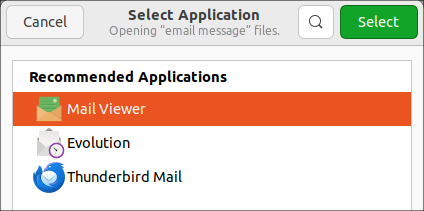
Opening msg Outlook files in Ubuntu or Linux Mint

Opening .msg Outlook files in Ubuntu or Linux Mint

Refer: https://freeelectron.ro/opening-msg-outlook-files-in-ubuntu-or-linux-mint/

Works okay, attachments are messed up.

Use this viewer instead and attachments might work.

To install msgconvert, open a shell, then type:

sudo apt-get install libemail-outlook-message-perl

Then cd to the folder where you have the .msg file or files, then type:

msgconvert *.msg

Remote Desktop Ubuntu RDP

In order to allow remote desktop after screen locks, you need to install an gnome extension:
Refer: https://blog.mruckman.com/2024/01/rdp-stops-working-when-screen-locks-turns-off-ubuntu-22-04/

Works as of 2019-09-21
Refer: https://askubuntu.com/questions/1133134/remote-desktop-hang-os-or-block-all-the-connections

Did not try this one yet, keeping for reference
Refer: https://linuxize.com/post/how-to-install-xrdp-on-ubuntu-20-04/

No need to install repository for Ubuntu 21.10. Also, when connecting, you need to be logged off of the target system.

sudo add-apt-repository ppa:martinx/xrdp-hwe-18.04 -y
sudo apt-get update
sudo apt-get install xrdp
sudo systemctl enable xrdp

I then rebooted my computer, and then look at the following place in settings for Ubuntu 24.04, and you need to change the password, or at least learn it. It's auto generated. You also need to enable remote logon, and not just desktop sharing.

System, Remote Desktop

If you need to uninstall:

sudo apt-get purge --autoremove xrdp

xRDP – The Infamous “Authentication Required to Create Managed Color Device” Explained - Current Bug

Refer: http://c-nergy.be/blog/?p=12073

Older Notes, No Longer Works

Refer: https://www.makeuseof.com/tag/how-to-establish-simple-remote-desktop-access-between-ubuntu-and-windows/

Real Remote Desktop client from windows works better, reboot the laptop and also you will get some error prompt, hit enter to get past the blank page.

For Remmina, you need to connect with Xorg, and at least 24-bit color

Get your IP address
$ ifconfig

Install xrdp
$ sudo apt-get install xrdp

Start xrdp
$ sudo systemctl enable xrdp

Rename Files

Using Regular Expressions and rename utility

sudo apt-get install rename
rename 's/\.jpeg$/\.jpg/' *.jpeg
rename "s/ - Unknown/-Track/g" *

Change File Extensions

$ rename 's/.m4v$/.mp4/' *.m4v

My Cloud SSH Access and Backup

Refer: https://programmingwithjim.wordpress.com/2017/02/22/enabling-rsync-to-the-wd-my-cloud/

mycloud_backups.txt

ssh -oConnectTimeout=300 -oKexAlgorithms=+diffie-hellman-group1-sha1 sshd@192.168.0.11

root@WDMyCloud / # cd shares
root@WDMyCloud /shares # ls -ltr
lrwxrwxrwx    1 root     root            22 Oct  2 12:33 mruckman -> /mnt/HD/HD_a2/mruckman
lrwxrwxrwx    1 root     root            20 Oct  2 12:33 joseph -> /mnt/HD/HD_a2/joseph
lrwxrwxrwx    1 root     root            20 Oct  2 12:33 family -> /mnt/HD/HD_a2/family
lrwxrwxrwx    1 root     root            31 Oct  2 12:33 TimeMachineBackup -> /mnt/HD/HD_a2/TimeMachineBackup
lrwxrwxrwx    1 root     root            23 Oct  2 12:33 SmartWare -> /mnt/HD/HD_a2/SmartWare
lrwxrwxrwx    1 root     root            20 Oct  2 12:33 Public -> /mnt/HD/HD_a2/Public
lrwxrwxrwx    1 root     root            13 Oct  2 12:42 Volume_1 -> /mnt/HD/HD_a2
lrwxrwxrwx    1 root     root            16 Oct  2 12:42 BUP_Slim_BK-1 -> /mnt/USB/USB1_b1

Backup to SSD DRIVE
rsync -ahrv --progress "/mnt/HD/HD_a2/mruckman" "/mnt/USB/USB1_b1/mruckman"
rsync -ahrv --progress "/mnt/HD/HD_a2/joseph"   "/mnt/USB/USB1_b1/joseph"
rsync -ahrv --progress "/mnt/HD/HD_a2/family"   "/mnt/USB/USB1_b1/family"
rsync -ahrv --progress "/mnt/HD/HD_a2/Public"   "/mnt/USB/USB1_b1/public"

TEST
rsync -ahrv --progress "/mnt/HD/HD_a2/Public/Fun Stuff" "/mnt/USB/USB1_b1/Fun Stuff"

NOTE: Using rSync will put "_un" folders on your source root folders

Visual Studio Code – Workspace Color Themes and Keyboard Bindings

Don't open last folder

Refer: https://blog.mruckman.com/2019/09/visual-studio-code-dont-open-last-folder/

For your workspace

mkdir .vscode

Copy this file there

settings.json

{
    "cSpell.words": [],
    "editor.fontSize": 13,
    "window.zoomLevel": 1.2,
    "files.trimTrailingWhitespace": true,
    "workbench.colorTheme": "Monokai"
}

Update keyboard bindings

File, Preferences, Keyboard Shortcuts

Triple dot, upper right hand corner, Show User Keybindings

Then upper right hand corner, "Open Keyboard Shortcuts

Here's the current keybindings.txt

Refer: https://stackoverflow.com/questions/71225580/move-to-the-next-line-when-commenting-a-line-in-vs-code

Bluetooth Adapter Ubuntu

VMWare ended up taking away the USB port for the blue-tooth adapter.   Eventually, fixed by using USB 4-port to get a different adapter to get recognized.  Ran the following, anyway and left it.  Don't know if it did anything or not.

Refer: https://www.linuxliteos.com/manual/hardware.html#bluetooth

$ sudo leafpad /etc/bluetooth/audio.conf
Add the following to the file:

[General]
Enable = Source,Sink,Headset,Gateway,Control,Media
Disable = Socket

HFP=false

[A2DP]
SBCSources=1
MPEG12Sources=0

sudo add-apt-repository ppa:cschramm/blueman
sudo apt-get update && sudo apt-get install blueman pavucontrol pulseaudio-module-bluetooth -y

Refer: https://www.reddit.com/r/linuxhardware/comments/t7hzdb/which_usb_bluetooth_dongle_would_you_recommend_me/

Use this to see kernel version

uname -r

UB500 Released September 2022

I've read in a few places that the TP-Link UB500 driver was added to the linux kernel starting with kernel version 5.16, meaning older kernel versions will require you to manually install the driver (https://github.com/tedboudros/tplink-ub500-linux-patch-guide)

Since Ubuntu 20.04 and 22.04 only have kernel version 5.15, I bought the previous version of this device (TP-Link UB400) and I can confirm it works out of the box on Ubuntu. I just plugged it in and it worked.

I'm currently using UB400, and UB500 DID NOT WORK yet.

You could build a newer kernel, instructions here:

Refer: https://github.com/tedboudros/tplink-ub500-linux-patch-guide

How to Change Your Kernel

Refer: https://blog.mruckman.com/2021/09/change-linux-kernel-being-used/

Ubuntu 22.04 Network Connection Has Question Mark Through it

Refer: https://www.ucartz.com/clients/index.php?rp=/knowledgebase/1406/Network-icon-shows-question-mark-in-Ubuntu-18.04.html

This Question Mark means the internal connectivity test fails and instead of a network icon, there is a question mark. Apparently, there are no network issues, but that question mark is annoying.

How to turn it off:
Go to Settings > Privacy > Connectivity Checking

Set it OFF. (Then, restart your WiFi connection)