
Increase the wrap size for Python in Visual Studio Code
File, Preferences, Settings, Extensions, Python
Formatting: AutoPep8 Args
Click "Add Item"
--max-line-length=2048Cisco AnyConnect Big Sur Pop-up
You will need to eventually uninstall and re-install a newer version of Cisco AnyConnect. You need at least version 4.9.04043 in order to see option in settings.
There an uninstall bash script you could use to uninstall.
Install SQLite Browser
It looks like my SQLite Browser Got Updated to Snap, and it was using the development branch and NOT the stable branch. Here are some of the snap tricks you can use to see what's installed, what's available and to fix things.
See what you are using
$ which sqlitebrowser
See what snap versions you have local
$ snap list sqlitebrowser --all
See what versions are available
$snap info sqlitebrowser
Revert a local version
$ sudo snap revert sqlitebrowser --revision 2851
Uninstall and Install Stable Version
$ sudo snap remove sqlitebrowser
$ sudo snap install sqlitebrowser --channel=latest/stable
Has a nice Query Builder
$ sudo apt-get update
$ sudo apt-get install sqliteman
SQLiteStudio
Refer: https://sqlitestudio.pl
SQLiteBrowser
Refer: https://linuxhint.com/install-sqlite-browser-ubuntu/
Install
$ sudo add-apt-repository ppa:linuxgndu/sqlitebrowser-testing
$ sudo apt-get update && sudo apt-get install sqlitebrowser
Remove
$ sudo apt-get remove sqlitebrowser
Create Custom Ubuntu Live CD with Cubic
Install Microsoft Fonts with Play on Linux
Refer: https://gist.github.com/ibrahimtuzlak0295/2a66981f99f25e08cb2039df53391b05
The Play on Linux Way
Normally the Microsoft Core Fonts can be installed like this:
- Click Configure
- Select the prefix where you want the fonts installed
- Tab Install components
- Select Microsoft Core Fonts from the list and click Install
Manually
However, if for some reason this doesn't install the fonts, it's still possible to do that manually. First install the ttf-mscorefonts-installer package:
sudo apt install ttf-mscorefonts-installerNote the prefix name: ls ~/.PlayOnLinux/wineprefix
And replace yourprefix in the command with the one you want:
cp /usr/share/fonts/truetype/msttcorefonts/* ~/.PlayOnLinux/wineprefix/yourprefix/drive_c/windows/FontsNow we have the core fonts in place. We can remove the package:
sudo apt purge ttf-mscorefonts-installerInstall Local Kubernetes on Ubuntu 20.04
Kubernetes - K8s
Installation
Install Docker Ubuntu
Refer: https://linuxconfig.org/how-to-install-docker-on-ubuntu-20-04-lts-focal-fossa
Use the apt command to install the docker.io package
sudo apt install docker.ioStart docker and enable it to start after the system reboot
sudo systemctl enable --now dockerOptionally give any user administrative privileges to docker
sudo usermod -aG docker SOMEUSERNAMEReboot Computer to Verify
rebootCheck docker version
docker --versionVerify Installation
docker run hello-worldInstall Single node with MicroKs
Refer: https://ubuntu.com/kubernetes/install#single-node
Install latest MicroK8s
sudo snap install microk8s --classicOptionally give any user administrative privileges to microk8s
sudo usermod -a -G microk8s mruckman
sudo chown -f -R mruckman ~/.kube
After installing MicroK8s, you should verify it is ready. Use this command, after another reboot:
microk8s.statusTo block until MicroK8s is ready, use the following command:
microk8s.status --wait-readyAccessing Kubernetes: MicroK8s embeds a kubectl and a .kubeconfig file required for accessing the installed MicroK8s. This avoids colliding with any local versions that might be already installed. Here is an example of how to use this:
microk8s.kubectlUpgrade to Ubuntu 20.04
There are issues using a GUI to upgrade, sometimes you cannot get to an acceptance button or the like. It's better to just upgrade from the terminal itself.
Refer: https://ubuntu.com/blog/how-to-upgrade-from-ubuntu-18-04-lts-to-20-04-lts-today
Use the following to see if an upgrade is available
sudo do-release-upgrade -cPerform the actual upgrade
sudo do-release-upgrade DVD Playback with Ubuntu 21.04
Refer: https://linuxconfig.org/unable-to-play-the-file-missing-decoder-on-ubuntu-20-04-lts-focal-fossa
PLEASE NOTE: VLC is still a better player option
sudo apt install -y ubuntu-restricted-extras
sudo apt install -y libdvdnav4 libdvd-pkg gstreamer1.0-plugins-bad gstreamer1.0-plugins-ugly
Desktop Icons No Longer work with Nautilus
Refer: https://markperez.dev/blog/organize-desktop-icons-ubuntu/
You will need to make Nemo your default desktop controller
Disable Nautilus desktop
gsettings set org.gnome.desktop.background show-desktop-icons falseInstall the software and remove gnome extension
sudo apt install nemo dconf-editor ; sudo apt remove gnome-shell-extension-desktop-iconsAutostart the nemo desktop icons, but this needs added as startup action:
nemo-desktopThen in UI GUI "Startup Applications", add
Name: nemo-desktop
Command: nemo-desktop
Comment: Get icons working on Desktop
Reboot, to complete Desktop setup
Charles did NOT upgrade
Remove it
sudo apt-get remove charles-proxyRefer: https://www.charlesproxy.com/latest-release/download.do
Extract the download, and launch
/home/mruckman/Downloads/charles/bin/charles
The following DOES NOT Work!
wget -q -O - https://www.charlesproxy.com/packages/apt/PublicKey | sudo apt-key add -
sudo apt-get update
sudo apt-get install charles-proxy
Stacer needed re-installed, use software center
Update How Visual Studio Code Works
Remove all parts of "Visual Studio Code"
sudo apt purge code
sudo apt autoremove
Delete launchers
/usr/share/applications
~/.local/share/applications
Visual Studio Code is going to have problems, ended up removing references to it from menu editor.
Refer: https://github.com/microsoft/vscode/issues/41037
sudo apt-get install codeYou need to delete this file and create a new one with menu editor.
/home/mruckman/.local/share/applications
[Desktop Entry]
Version=1.1
Type=Application
Name=Visual Studio Code
Comment=Editor
Icon=com.visualstudio.code
Exec=/usr/share/code/code --no-sandbox --unity-launch %F
Actions=
Categories=Development;
You can use this file instead of creating it:
menulibre-visual-studio-code.desktop
Fonts Need Updated
Refer for Patch: https://www.leowkahman.com/2018/01/02/workaround-to-failure-to-download-extra-files-ttf-mscorefonts-installer/
Go here: https://sourceforge.net/projects/corefonts/files/the%20fonts/final/
Delete flash plug-in if it exists
sudo su -
cd /var/lib/update-notifier/package-data-downloads/partial
dpkg-reconfigure ttf-mscorefonts-installer
fc-cache -vr
Refer: http://people.uleth.ca/~daniel.odonnell/Blog/fixing-failure-to-download-extra-fonts-error-in-ubuntu-1910
Refer: https://ranatauqeer.blogspot.com/2019/03/failure-to-download-extra-data-files.html
ttf-mscorefonts-installer_3.7_all-deb
Use the above file or download them fresh again
sudo apt-get install ubuntu-restricted-extras
wget http://ftp.de.debian.org/debian/pool/contrib/m/msttcorefonts/ttf-mscorefonts-installer_3.7_all.deb
sudo apt purge ttf-mscorefonts-installer -y
sudo dpkg -i ttf-mscorefonts-installer_3.7_all.debOverride Location of M2 folder in IntelliJ
Trick: The modal might not be expanded enough for you to see the override checkbox.
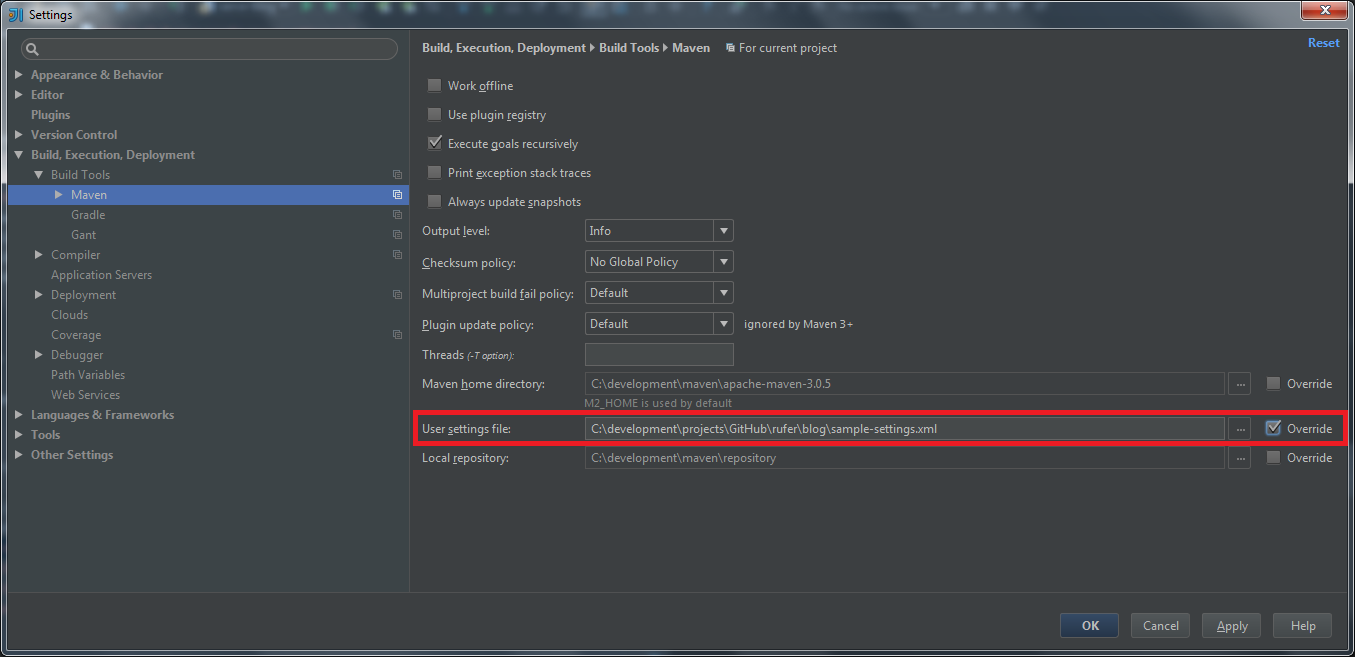
Download a sample settings.xml to get things started. IntelliJ does not work without it.
Source Tree Windows Credentials
Delete credentials here: C:\Users\XXX\AppData\Local\Atlassian\SourceTree\passwd