Stop Your Mac From Creating .DS_Store Files on Shared Network Drives

Refer: https://www.tekrevue.com/tip/stop-ds-store-files-mac-network/

defaults write com.apple.desktopservices DSDontWriteNetworkStores -bool TRUE

macOS creates a .DS_Store file in every folder you view in Finder. This file stores metadata about that folder’s contents as well as user customizations for things like view type and icon size.

These .DS_Store files are hidden from you in macOS so they won’t clutter up your folder views. But in mixed-OS environments, the .DS_Store files can become a problem. That’s because your Mac creates these files even for shared network locations. So if you’re sharing a NAS at your office with people using Windows PCs, they may suddenly see a bunch of .DS_Store files littering the shared directories (at least, depending on how the Windows users have their view preferences configuredin File Explorer).

A Mac’s .DS_Store file visible in Windows.
You can manually delete .DS_Store files without losing any data. The only issue is that when you next browse to a shared folder after deleting its .DS_Store file, Finder will revert to the default layout and won’t remember any custom view types or font sizes you may have set. This approach, however, requires you to manually delete these files each time they pop up (and macOS will create a new replacement file each time you return to the shared directory). Instead, you can configure macOS to not create .DS_Store files on network shares in the first place.

Stop Creating .DS_Store Files
To configure your Mac to not create .DS_Store files on shared network drives, log into macOS, launch the Terminal, and enter the following command:

defaults write com.apple.desktopservices DSDontWriteNetworkStores -bool TRUE

Once you’ve executed the command, save any open work and log out of your macOS user account. When you log back in, reconnect to your shared network drives. Existing .DS_Store files may still be present and will need to be manually deleted, but your Mac won’t create any new .DS_Store files as you browse the shared directories going forward.
Install VirtualBox on Ubuntu 18.04 and Get USB Working

There are some issues installing VirtualBox 6.0 that's not in the basic Ubuntu repositories.  Easiest install is from the software center or apt-install.

$ sudo apt install virtualbox virtualbox-ext-pack

Getting USB Support to Work
Refer: https://www.techrepublic.com/article/how-to-enable-usb-in-virtualbox/

  • Install the extension pack on the host and on the guest
  • $ sudo usermod -aG vboxusers mruckman
  • Reboot

Disable Cortana on Windows 10

Refer: https://www.howtogeek.com/265027/how-to-disable-cortana-in-windows-10/

You will need to use regedit and you might need to add a new key. Navigate to:

HKEY_LOCAL_MACHINE\SOFTWARE\Policies\Microsoft\Windows\Windows Search

If you don’t see a “Windows Search” key (folder) below the Windows folder, right-click the Windows folder and select New > Key. Name it “Windows Search”.

Right-click the “Windows Search” key (folder) in the left pane and select New > DWORD (32-bit) Value.

Name the value “AllowCortana”. Double-click it and set the value to “0”.

You can now close the registry editor. You’ll have to sign out and sign back in or restart your computer before the change takes effect.

Firefox Disabled Extensions – Enable Them Again

Notes on how to use debug mode:
Refer: www.reddit.com/r/firefox...

Use about:debug, and the load each plug-in to enable it again:
Refer: https://superuser.com/questions/379239/where-is-the-mozilla-firefox-plugins-folder-on-a-mac

  • about:debug
  • create an alias to see hidden folders
  • Navigate to /User/<user>/Library/Application Support/Firefox/Profiles/<profile>/extensions


Enable SSH on Target Host

Refer: https://gist.github.com/slowkow/8798394

The hostname of your remote server.

host=myserver.com

Create this folder if it does not exist: ~/.ssh

mkdir ~/.ssh

Set the correct permissions (required)

chmod 700 ~/.ssh

Generate an RSA key pair for identification with the remote server

ssh-keygen -t rsa

Copy your public key to the remote server

cat ~/.ssh/id_rsa.pub | ssh $host 'cat >> ~/.ssh/authorized_keys'

ssh is very strict about correct permissions, let's not change home folder persmissions

chmod 700 ~/.ssh
chmod 600 ~/.ssh/authorized_keys

At this point, you can connect to your server without typing a password:

ssh username@myserver.com

On Demand Data Pass – Prepaid

Refer: https://support.t-mobile.com/docs/DOC-7261#secondheading

How to add for a Pay As You Go (Prepaid) plan

To purchase a pass on your Pay As You Go plan, call T-Mobile customer service by dialing 611 from your T-Mobile phone, or call 1-877-746-0909. You can get a 1-day pass or a 1-week (7-day) pass. Automated account help and customer service representatives are available 24 hours a day, 7 days a week. For the hearing impaired, TTY service is available by calling 1-877-296-1018, 7 days a week, from 3 a.m.-10 p.m. PT.

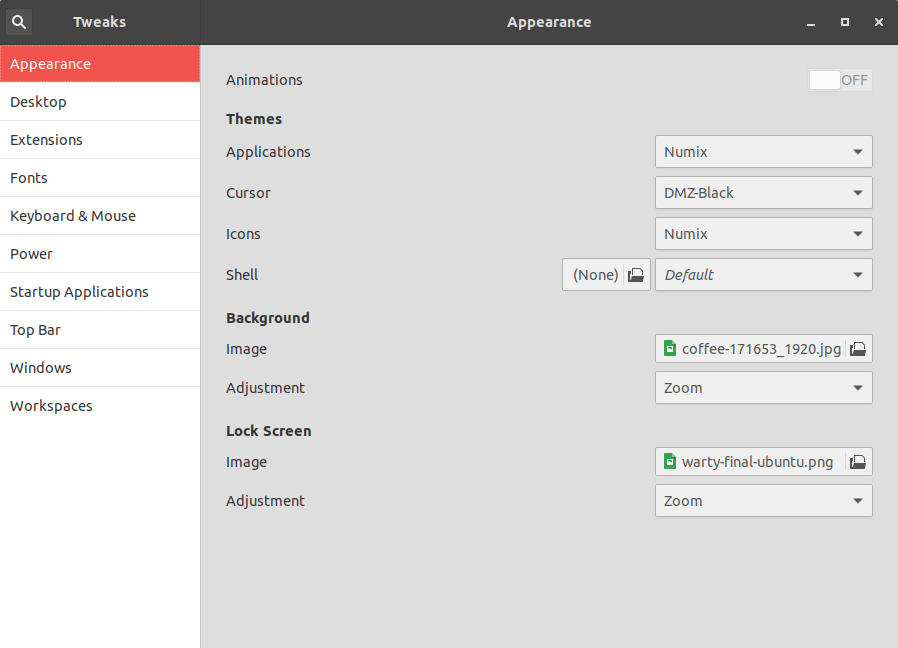
Install Numix Theme

Refer: https://itsfoss.com/install-numix-ubuntu/
Refer: https://www.gnome-look.org/p/1170667/

$ sudo add-apt-repository ppa:numix/ppa
$ sudo apt-get update
$ sudo apt-get install numix-gtk-theme numix-icon-theme-circle

The wallpapers no longer exist
$ sudo apt-get install numix-wallpaper-*

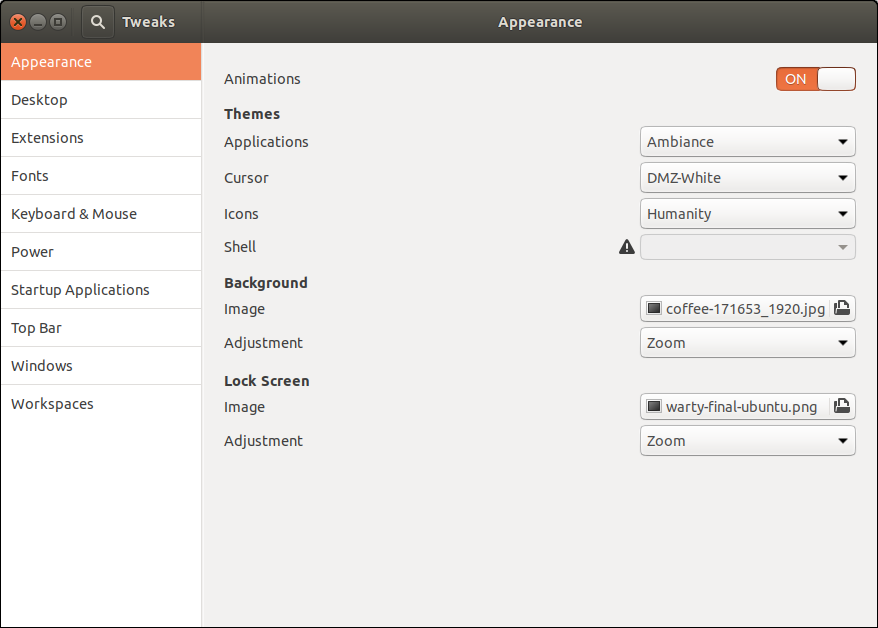
Original Defults