Make a Window Transparent in Ubuntu 18.04

Refer: http://tipsonubuntu.com/2018/11/12/make-app-window-transparent-ubuntu-18-04-18-10/

Open terminal either via Ctrl+Alt+T or from software launcher.

When terminal opens, paste following the command and hit enter:
sh -c 'xprop -f _NET_WM_WINDOW_OPACITY 32c -set _NET_WM_WINDOW_OPACITY $(printf 0x%x $((0xffffffff * 80 / 100)))'

Your mouse cursor will become cross-shaped, simply click on any window and it become 80% opacity.
In the command, you can change 80 to number range from 1 ~ 99 for other window opacity.

To reset the window opacity, run command:
sh -c 'xprop -f _NET_WM_WINDOW_OPACITY 32c -set _NET_WM_WINDOW_OPACITY $(printf 0x%x $((0xffffffff * 100 / 100)))'

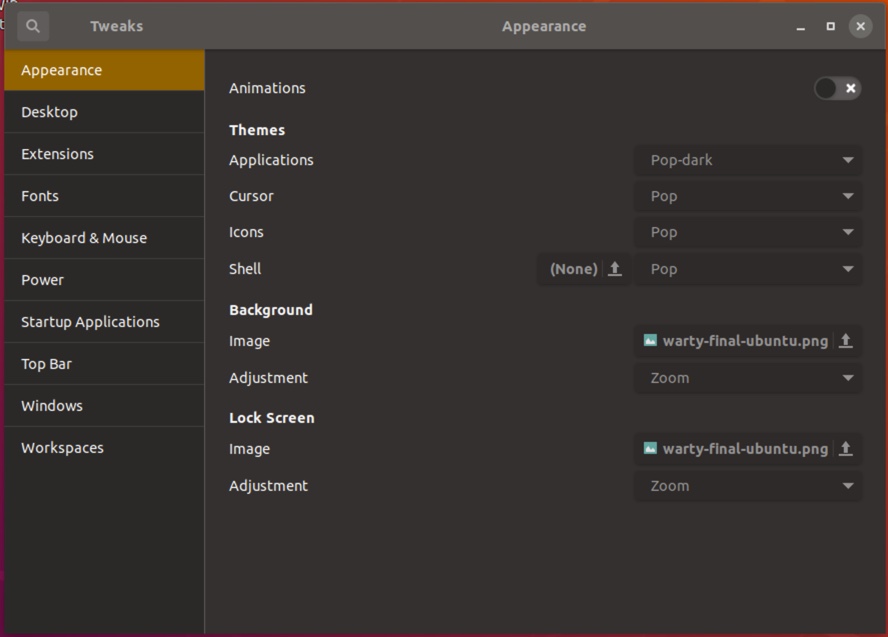
Installing Pop Theme

Refer: https://itsfoss.com/install-themes-ubuntu/

$ sudo add-apt-repository ppa:system76/pop
$ sudo apt-get update
$ sudo apt-get install pop-theme
$ sudo apt install gnome-shell-extensions


Install Wine on Ubuntu 18.04 with PlayOnLinux

Refer: http://tipsonubuntu.com/2019/02/01/install-wine-4-0-ubuntu-18-10-16-04-14-04/

The official wine repository offers Ubuntu packages for all current Ubuntu releases, so you can easily install it via following steps:

1. Open terminal from application menu, then run command to enable 32 bit architecture:

sudo dpkg --add-architecture i386

Type user password (no visual feedback) when it prompts and hit Enter.

2. Run command to download and add the repository key:

wget -nc https://dl.winehq.org/wine-builds/winehq.key

sudo apt-key add winehq.key

3. For Ubuntu 18.04, Linux Mint 19.x, run command to add the repository:

sudo apt-add-repository 'deb https://dl.winehq.org/wine-builds/ubuntu/ bionic main'

For other releases, replace bionic in the code with:

cosmic for Ubuntu 18.10.
xenial for Ubuntu 16.04, and Linux Mint 18.x.
trusty for Ubuntu 14.04.

4. Finally check system package cache and install Wine 4.0:

sudo apt-get update

sudo apt-get install --install-recommends winehq-stable

For Ubuntu 18.04 and higher, you can skip apt-get update as it’s done after adding PPA.

How to Use Wine in Ubuntu:

Once installed, you need to generate configuration file by running command:

winecfg

It prompts you to install some libraries and finally launches the configuration dialog.

To run a .exe file, right-click on file, select “Open with Other Application”, and choose “Wine Windows Program Loader”.

Uninstall:

To remove Wine repository, go to Software & Updates -> Other Software, highlight the repository line and remove it.

Now you can install PlayOnLinux with the software store...

AdBlock Links

Look for AdGuard Pro or AdBlock need 127.0.0.1 lb.usemaxserver.de

Refer: https://appleiphonemod.blogspot.com/2018/05/system-wide-blocking-in-adblock-for-ios.html?m=1

https://goo.gl/rs8xDQ
https://raw.githubusercontent.com/Twanthegreat/Adblockios/master/updatedAdBlockRulesv4.1.txt

Refer: https://www.reddit.com/r/ios/comments/7faeqz/dns_list_for_adblock_futuremind/
Refer: https://github.com/AdAway/AdAway/wiki/hostssources
https://adaway.org/hosts.txt

Refer: https://github.com/BlackJack8/iOSAdblockList
https://github.com/BlackJack8/iOSAdblockList/blob/master/iPv4Hosts.txt


24 Python Libraries

Refer: https://www.infoworld.com/article/3008915/24-python-libraries-for-every-python-developer.html

Another web browser like flask, called bottle
Refer: http://bottlepy.org/docs/dev/
$ sudo pip install bottle

Run Linux sh command inside python
# Refer: http://amoffat.github.io/sh/
$ sudo pip install sh

Abstracts Selenium and can run Chrome and headless Chrome
Refer: https://splinter.readthedocs.io/en/latest/drivers/chrome.html
$ sudo pip install splinter


T-Mobile Prepaid Options

Refer: https://support.t-mobile.com/docs/DOC-7261

How to add for a Pay As You Go (Prepaid) plan

To purchase a pass on your Pay As You Go plan, call T-Mobile customer service by dialing 611 from your T-Mobile phone, or call 1-877-746-0909. You can get a 1-day pass or a 1-week (7-day) pass. Automated account help and customer service representatives are available 24 hours a day, 7 days a week. For the hearing impaired, TTY service is available by calling 1-877-296-1018, 7 days a week, from 3 a.m.-10 p.m. PT.


Parallels Resize Issue

Refer: https://askubuntu.com/questions/1073568/preventing-window-resizing-after-resume

There's an issue when resuming from suspend, the screen warps and it needs resized.  This fix does not work completely but it downsizes the window, so you just need to double-click to get it working again.  This is NOT a perfect solution for Parallels and it is wonky when suspending in full screen too.

If this returns a value of uint32 0, then it means you have automatic scaling turned on. I found that setting this to a specific value (in my case 1) fixed the issue, which you can do using the following:

gsettings get org.gnome.desktop.interface scaling-factor
gsettings set org.gnome.desktop.interface scaling-factor 1

API Mock Testing

Simple tool to verify you can send various requests
Refer: https://httpbin.org

Simple Debug Post Tools

  • https://webhook.site/#!/
  • https://pipedream.com

Mocking Tools

  • https://getsandbox.com
    • https://github.com/getsandbox/sandbox
  • https://www.mockable.io
  • http://jsonstub.com

You can run it locally:
$ docker run -p 80:80 kennethreitz/httpbin

Announcing Httpbin.org

June 12, 2011
The development of Requests, the Python HTTP Module for Humans, led to some annoying testing practices. Relying on random websites and services in order to test different capabilities of the HTTP client became annoying quickly. PostBin.org was perfect for testing POST request behavior, but is usless for other situations. I was hoping to extend its functionality to other request types, but it turns out that PostBin runs on the Google App Engine platform. No.

Thus, httpbin.org was born.

Example Endpoints

To get a feel for what HttpBin does, here are a few endpoint examples:

$ curl http://httpbin.org/ip :

{"origin": "::ffff:24.127.96.129"}
$ curl http://httpbin.org/user-agent :

{"user-agent": "curl/7.19.7 (universal-apple-darwin10.0) libcurl/7.19.7 OpenSSL/0.9.8l zlib/1.2.3"}

Lubuntu Synapse – Program Search

Refer:  http://lubuntuhowto.blogspot.com/2017/03/using-synapse-on-lubuntu.html

sudo apt-get install synapse

After you install it, you have to launch it for your current session, and then it will be active when you hit [Ctrl] + [Space]

It's found in Start, Accessories, Synapse