MacBook Three Finger Drag

Refer: https://support.apple.com/en-us/HT204609

  1. From the Apple menu, choose System Preferences.
  2. Click the Accessibility icon.
  3. Choose Mouse & Trackpad from the options on the left.
  4. Click Trackpad Options.
  5. Place a checkmark next to "Enable dragging."
  6. From the related pop-up menu, choose “three finger drag” so there's a checkmark next to it.
  7. Click OK.

Change Grub Boot Order

This contains the command line version to update:

Refer: http://www.linuxandubuntu.com/home/how-to-change-boot-order-set-default-boot-os-in-ubuntu-14-10-15-04-linux-mint-or-other-derivatives

How to set Windows 10 as default in Ubuntu (grub) boot loader with GUI

Refer: https://www.itsupportguides.com/knowledge-base/ubuntu/set-windows-10-default-ubuntu-grub-boot-loader/

The following steps show how to set Windows 10 as the default operating system when using the Ubuntu (grub) boot loader.

This is for when you are dual-booting Windows 10 and Ubuntu.

We’ll be using the Grub Customizer software by Daniel Richter.

Step 1: Install the Grub Customizer software

If you haven’t already, boot into Ubuntu
Click on the Ubuntu icon in the launcher to open the search dialog
Type “terminal” and click on the icon when it appears

In the terminal – run the following command
sudo add-apt-repository ppa:danielrichter2007/grub-customizer
Enter your password

Press ‘Enter’ on your keyboard when prompted

Now run the following command
sudo apt-get update

When it’s done, run the following command and enter ‘Y’ when prompted
sudo apt-get install grub-customizer

Step 2: Change the boot order

Click on the Ubuntu icon in the launcher to open the search dialog
Type “Grub” and click on the Grub Customizer icon when it appears

Enter your password in the prompt and click ‘Authenticate’

In the list you will see the item for your Windows 10 installation. Click on it.
Now use the arrows in the toolbar to move it to the top of the list.
Click ‘Save’

Now restart your computer and confirm that Windows 10 is now the default boot option.

Getting Asunder MP3 Ripper Installed in Ubuntu 18.04

Out of the box installation was not working, use Synaptic to install instead.

  • Install Asunder through Synaptic
  • Install Lame and Lame-Doc through Synaptic
    $ sudo apt-get install asunder lame

For Rhythmbox on Ubuntu 19.04

  • $ sudo apt-get install gstreamer1.0-plugins-bad gstreamer1.0-plugins-ugly gstreamer1.0-libav gstreamer1.0-tools

Getting Brasero Installed

$ sudo apt-get install synaptic -y
$ sudo apt-get install ubuntu-restricted-extras

Use this to install Brasero with all the goodies

This may have helped but was trying multiple actions

Refer: https://askubuntu.com/questions/819671/how-should-i-install-libdvdcss-so-2-library-to-ubuntu-16-04
$ sudo apt install libdvd-pkg
$ sudo dpkg-reconfigure libdvd-pkg

Windows 10 – Hyper-V Virtual Machine

Windows is coming with its own version of VMWare, just like the old VirtualPC

Refer: https://blogs.windows.com/buildingapps/2018/09/17/run-ubuntu-virtual-machines-made-even-easier-with-hyper-v-quick-create/#eq5F3ETPfj4WjHbk.97

Refer: https://docs.microsoft.com/en-us/virtualization/hyper-v-on-windows/quick-start/quick-create-virtual-machine#windows-10-fall-creators-update

If the Hyper-V Manager and Hyper-V Quick Start are not installed, you can install them manually by using PowerShell

Refer: http://techgenix.com/installing-configuring-and-using-hyper-v-windows-10/

  • Search for PowerShell and right-click to run as Administrator
  • Run the following command


Enable-WindowsOptionalFeature -Online -FeatureName Microsoft-Hyper-V -All

Windows 10 Shutdown Restart Issue with Parallels

Symptoms
The virtual machine processor was reset by the operating system. error message is shown when working with a Windows virtual machine:

Resolution
While Parallels Engineering Team is working on the permanent fix for this issue by disabling hybrid hibernation it's possible to temporary resolve the issue:

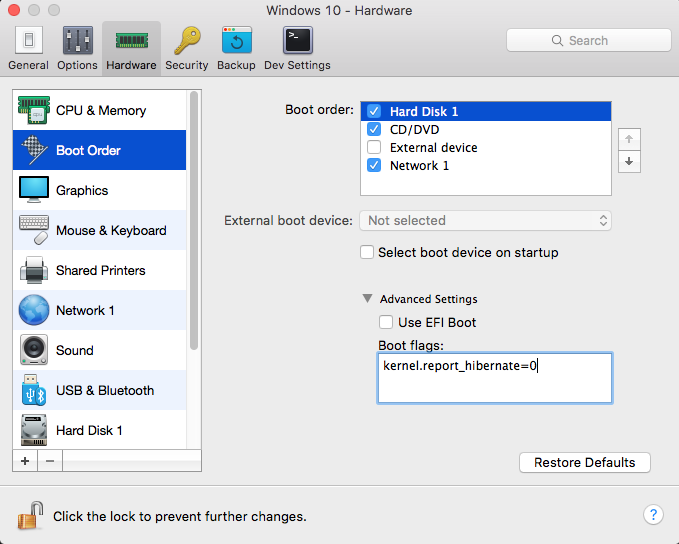
  • Shut down the Windows virtual machine and open its configuration.
  • Switch to the Hardware tab and choose Boot Order from the list.
  • Expand Advanced Settings dropdown menu and insert the following boot flag in the Boot flags section:
    kernel.report_hibernate=0

Refer: https://kb.parallels.com/en/123831

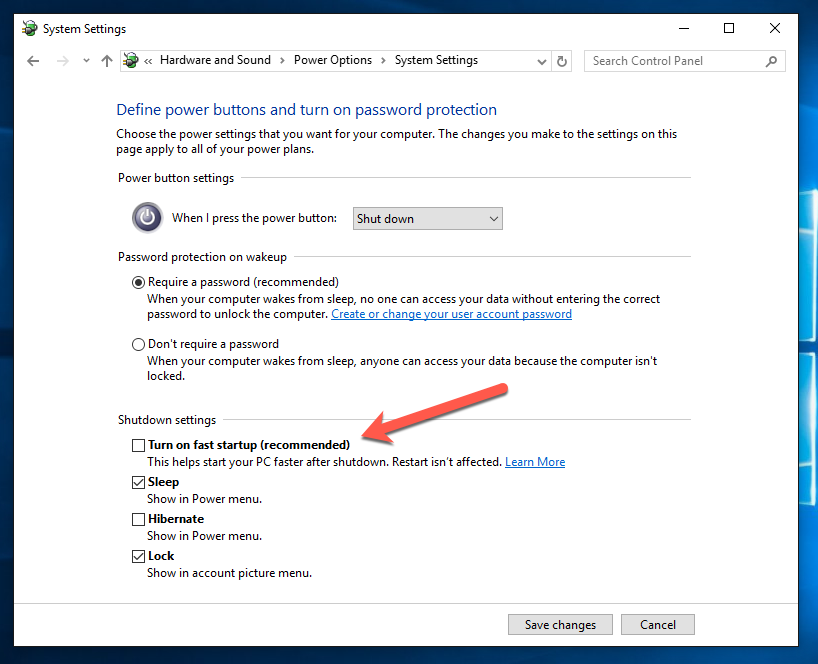
Other possible solutions, did not work but when using the above switch, the options completely disappeared as an option.  The trick was to delete the fast boot option.

Refer: https://winaero.com/blog/how-to-disable-or-enable-fast-startup-in-windows-10/

To disable Fast Startup in Windows 10, follow these simple instructions:

  • Right click the Start button or you can press Win + X shortcut keys together to open the Power Users menu / Win + X menu.
  • In the Win+X menu, click the Control Panel item. Windows 10 win+x menu control panel
  • Go to the following applet:
  • Control Panel\System and Security\Power Options
    Windows 10 Control panel Power options
  • Click the link "Change what the power button does" on the left.
  • The following window will appear on the screen: Windows 10 change what power button does
  • Click on the 'Change settings that are currently unavailable' link to make the Shutdown options available.
  • Untick the Turn on fast startup (recommended) option: Windows 10 disable fast startup

That's it. Now the Fast Startup feature is disabled.

Slow Shutdown Ubuntu 16.04

After doing some cleanup, it looks like shutdown was starting to take a long time.  Did the following figuration change.

Refer: https://blog.imposeren.org/2016/11/how-to-fix-ubuntu-1604-hangs-or-very.html

$ sudo edit /etc/systemd/system.conf

Uncomment the following line and change it from 10 seconds to 5 seconds

[Manager]
DefaultTimeoutStopSec=5s

Logitech Mouse and Keyboard Software

You need to install this software on your Mac to get it working properly.

Refer: https://support.logitech.com/en_us/product/wireless-mouse-m510/downloads

Logitech Options

Logitech Control Center

Logitech Unifying Software

Custom Linux Live CD

Refer: https://www.ostechnix.com/create-custom-ubuntu-live-cd-image/

Install Cubic
Cubic developer has made a PPA to ease the installation process. To install Cubic on your Ubuntu system, run the following commands one by one in your Terminal:

$ sudo apt-add-repository ppa:cubic- wizard/ release
$ sudo apt-key adv --keyserver keyserver. ubuntu. com --recv-keys 6494C6D6997C215E
$ sudo apt update
$ sudo apt install cubic