Remove nvidia splash screen

After installing the the nvidia graphic drivers for Ubuntu 14.04, an Nvidia splash would keep appearing during logon.

One command to disable Nvidia logo
Refer: http://ubuntuhandbook.org/index.php/2013/08/remove-nvidia-logo-from-ubuntu-startup-screen/

The easiest way to do this is running below command in terminal (press Ctrl+Alt+T):
$ sudo nvidia-xconfig --no-logo

Lexmark Prevail Pro 705 Install with Ubuntu

This driver works with Ubuntu 14.04 64-bit
Works-Ubuntu-14-lexmark-inkjet-legacy-wJRE-1.0-1.amd64.deb.sh_Pro900.tar.gz

Extract it in your downloads folder, and it's a single *.sh
$ sudo su -

And execute the script and follow the prompts.
Refer: http://support.lexmark.com/index?docLocale=en_US&page=content&id=DR20854&locale=EN&userlocale=EN

Actual filename: lexmark-inkjet-legacy-wJRE-1.0-1.amd64.deb.sh_Pro900.tar.gz

If you get this error you will need to uninstall a previous version of the Lexmark drives

The installer has detected previously installed component. -- lexmark-inkjet-legacy Please remove the installed component and run the installer again.

sudo apt-get --purge remove lexmark-inkjet-legacy
sudo apt-get --purge remove lexmark-wsu-legacy

Older Notes or 32-bit version of Ubuntu - Kept for reference

Refer: lexmark.com

Printer driver (with JRE) for 32-bit Linux distributions with Debian-based packaging
File Name: lexmark-inkjet-legacy-wJRE-1.0-1.i386.deb.sh.tar.gz
Released 10/25/2011
Version: 1.0.1
File Size 4.9859946E7
Release Notes

This package installs a printer driver for 32-bit Linux distributions with Debian-based packaging. The following components will be installed on your system along with the printer driver:

Lexmark Printer Toolbox - allows users to perform maintenance operations on the device and check ink levels of the cartridges

Wireless Setup Utility - allows users to configure the wireless settings for wireless capable printers

This package is installed with Java Runtime Environment (JRE), used for running Java applications.

INSTALLATION INSTRUCTIONS

IMPORTANT: Follow these steps only if your printer is listed in the Linux Home Office and SMB Products compatibility page.

A. RUNNING THE GUI INSTALLER SCRIPT FROM THE TERMINAL

Open up your favorite terminal (xterm, konsole, gnome-terminal, etc)

Extract the zip file
Use the following command to install the driver
DEB-based distros:

# ./lexmark-inkjet-[xx]-driver-[x.x.x]..i386.deb.sh
Follow the instruction in the installation screen.

B. RUNNING THE GUI INSTALLER SCRIPT
Do not attach the printer via USB to the Linux machine.
Extract the zip file.
For DEB-based systems: lexmark-inkjet-[xx]-driver-[x.x.x].i386.deb.sh

Run the installer script file by double-clicking on the file icon and then click the ""Run in Terminal"" button or run the script file via command-line.

Follow the instructions in the installer screen.

Remove guest account from Ubuntu

Just press Ctrl+Alt+T on your keyboard to open Terminal. When it opens, run the command(s) below:

sudo nano /usr/share/lightdm/lightdm.conf.d/50-ubuntu.conf

Add the following line, save and close.

allow-guest=false

Reboot, and you're set.

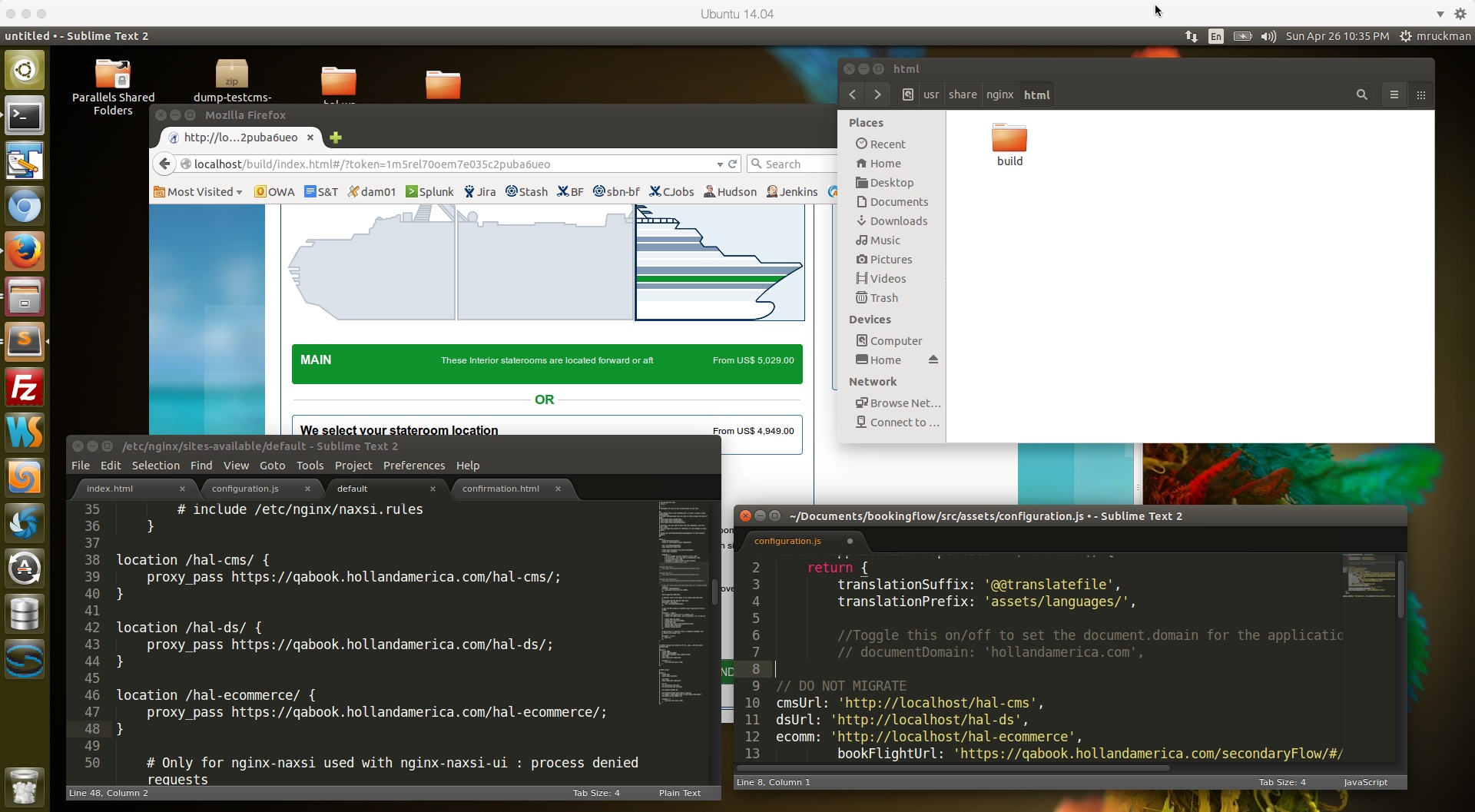
Using nginx as a reverse proxy, installing in Ubuntu 14.04

Sample nginx configuration changes:
nginx.conf
default
nginx-example-2015-04-26_22-35-21

Install nginx in Ubuntu 14.04
Refer: https://www.digitalocean.com/community/tutorials/how-to-install-nginx-on-ubuntu-14-04-lts

$ sudo apt-get update
$ sudo apt-get install nginx

It runs under localhost by default.

Manage the Nginx Process

$ sudo service nginx stop
$ sudo service nginx start
$ sudo service nginx restart

Location of default HTML files for nginx:
/usr/share/nginx/html

Change permissions to allow easy access to files:
$ sudo chown -R $USERID:$USERID /usr/share/nginx/html
$ sudo chmod -R 755 /usr/share/nginx/html

You can copy the "build" folder there now for testing, make sure to restart nginx
http://localhost/build/index.html#/?token=1m5rel70oem7e035c2puba6ueo

Additional Setup for Reverse Proxy

Refer: https://www.digitalocean.com/community/tutorials/how-to-set-up-nginx-server-blocks-virtual-hosts-on-ubuntu-14-04-lts

Uncomment One Line
$ sudo gedit /etc/nginx/nginx.conf

### BEGIN SNIPPET 1 OF 2 ###
server_names_hash_bucket_size 64;
### END SNIPPET 1 OF 2 ###

You can edit the default nginx property file here, with 3 reverse proxy examples, and ucomment one line, and restart:
$ sudo gedit /etc/nginx/sites-available/default

### BEGIN SNIPPET 2 of 2 ###
location /hal-cms/ {
proxy_pass https://qabook.hollandamerica.com/hal-cms/;
}

location /hal-ds/ {
proxy_pass https://qabook.hollandamerica.com/hal-ds/;
}

location /hal-dsbooking-server/ {
proxy_pass https://qabook.hollandamerica.com/hal-dsbooking-server/;
}

location /hal-ecommerce/ {
proxy_pass https://qabook.hollandamerica.com/hal-ecommerce/;
}

# Only for nginx-naxsi used with nginx-naxsi-ui : process denied requests
#location /RequestDenied {
# proxy_pass http://127.0.0.1:8080;
#}
### END SNIPPET 2 0f 2 ###

Verify your nginx configuration
$ sudo nginx -c /etc/nginx/nginx.conf -t

UI Code Monkey Patch Example:

// DO NOT MIGRATE
cmsUrl: 'http://localhost/hal-cms',
dsUrl: 'http://localhost/hal-ds',
ecomm: 'http://localhost/hal-ecommerce',

NOTE: Make sure to restart Nginx after all of your configuration changes

$ sudo service nginx restart

Mount Samba Drive in Ubuntu or Mac OS

Ubuntu

Open Files, and under Network "Connect to Server"

smb://isilonpool01.hq.halw.com

You'll then be prompted to enter your domain and credentials, after that you should be connected.

Mac OS X

With ForkLift, Go, Connect

Your will need the following information:
Protocol:SMB
Server: isilonpool01.hq.halw.com
Username:
Password:

Raspberry Pi Access Point Setup

Starting the research

Tutorial: http://lcdev.dk/2012/11/18/raspberry-pi-tutorial-connect-to-wifi-or-create-an-encrypted-dhcp-enabled-ad-hoc-network-as-fallback/

Origin reference to tutorial: http://raspberrypi.stackexchange.com/questions/1074/how-can-i-setup-a-wireless-access-point-or-and-ad-hoc-network