Disable CORS in Chrome

Launch the following in Ubuntu:
chromium-browser --disable-web-security

For Mac OSX
open /Applications/Google\ Chrome.app --args --disable-web-security

Refer: http://stackoverflow.com/questions/3102819/disable-same-origin-policy-in-chrome

Refer: https://romkey.com/2011/04/23/getting-around-same-origin-policy-in-web-browsers/

Python Goodies

Listing Defined Variables

dir() will give you the list of in scope variables:
globals() will give you a dictionary of global variables
locals() will give you a dictionary of local variables

To get the names:

for name in vars().keys():
print(name)
To get the values:

for value in vars().values():
print(value)

Printer: Brother HL-2170W

Installing Brother HL-2170W LaserJet on Ubuntu 14.02 and 18.04

Refer: https://support.brother.com/g/b/downloadtop.aspx?c=us&lang=en&prod=hl2170w_all

Mac Setup, Get Binary from Site

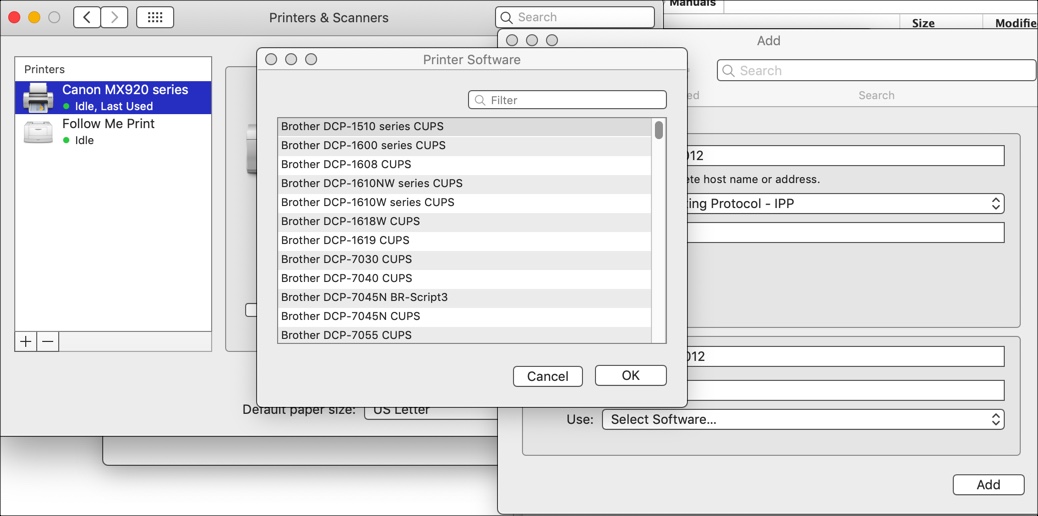
IP address for installation is: 192.168.000.012
Web Interface is: http://192.168.0.12/printer/main.html

Brother has web portal at http://192.168.0.12 (admin / access)

The Brother site does has some installation instructions but it's for 32-bit software had to mess around with it, but the drivers seem to work, maybe?  Still used the Printer wizard.

Here's the installation instructions and *.gz file:
linux-brprinter-installer-2.2.zip

Using the wizard from the command line is the best way to install.  Choose option to install with IP address, when finishing and testing the installation.

Make sure you run the installation as sudo and also choose at the end "Will you specify the Device URI? [Y/n] ->y" with option 12 to specify the IP address of the printer as 192.168.0.12

AppSocket/HP JetDirect
Host: 192.168.86.35 (T-Mobile)
Host: 192.168.0.12 (XFinity)
Click Forward
Click Apply

Older Notes

Use PPD to install: brother-hl-2170w-PPD

Raspberry Pi Setup

Getting an error after installation:

Refer: link

$ lxsession-edit

Opens Desktop Session Settings dialog box and uncheck LXPolKit. Click OK. then reboot

The following may or may not be of any use, wait until your next re-installation.

Wi-fi Dongle Kept Disconnected, actually this is not true, it automatically kept re-connecting

The Wireless Dongle Kept Disconnecting

Refer: link

Started after installing ice weasel but it might be something else instead, here's what a recommended solution would be in order to turn off power saving.

This gets it back:

$ sudo /etc/init.d/dbus restart

This might be a permanent fix:

Refer: link

pi@raspberrypi:~$ cat /etc/network/interfaces
+ expand sourceview plain
auto lo

iface lo inet loopback
iface eth0 inet dhcp

allow-hotplug wlan0
iface wlan0 inet manual
wpa-roam /etc/wpa_supplicant/wpa_supplicant.conf

Ended up adding scan_ssid=1, and that might have fixed it

pi@raspberrypi:~$ sudo cat /etc/wpa_supplicant/wpa_supplicant.conf
+ expand sourceview plain
ctrl_interface=DIR=/var/run/wpa_supplicant GROUP=netdev
update_config=1
network={
ssid="enter-ssid-here"
scan_ssid=1
psk="enter-key-here"
proto=RSN
key_mgmt=WPA-PSK
pairwise=CCMP
auth_alg=OPEN
}

Create and edit a new file in /etc/modprobe.d/8192cu.conf
sudo nano /etc/modprobe.d/8192cu.conf

and paste the following in
# Disable power saving
options 8192cu rtw_power_mgnt=0 rtw_enusbss=1 rtw_ips_mode=1

Then reboot with sudo reboot

Installing Ice Weasel

$ sudo apt-get update
$ sudo apt-get install iceweasel

Making Sure Timezone is Set Properly

Before going into startx, you can re-run the configuration:

$ dpkg-reconfigure tzdata

Perl and SQLite Example along with MongoDB

Within Ubuntu using:SQLiteman

You'll need the DBI package, if not installed do the following within Ubuntu
sudo perl -MCPAN -e shell
cpan> install DBI
cpan> install DBD::SQLite module

Simple Perl script example, creating and inserting into a table: example1.pl

Installing Driver for MongoDB is just as easy, but be warned, it takes a long time to install.

sudo perl -MCPAN -e shell
cpan> install MongoDB::Connection


Use Mac for Personal WiFi Hotspot

Refer: http://stackoverflow.com/questions/21184567/make-mac-into-a-personal-wifi-hotspot-for-the-local-mamp-based-server

I'll post my partial answer here - it will hopefully benefit somebody in the future.

In the end it was pretty easy:

  • Go to the Sharing panel in System Preferences, click on the Edit button by the first Computer Name edit box and then change the Local Hostname to something short, nice and readable (like for example web.local)
  • Click on the WiFi icon on you'r Mac's status bar menu and select Create Network... on the bottom of the menu, give your new WiFi network a name (+ other option if you'd like) and click create
  • Don't forget to fire-up MAMP (or any other server you might be using)
  • Voila - you can now see the new WiFi network from your iOS/Mac devices, connect to it and use the previously created address (i.e. http://web.local) to access your MAMP server (my mistake previously was that I wanted to take the harder/universal way with local DHCP/DNS servers and IP addresses - but this is much easier and the OSX does everything for you)

Its unfortunately partial because it works only with Apple's Mac/iOS devices - other devices (have tried it with Android) will simply not see the personal network you've created (I assume details are being transmitted via Apple's Bonjour anyway so thats why). But better something than nothing.  But its still pretty cool - I can now connect my iPhone and iPad to the MAMP running on my Mac even without being connected to the Internet or having a DHCP-enabled AP taking care of the networking details.

Drools Guides

This should suffice what you need to build. Please don’t hesitate to discuss this with me if you have any doubts. We have spring in our application so we should look into integrating directly with Spring and try to keep it very light weight.

http://www.drools.org/learn/documentation.html

http://www.javacodegeeks.com/2012/02/jboss-drools-getting-started.html

http://toomuchcoding.blogspot.com/2013/01/drools-integration-with-spring-vs.html

http://mytechnorage.blogspot.com/2014/10/drools-6-integration-with-spring-mvc-4.html