
Refer: https://medium.freecodecamp.org/nginx-rate-limiting-in-a-nutshell-128fe9e0126c
Enable SSH on Target Host
Refer: https://gist.github.com/slowkow/8798394
The hostname of your remote server.
host=myserver.comCreate this folder if it does not exist: ~/.ssh
mkdir ~/.sshSet the correct permissions (required)
chmod 700 ~/.sshGenerate an RSA key pair for identification with the remote server
ssh-keygen -t rsaCopy your public key to the remote server
cat ~/.ssh/id_rsa.pub | ssh $host 'cat >> ~/.ssh/authorized_keys'ssh is very strict about correct permissions, let's not change home folder persmissions
chmod 700 ~/.ssh
chmod 600 ~/.ssh/authorized_keys
At this point, you can connect to your server without typing a password:
ssh username@myserver.comInstall Numix Theme
Refer: https://itsfoss.com/install-numix-ubuntu/
Refer: https://www.gnome-look.org/p/1170667/
$ sudo add-apt-repository ppa:numix/ppa
$ sudo apt-get update
$ sudo apt-get install numix-gtk-theme numix-icon-theme-circle
The wallpapers no longer exist
$ sudo apt-get install numix-wallpaper-*
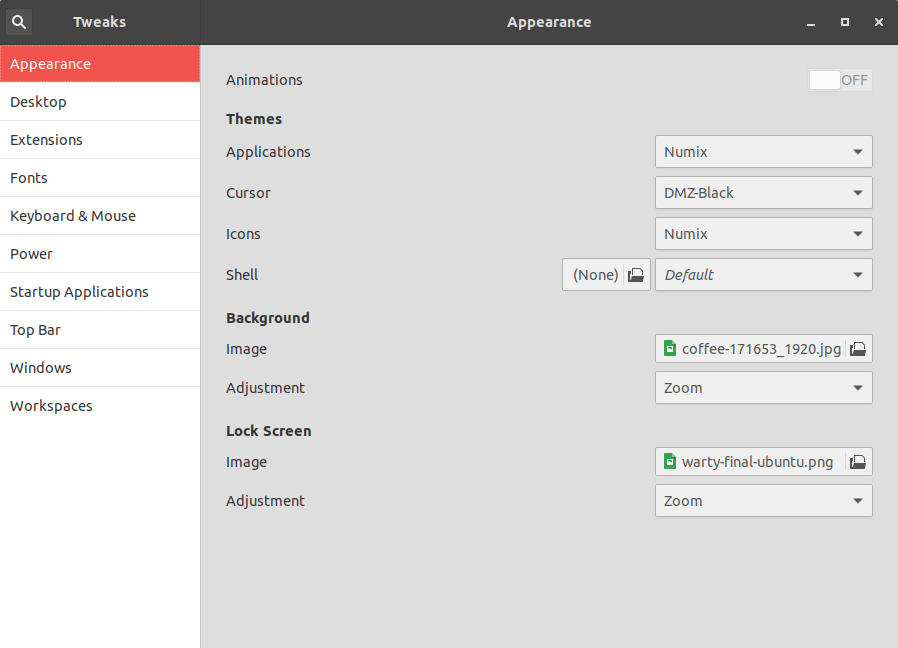
Original Defults
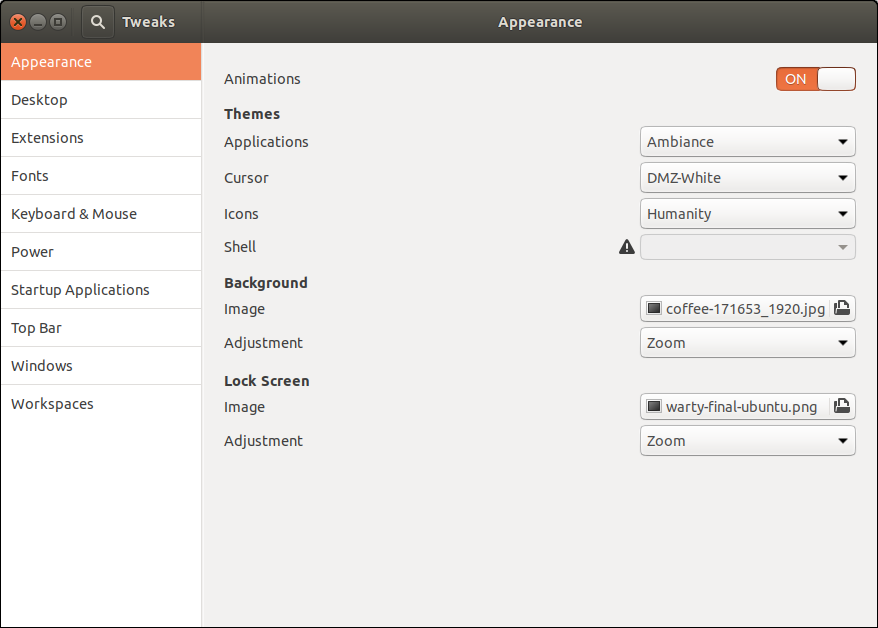
Gnome Tweaks / Extensions
This needs installed from the command line:
$ sudo apt install -y gnome-shell-extensions
To allow the Shell override to work, you need to navigate to:
Extensions, "User Themes" ON
Make a Window Transparent in Ubuntu 18.04
Refer: http://tipsonubuntu.com/2018/11/12/make-app-window-transparent-ubuntu-18-04-18-10/
Open terminal either via Ctrl+Alt+T or from software launcher.
When terminal opens, paste following the command and hit enter:
sh -c 'xprop -f _NET_WM_WINDOW_OPACITY 32c -set _NET_WM_WINDOW_OPACITY $(printf 0x%x $((0xffffffff * 80 / 100)))'
Your mouse cursor will become cross-shaped, simply click on any window and it become 80% opacity.
In the command, you can change 80 to number range from 1 ~ 99 for other window opacity.
To reset the window opacity, run command:
sh -c 'xprop -f _NET_WM_WINDOW_OPACITY 32c -set _NET_WM_WINDOW_OPACITY $(printf 0x%x $((0xffffffff * 100 / 100)))'
Installing Pop Theme
Refer: https://itsfoss.com/install-themes-ubuntu/
$ sudo add-apt-repository ppa:system76/pop
$ sudo apt-get update
$ sudo apt-get install pop-theme
$ sudo apt install gnome-shell-extensions
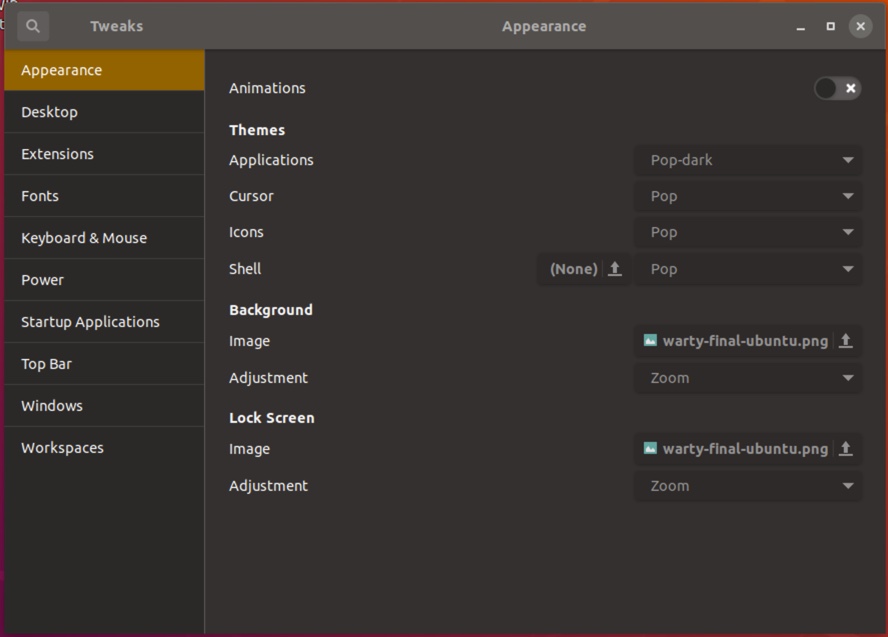
Install Wine on Ubuntu 18.04 with PlayOnLinux
Refer: http://tipsonubuntu.com/2019/02/01/install-wine-4-0-ubuntu-18-10-16-04-14-04/
The official wine repository offers Ubuntu packages for all current Ubuntu releases, so you can easily install it via following steps:
1. Open terminal from application menu, then run command to enable 32 bit architecture:
sudo dpkg --add-architecture i386
Type user password (no visual feedback) when it prompts and hit Enter.
2. Run command to download and add the repository key:
wget -nc https://dl.winehq.org/wine-builds/winehq.key
sudo apt-key add winehq.key
3. For Ubuntu 18.04, Linux Mint 19.x, run command to add the repository:
sudo apt-add-repository 'deb https://dl.winehq.org/wine-builds/ubuntu/ bionic main'
For other releases, replace bionic in the code with:
cosmic for Ubuntu 18.10.
xenial for Ubuntu 16.04, and Linux Mint 18.x.
trusty for Ubuntu 14.04.
4. Finally check system package cache and install Wine 4.0:
sudo apt-get update
sudo apt-get install --install-recommends winehq-stable
For Ubuntu 18.04 and higher, you can skip apt-get update as it’s done after adding PPA.
How to Use Wine in Ubuntu:
Once installed, you need to generate configuration file by running command:
winecfg
It prompts you to install some libraries and finally launches the configuration dialog.
To run a .exe file, right-click on file, select “Open with Other Application”, and choose “Wine Windows Program Loader”.
Uninstall:
To remove Wine repository, go to Software & Updates -> Other Software, highlight the repository line and remove it.
Now you can install PlayOnLinux with the software store...
24 Python Libraries
Refer: https://www.infoworld.com/article/3008915/24-python-libraries-for-every-python-developer.html
Another web browser like flask, called bottle
Refer: http://bottlepy.org/docs/dev/
$ sudo pip install bottle
Run Linux sh command inside python
# Refer: http://amoffat.github.io/sh/
$ sudo pip install sh
Abstracts Selenium and can run Chrome and headless Chrome
Refer: https://splinter.readthedocs.io/en/latest/drivers/chrome.html
$ sudo pip install splinter
Parallels Resize Issue
Refer: https://askubuntu.com/questions/1073568/preventing-window-resizing-after-resume
There's an issue when resuming from suspend, the screen warps and it needs resized. This fix does not work completely but it downsizes the window, so you just need to double-click to get it working again. This is NOT a perfect solution for Parallels and it is wonky when suspending in full screen too.
If this returns a value of uint32 0, then it means you have automatic scaling turned on. I found that setting this to a specific value (in my case 1) fixed the issue, which you can do using the following:
gsettings get org.gnome.desktop.interface scaling-factor

gsettings set org.gnome.desktop.interface scaling-factor 1
Lubuntu Synapse – Program Search
Refer: http://lubuntuhowto.blogspot.com/2017/03/using-synapse-on-lubuntu.html
sudo apt-get install synapse
After you install it, you have to launch it for your current session, and then it will be active when you hit [Ctrl] + [Space]
It's found in Start, Accessories, Synapse