Refer: https://forum.cursor.com/t/auto-mode-is-not-available/119549/9
I was able to fix, by renaming my current Cursor config folder and then launching the application again.
mv /home/mruckman/.config/Cursor /home/mruckman/.config/Cursor_BAK
Technical notes, and other ideas.
Refer: https://forum.cursor.com/t/auto-mode-is-not-available/119549/9
I was able to fix, by renaming my current Cursor config folder and then launching the application again.
mv /home/mruckman/.config/Cursor /home/mruckman/.config/Cursor_BAKInstall the Package
sudo apt update && sudo apt install numlockxTurn on Num Lock
numlockx onOpening .msg Outlook files in Ubuntu or Linux Mint
Refer: https://freeelectron.ro/opening-msg-outlook-files-in-ubuntu-or-linux-mint/
Works okay, attachments are messed up.
Use this viewer instead and attachments might work.
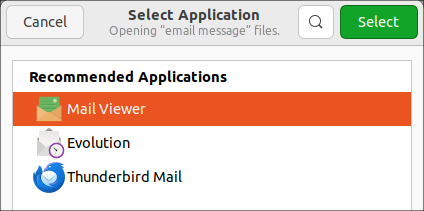
To install msgconvert, open a shell, then type:
sudo apt-get install libemail-outlook-message-perlThen cd to the folder where you have the .msg file or files, then type:
msgconvert *.msgFind the *.oga files here
/usr/share/sounds/Yaru/stereo/When using menu libre you want it to pickup the new application settings, right away.
#!/bin/bash

# Show a notification that the app is launching
notify-send "Refreshing ~/.local/share/applications/"

update-desktop-database ~/.local/share/applications/GUI Text Search Tool
sudo apt install searchmonkeyIf the application icon is missing, try the following:
sudo nano /usr/share/applications/searchmonkey.desktopUse the following image, verify it exists.
/usr/share/icons/hicolor/48x48/apps/searchmonkey.pngTailscale for example had issues updating on VPN. To remove the unwanted PPAs, such as Tailscale, follow these steps:
Get a list of installed PPAs
ls /etc/apt/sources.list.d/It returns something like this
asbru-cm-release.list proposed.list sublime-text.list tailscale.list unit193-ubuntu-encryption-jammy.list vscode.lisTo remove tailscale, use this command
sudo rm /etc/apt/sources.list.d/tailscale.listPurge associated packages
sudo apt-get purge tailscaleUpdate the package list
sudo apt updateFirst install utility
sudo apt install webpNow convert image, heres and example, strangely it goes output file first and then input file
dwebp -o "times_and_temps.png" "times_and_temps.webp"Issues: See multiple icons when launching from favorites of icon created by menu-libre
The issue you're experiencing happens when an application is launched with a different WM_CLASS or StartupWMClass than what's specified in the .desktop entry, leading to a new icon being created instead of reusing the one in the favorites bar.
You can resolve this by adding the StartupWMClass entry to your .desktop file. Here's how you can do it:
Find the WM_CLASS of the Running Application:
Launch the Orca Slicer app.
Open a terminal and run:
xprop | grep WM_CLASSThen, click on the Orca Slicer window. The output will show something like this:
WM_CLASS(STRING) = "orca-slicer", "OrcaSlicer"The first string (e.g., "orca-slicer") is the one you need.
Edit the .desktop File:
gedit /home/mruckman/.local/share/applications/menulibre-orcaslicr.desktopPut this at the end of the file, for example
StartupWMClass=orca-slicerRefer: https://askubuntu.com/questions/1310285/always-on-top-option-missing-for-firefox-chrome-in-18-04
Use super + right click on the top bar (instead of just right click) and you can see the always on top option.