Brasero ISO Images

Refer: http://manpages.ubuntu.com/manpages/bionic/man1/bchunk.1.html
Refer: https://unix.stackexchange.com/questions/29671/how-can-i-convert-a-cue-bin-with-cdr-tracks-image-into-a-single-iso-file/29675

Save file as CUE file, and after the *.bin and *.cue files are created

bchunk [-v] [-p] [-r] [-w] [-s] <image.bin> <image.cue> <basename>

$ bchunk QUEEN.bin QUEEN.cue QUEEN.iso

If the BIN file contains CD-Audio tracks you cannot convert it to an ISO image! The reason for this is that, unlike e.g. a CD-ROM, the data structure of an audio CD is fundamentally incompatible with an ISO 9660 file system. See the link below for a paper that gives a good explanation of this:

http://journal.code4lib.org/articles/9581

However, you could use bchunk (as suggested above) with the -w option, which generates output in WAV format. Command line would be something like this:

bchunk -s -w IMAGE.bin IMAGE.cue IMAGE

This will create WAV files for each audio track, e.g.:

IMAGE001.wav
IMAGE002.wav

$ bchunk -s -w QUEEN.bin QUEEN.cue QUEEN
Ubuntu Change Username

Refer: https://askubuntu.com/questions/944852/how-can-i-change-the-username

First, make sure you have root login access, from a root shell prompt, enter the following then exit and re-login, and you'll be fine.
Create a temporary admin account to run the following, then after you logon to jboss1, rename the account and delete the temp account.

$ usermod -l **new_username** -m -d /home/**new_username** **current_username**

$ gedit /home/<username>/.config/gtk-3.0/bookmarks

Citrix Receiver on Ubuntu 18.04

Refer: https://datawookie.netlify.com/blog/2018/12/citrix-receiver-on-ubuntu-18.04/

Citrix Access

Simply installing the package leaves you with a SSL error whenever you try to connect to a Citrix resource. You need to jump through a couple of extra hoops to get it actually working.

Installing the Package

Download the package from here (scroll down to the "Debian Packages" section)  for "Web Packages (Web Receiver only)":
https://www.citrix.com/downloads/citrix-receiver/linux/receiver-for-linux-latest.html

Install it. - Citrix-for-Ubuntu1804-icaclientWeb_13.10.0.20_amd64.zip

$ sudo dpkg -i icaclient_13.10.0.20_amd64.deb
$ sudo apt install -f

Now you need to sort out the SSL certificates

Sorting the Certificates

Link in the certificates (these should already be resident somewhere on your machine).

$ sudo ln -s /usr/share/ca-certificates/mozilla/* /opt/Citrix/ICAClient/keystore/cacerts/

Create a hash for each certificate.

$ sudo c_rehash /opt/Citrix/ICAClient/keystore/cacerts/

And you are ready to roll! Connect to your Citrix resources. Enjoy.

Create Live Ubuntu USB Drive

Refer: https://www.howtogeek.com/howto/14912/create-a-persistent-bootable-ubuntu-usb-flash-drive/

This worked but the performance degraded and had issues once all of the patches started being applied, probably better to just use a live cd.

Install VirtualBox on Ubuntu 18.04 and Get USB Working

There are some issues installing VirtualBox 6.0 that's not in the basic Ubuntu repositories.  Easiest install is from the software center or apt-install.

$ sudo apt install virtualbox virtualbox-ext-pack

Getting USB Support to Work
Refer: https://www.techrepublic.com/article/how-to-enable-usb-in-virtualbox/

  • Install the extension pack on the host and on the guest
  • $ sudo usermod -aG vboxusers mruckman
  • Reboot

Enable SSH on Target Host

Refer: https://gist.github.com/slowkow/8798394

The hostname of your remote server.

host=myserver.com

Create this folder if it does not exist: ~/.ssh

mkdir ~/.ssh

Set the correct permissions (required)

chmod 700 ~/.ssh

Generate an RSA key pair for identification with the remote server

ssh-keygen -t rsa

Copy your public key to the remote server

cat ~/.ssh/id_rsa.pub | ssh $host 'cat >> ~/.ssh/authorized_keys'

ssh is very strict about correct permissions, let's not change home folder persmissions

chmod 700 ~/.ssh
chmod 600 ~/.ssh/authorized_keys

At this point, you can connect to your server without typing a password:

ssh username@myserver.com

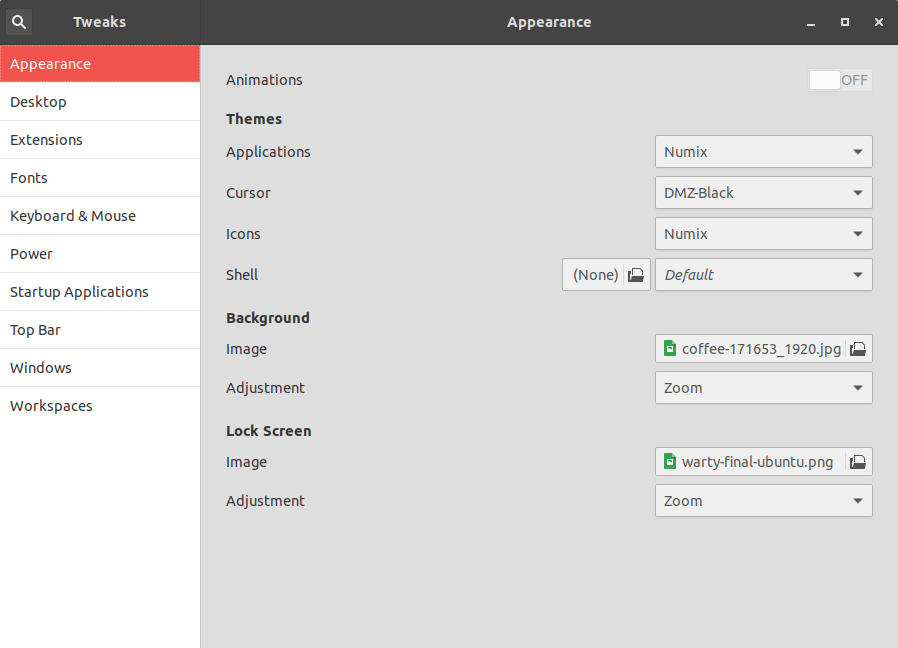
Install Numix Theme

Refer: https://itsfoss.com/install-numix-ubuntu/
Refer: https://www.gnome-look.org/p/1170667/

$ sudo add-apt-repository ppa:numix/ppa
$ sudo apt-get update
$ sudo apt-get install numix-gtk-theme numix-icon-theme-circle

The wallpapers no longer exist
$ sudo apt-get install numix-wallpaper-*

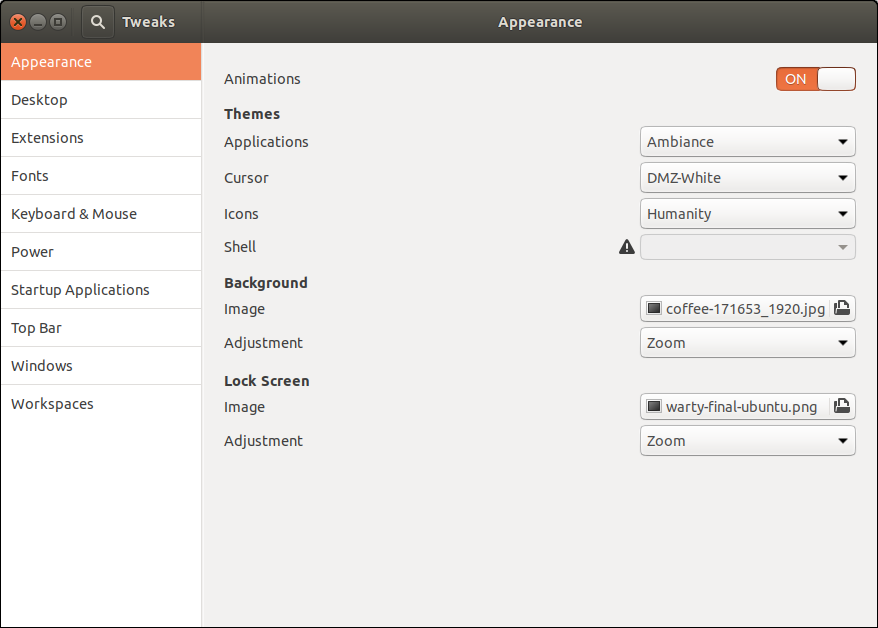
Original Defults

Make a Window Transparent in Ubuntu 18.04

Refer: http://tipsonubuntu.com/2018/11/12/make-app-window-transparent-ubuntu-18-04-18-10/

Open terminal either via Ctrl+Alt+T or from software launcher.

When terminal opens, paste following the command and hit enter:
sh -c 'xprop -f _NET_WM_WINDOW_OPACITY 32c -set _NET_WM_WINDOW_OPACITY $(printf 0x%x $((0xffffffff * 80 / 100)))'

Your mouse cursor will become cross-shaped, simply click on any window and it become 80% opacity.
In the command, you can change 80 to number range from 1 ~ 99 for other window opacity.

To reset the window opacity, run command:
sh -c 'xprop -f _NET_WM_WINDOW_OPACITY 32c -set _NET_WM_WINDOW_OPACITY $(printf 0x%x $((0xffffffff * 100 / 100)))'

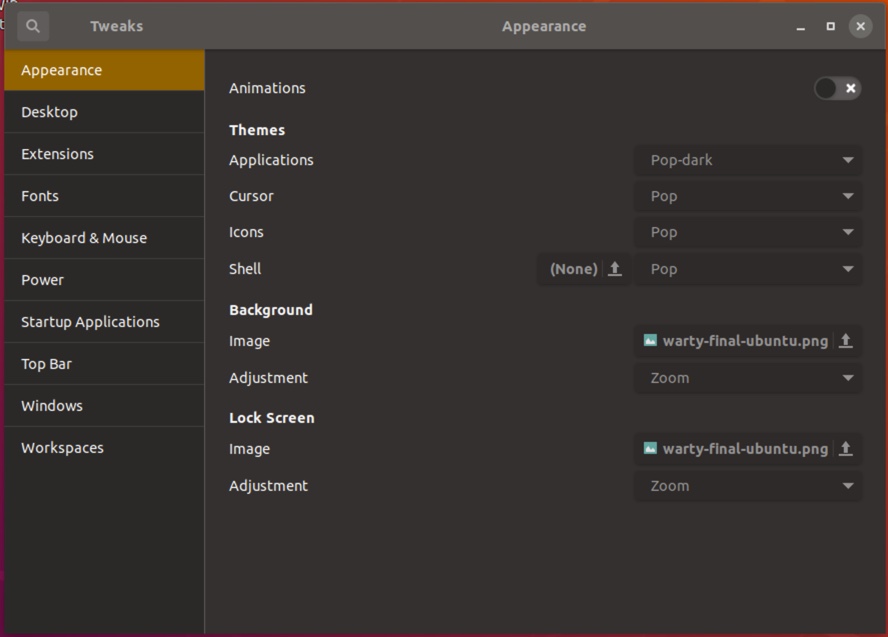
Installing Pop Theme

Refer: https://itsfoss.com/install-themes-ubuntu/

$ sudo add-apt-repository ppa:system76/pop
$ sudo apt-get update
$ sudo apt-get install pop-theme
$ sudo apt install gnome-shell-extensions