Create a .markdownlint.json file and place it in the root folder of your project.
{
    "default": true,
    "MD034": false
}
Technical notes, and other ideas.
Create a .markdownlint.json file and place it in the root folder of your project.
{
"default": true,
"MD034": false
}When GoDaddy upgraded and change my server package, we move my domains from one plan to another; however, the sites never went live on the new servers. This was because GoDaddy's automated process did not update my DNS settings properly. Do this manually.
Get the IP address of the new server, and you need to go through each domain that you own and update the A records for the DNS.


Eye of Gnome is eog
Refer: https://net2.com/how-to-display-images-in-the-command-line-in-linux-ubuntu/
Usage
eog image.png
eog *.png
Installation
sudo apt-get install eogFix the ORA-00904: ORA_ROWSCN: invalid identifier error in SQLDeveloper with a few easy steps
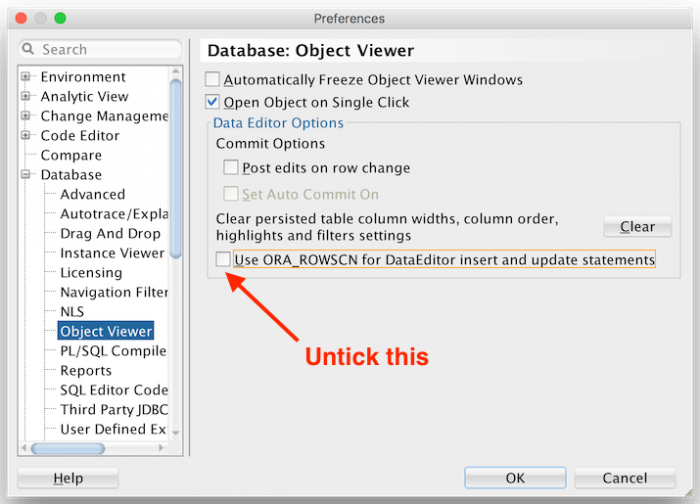
Turns out fixing this problem is easy. Open up the SQL Developer Preferences, then navigate to Database > Object Viewer. Untick the box that says Use ORA_ROWSCN for DataEditor insert and update statements.
Refer: https://zoomadmin.com/HowToInstall/UbuntuPackage/screenruler
sudo apt-get update -y
sudo apt-get install -y screenruler# MUTE EVERYTHING ON UBUNTU
# REFER: https://askubuntu.com/questions/12100/command-to-mute-and-unmute-a-microphone
pacmd list-sources | \
grep -oP 'index: \d?\d' | \
awk '{ print $2 }' | \
xargs -I{} pactl set-source-mute {} toggleRefer: closed-by-remote
It looks like there are two issues. Use a VPN and also, do not automatically send password, make it a manual step. It looks like GoDaddy blocks it, if it looks automated like a hacking attempt. Basically, type your password in manually.
echo "password"

# DEBUG MODE
### ssh -oConnectTimeout=300 -oHostKeyAlgorithms=+ssh-dss userid@XX.XX.XX.XXX -vvv

# NORMAL MODE
ssh -oConnectTimeout=300 -oHostKeyAlgorithms=+ssh-dss userid@XX.XX.XX.XXX
I keep getting blocked out of ssh-ing to my GoDaddy CPanel hosting account randomly.
At first I am able to ssh into my account and works fine. But randomly I'll get a:
Connection to "GoDaddyIP" closed by remote host.
Connection to "GoDaddyIP" closed.
"GoDaddyIP" = my personal cPanel IP address.
After I get disconnected I am not able to reconnect. If I try it from same computer but different IP address. i.e. I connect to a different internet connection or my cellular hotspot, I am able to connect just fine. I've called support and they were no help. The best they could do is say "Well, I'm able to connect to that account" Of course they can. They are using a different IP. Anyhow, the IP I'm connect through is not in BlockedIP with GoDaddy and everything I've read online is of no help. Does anyone have a solution?
Simple way to write to host as current user
Refer: docker-shared-permissions
docker create --name ubuntu1804 \
  --net=host \
  -v ${PWD}:/home \
  --user "$(id -u):$(id -g)" \
  -it mruckman/ubuntu1804:201001

docker start ubuntu1804
docker exec -it ubuntu1804 /bin/bash
docker stop ubuntu1804
docker rm ubuntu1804
Or you can build you container where you pass in the credentials on the host machine.
Build the right image
Now it gets more interesting. Here is how you can build, configure and run your Docker containers correctly, so you don’t have to fight permission errors and access your files easily.
As you should create a non-root user in your Dockerfile in any case, this is a nice thing to do. While we’re at it, we might as well set the user id and group id explicitly.
Here is a minimal Dockerfile which expects to receive build-time arguments, and creates a new user called “user”:
FROM ubuntu

ARG USER_ID
ARG GROUP_ID

RUN addgroup --gid $GROUP_ID user
RUN adduser --disabled-password --gecos '' --uid $USER_ID --gid $GROUP_ID user
USER user
Refer: add-user-to-docker-container for more info on adduser
We can use this Dockerfile, to build a fresh image with the host uid and gid. This image, needs to be built specifically for each machine it will run on to make sure everything is in order.
Then, we can run use this image for our command. The user id and group id are correct without having to specify them when running the container.
docker build -t myimage \
  --build-arg USER_ID=$(id -u) \
  --build-arg GROUP_ID=$(id -g) .

docker run -it --rm \
  --mount "type=bind,src=$(pwd)/shared,dst=/opt/shared" \
  --workdir /opt/shared \
  myimage bash
No need to use “chown”, and no annoying permission errors anymore!
Refer: https://packaging.python.org/guides/installing-using-pip-and-virtual-environments/
Install on Ubuntu 18.04
sudo apt-get install python3-venvCreate a virtual environment
python3 -m venv envActivating a virtual environment
source env/bin/activateConfirm you are pointing to your virtual environment
which pythonYou should seem something like
.../env/bin/pythonLeaving the virtual environment
deactivateInstalling packages, when inside virtual environment
python3 -m pip install requestsInstalling specific versions
python3 -m pip install requests==2.18.4Upgrading packages
pip can upgrade packages in-place using the --upgrade flag. For example, to install the latest version of requests and all of its dependencies:
python3 -m pip install --upgrade requestsUsing requirements files
Instead of installing packages individually, pip allows you to declare all dependencies in a Requirements File. For example you could create a requirements.txt file containing:
requests==2.18.4
google-auth==1.1.0
Tell pip to install all the packages in this file using the -r flag:
python3 -m pip install -r requirements.txtFreezing dependencies
Pip can export a list of all installed packages and their versions using the freeze command:
python3 -m pip freezeWhich will output a list of package specifiers such as:
cachetools==2.0.1
certifi==2017.7.27.1
chardet==3.0.4
google-auth==1.1.1
idna==2.6
pyasn1==0.3.6
pyasn1-modules==0.1.4
requests==2.18.4
rsa==3.4.2
six==1.11.0
urllib3==1.22
This is useful for creating Requirements Files that can re-create the exact versions of all packages installed in an environment.
It seems like Docker is caching the host's /etc/resolv.conf as it was when docker started up. So I restarted Docker after connecting to the VPN and now containers are able to resolve hosts that are in m company's DNS.
If you are developing on Ubuntu, you will need to use "--net=host" to work behind the VPN, such as this:
docker run --rm \
  -v ${PWD}:/home \
  -it \
  --net=host \
  mruckman/selenium_python:212301 /bin/bash