Allow more than one version of Portable Firefox to run

Refer: https://portableapps.com/node/23783

WORKS!
This solution was given by other authors as well - but i want to repeat and emphasis that it REALLY WORKS - and its simple as 1-2-3:

  • From the directory where your "FirefoxPortable.exe" is (let's call it appRootDir) you go to directory "Other\Source\"
  • copy the file "FirefoxPortable.ini" to the appRootDir
  • change line "AllowMultipleInstances=false" to "AllowMultipleInstances=true" in the copied "FirefoxPortable.ini" in appRootDir

Sample Location:

C:\Users\mruckman\Documents\PortableApps\PortableApps\FirefoxPortable\FirefoxPortable.ini

FirefoxPortable-ini.txt

How to delete the Windows.old folder from Windows 10

If you upgraded your PC from a previous version of Windows, consider getting rid of this space-hogging folder.

Did you upgrade your PC to Windows 10? If so, ever wonder what happened to the previous version of the OS? It probably disappeared into the mists of Windows past, right?

Wrong. Your old OS didn't get erased; rather, it's lingering in a system folder called, aptly enough, Windows.old. And depending on the size of that version, it could be hogging a lot of precious space.

First things first: If you think you might want to downgrade from Windows 10 back to the previous version, don't delete that folder.

Second, unless you're seriously strapped for space on your hard drive, you don't have to do anything: Windows 10 will automatically delete the Windows.old folder one month after you performed your upgrade.

If you'd rather not wait -- if you want to reclaim that storage now -- you can delete the folder immediately, though not in the way you might expect. Indeed, if you simply click the folder and then press the Delete key, Windows will tell you you need permission, yada-yada, etc.

Here's the proper way to delete the Windows.old folder:

Step 1: Click in Windows search field, type Cleanup, then click Disk Cleanup.

Step 2: Click the "Clean up system files" button.

Step 3: Wait a bit while Windows scans for files, then scroll down the list until you see "Previous Windows installation(s)."

Step 4: Check the box next to the entry, then make sure there are no other boxes checked (unless you do indeed want to delete those items). Click OK to start the cleanup.

Disable Cortana on Windows 10

Refer: https://www.howtogeek.com/265027/how-to-disable-cortana-in-windows-10/

You will need to use regedit and you might need to add a new key. Navigate to:

HKEY_LOCAL_MACHINE\SOFTWARE\Policies\Microsoft\Windows\Windows Search

If you don’t see a “Windows Search” key (folder) below the Windows folder, right-click the Windows folder and select New > Key. Name it “Windows Search”.

Right-click the “Windows Search” key (folder) in the left pane and select New > DWORD (32-bit) Value.

Name the value “AllowCortana”. Double-click it and set the value to “0”.

You can now close the registry editor. You’ll have to sign out and sign back in or restart your computer before the change takes effect.

Laptop Research

ThinkPad T580

Refer: https://www.lenovo.com/us/en/laptops/thinkpad/thinkpad-t-series/ThinkPad-T580/p/20L9CTO1WWENUS0/customize?

Fixing Windows Printer Problems

Advanced
If the previous troubleshooting step is not successful, you may need to clear spooler files and restart the spooler service.

  • In the search box on the taskbar, type Services, then select the search result of the same name.
  • In the Services list, double-tap (or double-click) Print Spooler. Select Stop > OK.
  • In the search box on the taskbar, type %WINDIR%\system32\spool\printers, select the file folder in the search results, and then delete all files in the folder.
  • Search for and open Services again
  • In the Services list, double-tab (or double-click) Print Spooler.
  • Select Start, and in the Startup Type list, make sure that Automatic is selected, and then select OK.

Refer: https://support.microsoft.com/en-us/help/4027397/windows-10-fix-printer-problems

Windows 10 – Hyper-V Virtual Machine

Windows is coming with its own version of VMWare, just like the old VirtualPC

Refer: https://blogs.windows.com/buildingapps/2018/09/17/run-ubuntu-virtual-machines-made-even-easier-with-hyper-v-quick-create/#eq5F3ETPfj4WjHbk.97

Refer: https://docs.microsoft.com/en-us/virtualization/hyper-v-on-windows/quick-start/quick-create-virtual-machine#windows-10-fall-creators-update

If the Hyper-V Manager and Hyper-V Quick Start are not installed, you can install them manually by using PowerShell

Refer: http://techgenix.com/installing-configuring-and-using-hyper-v-windows-10/

  • Search for PowerShell and right-click to run as Administrator
  • Run the following command


Enable-WindowsOptionalFeature -Online -FeatureName Microsoft-Hyper-V -All

Windows 10 Shutdown Restart Issue with Parallels

Symptoms
The virtual machine processor was reset by the operating system. error message is shown when working with a Windows virtual machine:

Resolution
While Parallels Engineering Team is working on the permanent fix for this issue by disabling hybrid hibernation it's possible to temporary resolve the issue:

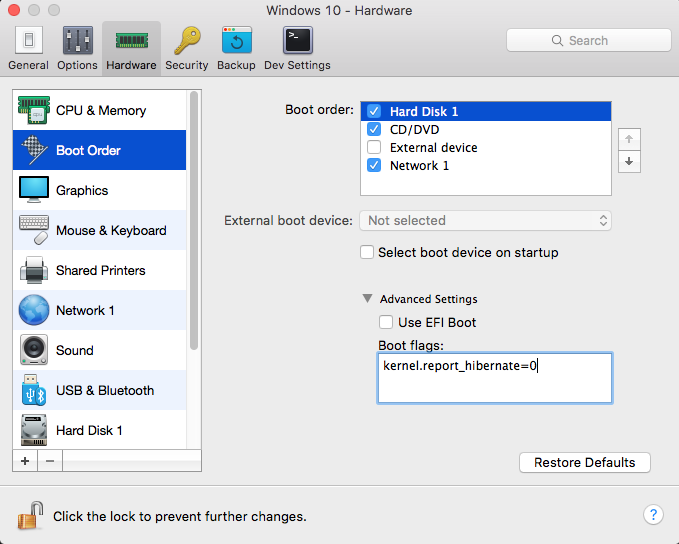
  • Shut down the Windows virtual machine and open its configuration.
  • Switch to the Hardware tab and choose Boot Order from the list.
  • Expand Advanced Settings dropdown menu and insert the following boot flag in the Boot flags section:
    kernel.report_hibernate=0

Refer: https://kb.parallels.com/en/123831

Other possible solutions, did not work but when using the above switch, the options completely disappeared as an option.  The trick was to delete the fast boot option.

Refer: https://winaero.com/blog/how-to-disable-or-enable-fast-startup-in-windows-10/

To disable Fast Startup in Windows 10, follow these simple instructions:

  • Right click the Start button or you can press Win + X shortcut keys together to open the Power Users menu / Win + X menu.
  • In the Win+X menu, click the Control Panel item. Windows 10 win+x menu control panel
  • Go to the following applet:
  • Control Panel\System and Security\Power Options
    Windows 10 Control panel Power options
  • Click the link "Change what the power button does" on the left.
  • The following window will appear on the screen: Windows 10 change what power button does
  • Click on the 'Change settings that are currently unavailable' link to make the Shutdown options available.
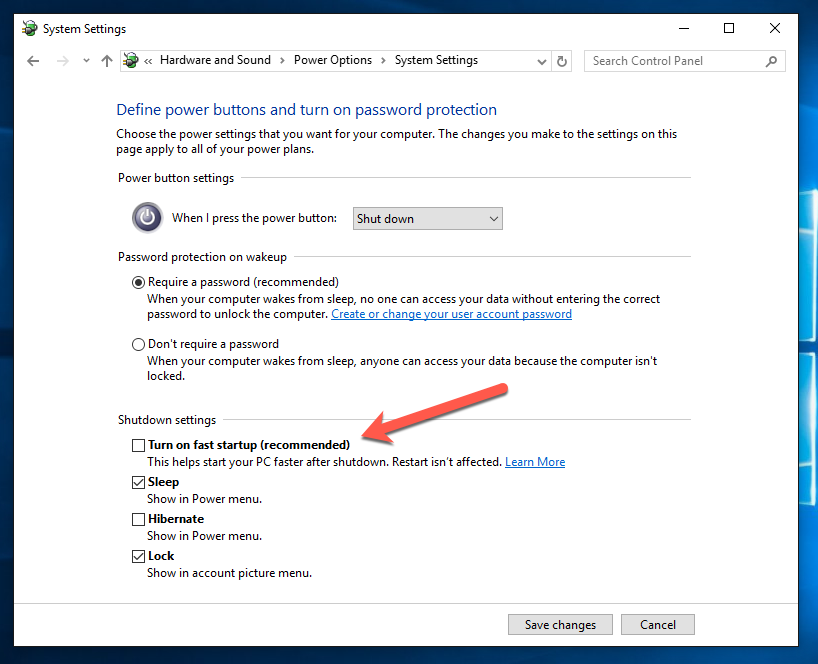
  • Untick the Turn on fast startup (recommended) option: Windows 10 disable fast startup

That's it. Now the Fast Startup feature is disabled.

Oracle ODBC, SQL*Plus, Xampp on Windows 10

Install Java 1.8 JDK

Oracle Drivers and SQL*Plus
http://www.oracle.com/technetwork/database/enterprise-edition/downloads/112010-win64soft-094461.html

Microsoft
https://www.microsoft.com/en-ph/download/details.aspx?id=40784

Using Oracle 11g Installation

Extract tns_admin.zip and move to C:\tns_admin

SET TNS_ADMIN=C:\tns_admin as global variable for system

Extract win64_11gR2_client.zip
Run win64_11gR2_client\client\setup.exe
Accept "Environment does not meet minimum requirements."
Use default installation: C:\app\<username>\product\11.2.0\client_1

Extract win32_11gR2_client.zip
Run win32_11gR2_client\client\setup.exe
Accept "Environment does not meet minimum requirements."
Use default installation: C:\app\<username>\product\11.2.0\client_2

Verify Installation:
sqlplus web_owner@TSTWEB2

Install the 64-bit Drivers, and then the 32-bit Drivers right on top of it.
Make sure to install the ODBC connections in 32-bit
Use the Oracle in OraClient11g_home1 and NOT the Microsoft ODBC driver