Fixing slow loading of attachments from Outlook

Do you experience a long wait when opening attachments from within Outlook? And the same file opens in a snap when you save the attachment first on your hard disk, launch the program and then open the file from within the program?

If you answered yes to all questions above, you probable have a DDE issue. DDE (short for Dynamic Data Exchange) allows applications to communicate with one another. For example, when you double-click a document in Windows Explorer, and the associated application is already running, Explorer sends a DDE message to the application, with instructions to open the document on its own, rather than launching another copy of the application. Sounds neat, no?

Well, on my machine, DDE has the tendency to get corrupted… or at least confused. I’m not sure why, but when that happens, it does cause significant delays in opening documents. Not only when launching it from Outlook, also when double-clicking a file in Windows Explorer.

The solution? Disable DDE for those file types that you have trouble with. Like Word, Excel and PowerPoint documents. This is the process:

1. Explorer, Folder Options, File Types
2. In the File Types tab, select the file extension you want to change (e.g. .doc for Word documents)
3. Click the Advanced button
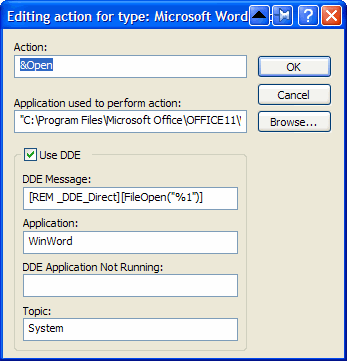
4. Select the Open action, click Edit. You will get a dialog box like this:
5. Uncheck Use DDE


6. In the field Application used to perform action, you will see something similar to
"C:\Program Files\Microsoft Office\OFFICE11\WINWORD.EXE" /n /dde
Remove everything after the application (in this case /n /dde) and add "%1". (Ensure you put %1 between double quotes ("), otherwise this might not work if the folder and/or filename of the document contains spaces).
The field should now contain

"C:\Program Files\Microsoft Office\OFFICE11\WINWORD.EXE" "%1?

7. Click OK, OK, Close

That’s it. One final note: the DDE functionality gets restored when you re-install the application. But that will probably also fix the DDE issue itself, and if not, simply follow the instructions above again.

Remove Programs from the Open With Menu in Explorer

Would you like to clean up the Open with menu in Windows Explorer? Here’s how you can remove program entries you don’t want in this menu on any version of Windows.

Have you ever accidentally opened an mp3 with Notepad, or a zip file with Word? If so, you’re also likely irritated that these programs now show up in the Open with menu in Windows Explorer every time you select one of those files. Whenever you open a file type with a particular program, Windows will add an entry for it to the Open with menu. Usually this is helpful, but it can also clutter up the menu with wrong entries.

bloated openwith menu

On our computer, we have tried to open a PDF file with Word and Notepad, neither which can actually view the PDF itself. Let’s remove these entries. To do this, we need to remove the registry entries for these programs. Enter regedit in your Start menu search or in the Run command to open the Registry editor.

Backup your registry first just in case, so you can roll-back any changes you make if you accidently delete the wrong value.

Now, browse to the following key:

HKEY_CURRENT_USER \Software \Microsoft \Windows \CurrentVersion \ Explorer \FileExts\

Here you’ll see a list of all the file extensions that are registered on your computer.

Browse to the file extension you wish to edit, click the white triangle beside it to see the subfolders, and select OpenWithList. In our test, we want to change the programs associated with PDF files, so we select the OpenWithList folder under .pdf.

Notice the names of the programs under the Data column on the right. Right-click the value for the program you don’t want to see in the Open With menu and select Delete.

Click Yes at the prompt to confirm that you want to delete this value.

Repeat these steps with all the programs you want to remove from this file type’s Open with menu. You can go ahead and remove entries from other file types as well if you wish.

Once you’ve removed the entries you didn’t want to see, check out the Open with menu in Explorer again. Now it will be much more streamlined and will only show the programs you want to see.

Conclusion

This simple trick can help you keep your Open with menu tidy, and only show the programs you want in the list. It can be irritating to accidentally open files in programs that can’t even read them. This trick works in all versions of Windows, including 2000, XP, Vista, and Windows 7.

Cleanup "Open With" in Windows


How To Create a User-Defined Service

The following did not work with FullSync, it appear to start but not run properly

You will need to install the Window 2003 rktools.exe

The Windows NT Resource Kit provides two utilities that allow you to create a Windows NT user-defined service for Windows NT applications and some 16-bit applications (but not for batch files).

Instrsrv.exe installs and removes system services from Windows NT and Srvany.exe allows any Windows NT application to run as a service.

create a Windows NT user-defined service, perform the following steps:

  1. At a MS-DOS command prompt(running CMD.EXE), type the following command:path\INSTSRV.EXE My Service path\SRVANY.EXEwhere path is the drive and directory of the Windows NT Resource Kit (i.e., C:\RESKIT) and My Serviceis the name of the service you are creating.Example:
    C:\Program Files\Resource Kit\Instsrv.exe Notepad C:\Program Files\Resource Kit\Srvany.exe

    NOTE:To verify that the service was created correctly, check the registry to verify that the ImagePath value under

    HKEY_LOCAL_MACHINE\SYSTEM\CurrentControlSet\Services\service name

    is set to point to SRVANY.EXE. If this is not set correctly, the service will stop shortly after it starts and return an Event ID 7000 "The service name failed to start."

    WARNING: Using Registry Editor incorrectly can cause serious problems that may require you to reinstall your operating system. Microsoft cannot guarantee that problems resulting from the incorrect use of Registry Editor can be solved. Use Registry Editor at your own risk.

    For information about how to edit the registry, view the "Changing Keys And Values" online Help topic or the "Add and Delete Information in the Registry" and "Edit Registry Data" online Help topics in Registry Editor.

    NOTE: You should back up the registry before you edit it.

  2. Run Registry Editor (Regedt32.exe)and locate the following subkey:HKEY_LOCAL_MACHINE\SYSTEM\CurrentControlSet\Services\<My Service>
  3. From the Edit menu, click Add Key. Type the following and click OK:Key Name: Parameters
    Class : <leave blank>
  4. Select the Parameters key.
  5. From the Edit menu, click Add Value. Type the following and click OK:Value Name: Application
    Data Type : REG_SZ
    String : <path>\<application.ext>where <path>\<application.ext> is the drive and full path to the application executable including the extension (i.e., C:\WinNT\Notepad.exe)
  6. Close Registry Editor.

By default, a newly created service it configured to run Automatically when the system is restarted. To change this setting to Manual, run the Services applet from Control Panel and change the Startup value to Manual. A service set to Manual can be started in one of several ways:

- From the Services applet in Control Panel- From a MS-DOS command prompt, type the following:NET START <My Service>- Use the Sc.exe utility from the Resource Kit. Type the following from a MS-DOS command prompt:<path>\Sc.exe start <My Service>

where <path> is the drive and directory of the Windows NT Resource Kit (i.e., C:\Reskit).

How to remove a service:

Recently, I was trying to delete a windows service. Normally it should not be necessary to manually delete a service. Uninstalling an application should remove its associated service (if any).

However, I installed some beta products and a service created by one of the applications was not removed automatically. Its very easy to remove a service from registry if you know the right path. Here is how I did that:

1. Run Regedit or Regedt32

2. Find the registry entry "HKEY_LOCAL_MACHINE/SYSTEM/CurrentControlSet/Services"

3. Look for the service there and delete it. You can look at the keys to know what files the service was using and delete them as well (if necessary).

alternatively, you can also use command prompt and delete a service using following command:

sc delete < SERVICE name>

or to create, simply type
sc create <SERVICE name>

Update:
If you have space in the file path you need to use quotation marks ("). For example:
sc create "MySQL" binpath= "C:\Archivos de programa\MySQL\MySQL Server 5.1\bin\mysqld.exe"

Thanks to Maya.

NOTE: You may have to reboot the system to get the list updated in service manager.

Huge list of Windows 7 Shell Commands

when creating shortcuts or quickly accessing hard to get to locations. They can be used to pin shortcuts to the Taskbar or just to make your life easier. For those that are preceded by “Shell:” when using them in shortcuts you need to add “explorer.exe” in front of them. It should then look like this: explorer.exe shell:Personal

Windows 7 Only
shell:Libraries
shell:MusicLibrary
shell:VideosLibrary
shell:OtherUsersFolder
shell:Device Metadata Store
shell:PublicSuggestedLocations
shell:DocumentsLibrary
shell:User Pinned
shell:UsersLibrariesFolder
shell:PicturesLibrary
shell:ImplicitAppShortcuts
shell:Ringtones
shell:CommonRingtones

Windows Vista & 7
shell:Common Programs
shell:GameTasks
shell:UserProfiles
shell:MyComputerFolder
shell:SyncSetupFolder
shell:DpapiKeys
shell:SamplePlaylists
shell:Favorites
shell:My Video
shell:SearchHomeFolder
shell:System
shell:CommonVideo
shell:SyncResultsFolder
shell:LocalizedResourcesDir
shell:Cookies
shell:Original Images
shell:CommonMusic
shell:My Pictures
shell:Cache
shell:Downloads
shell:CommonDownloads
shell:AppData
shell:SyncCenterFolder
shell:My Music
shell:ConflictFolder
shell:SavedGames
shell:InternetFolder
shell:Quick Launch
shell:SystemCertificates
shell:Contacts
shell:TreePropertiesFolder
shell:Profile
shell:Start Menu
shell:Common AppData
shell:PhotoAlbums
shell:ConnectionsFolder
shell:Administrative Tools
shell:PrintersFolder
shell:Default Gadgets
shell:ProgramFilesX86
shell:Searches
shell:Common Startup
shell:ControlPanelFolder
shell:SampleVideos
shell:SendTo
shell:ResourceDir
shell:ProgramFiles
shell:CredentialManager
shell:PrintHood
shell:MAPIFolder
shell:CD Burning
shell:AppUpdatesFolder
shell:Common Start Menu
shell:LocalAppDataLow
shell:Templates
shell:Gadgets
shell:Programs
shell:Recent
shell:SampleMusic
shell:Desktop
shell:CommonPictures
shell:RecycleBinFolder
shell:CryptoKeys
shell:Common Templates
shell:Startup
shell:Links
shell:OEM Links
shell:SamplePictures
shell:Common Desktop
shell:NetHood
shell:Games
shell:Common Administrative Tools
shell:NetworkPlacesFolder
shell:SystemX86
shell:History
shell:AddNewProgramsFolder
shell:Playlists
shell:ProgramFilesCommonX86
shell:PublicGameTasks
shell:ChangeRemoveProgramsFolder
shell:Public
shell:Common Documents
shell:CSCFolder
shell:Local AppData
shell:Windows
shell:UsersFilesFolder
shell:ProgramFilesCommon
shell:Fonts
shell:Personal

Windows 7 Shortcuts
I compiled the following list with an early Alpha build of Windows 7. It is possible that some of these have changed with newer versions. If you find one that is wrong please let me know so I can correct it.

Wireless Networks pop-up
rundll32.exe van.dll,RunVAN

Advanced Restore
sdclt.exe /restorewizardadmin

Restore Files
sdclt.exe /restorewizard

Backup Location & Settings
sdclt.exe /configure

Add Network Location (wizard)
rundll32.exe shwebsvc.dll,AddNetPlaceRunDll

Indexing Options
control.exe srchadmin.dll

Notification Cache
rundll32.exe shell32.dll,Options_RunDLL 5

Aero (Transparency) Off
Rundll32.exe DwmApi #104

Aero (Transparency) On
Rundll32.exe DwmApi #102

Welcome Center
rundll32.exe oobefldr.dll,ShowWelcomeCenter

Add/Remove Programs
RunDll32.exe shell32.dll,Control_RunDLL appwiz.cpl,,0

Content Advisor
RunDll32.exe msrating.dll,RatingSetupUI

Control Panel
RunDll32.exe shell32.dll,Control_RunDLL

Date and Time Properties
RunDll32.exe shell32.dll,Control_RunDLL timedate.cpl

Display Settings
RunDll32.exe shell32.dll,Control_RunDLL access.cpl,,3

Device Manager
RunDll32.exe devmgr.dll DeviceManager_Execute

Folder Options - File Types
RunDll32.exe shell32.dll,Control_Options 2

Folder Options - General
RunDll32.exe shell32.dll,Options_RunDLL 0

Folder Options - Search
RunDll32.exe shell32.dll,Options_RunDLL 2

Folder Options - View
RunDll32.exe shell32.dll,Options_RunDLL 7

Forgotten Password Wizard
RunDll32.exe keymgr.dll,PRShowSaveWizardExW

Hibernate
RunDll32.exe powrprof.dll,SetSuspendState

Keyboard Properties
RunDll32.exe shell32.dll,Control_RunDLL main.cpl @1

Lock Screen
RunDll32.exe user32.dll,LockWorkStation

Mouse Properties
RunDll32.exe shell32.dll,Control_RunDLL main.cpl @0

Map Network Drive
RunDll32.exe shell32.dll,SHHelpShortcuts_RunDLL Connect

Network Connections
RunDll32.exe shell32.dll,Control_RunDLL ncpa.cpl

Power Options
RunDll32.exe Shell32.dll,Control_RunDLL powercfg.cpl

Regional Settings
RunDll32.exe shell32.dll,Control_RunDLL intl.cpl,,3

Stored Usernames and Passwords
RunDll32.exe keymgr.dll,KRShowKeyMgr

System Properties: Advanced
RunDll32.exe shell32.dll,Control_RunDLL sysdm.cpl,,4

System Properties: Automatic Updates
RunDll32.exe shell32.dll,Control_RunDLL sysdm.cpl,,5

Taskbar Properties
RunDll32.exe shell32.dll,Options_RunDLL 1

User Accounts
RunDll32.exe shell32.dll,Control_RunDLL nusrmgr.cpl

Windows Security Center
RunDll32.exe shell32.dll,Control_RunDLL wscui.cpl

Windows - About
RunDll32.exe SHELL32.DLL,ShellAboutW

Unplug/Eject Hardware
RunDll32.exe shell32.dll,Control_RunDLL hotplug.dll

Windows Firewall
RunDll32.exe shell32.dll,Control_RunDLL firewall.cpl

Wireless Network Setup
RunDll32.exe shell32.dll,Control_RunDLL NetSetup.cpl,@0,WNSW

Open Control Panel (All Items)
explorer.exe shell:::{21ec2020-3aea-1069-a2dd-08002b30309d}

Manage Wireless Networks
explorer.exe shell:::{1fa9085f-25a2-489b-85d4-86326eedcd87}

Sound Control Playback Tab
rundll32.exe shell32.dll,Control_RunDLLmmsys.cpl

Sound Control Sounds Tab
rundll32.exe shell32.dll,Control_RunDLLmmsys.cpl,,2

Sound Control Recording Tab
rundll32.exe shell32.dll,Control_RunDLLmmsys.cpl,,1

Add/Remove Programs
rundll32.exe shell32.dll,Control_RunDLL appwiz.cpl

Add/Remove Windows Components
rundll32.exe shell32.dll,Control_RunDLL appwiz.cpl,,2

Set Program Access and Computer Defaults
rundll32.exe shell32.dll,Control_RunDLL appwiz.cpl,,3

People Near Me
rundll32.exe shell32.dll,Control_RunDLL collab.cpl

People Near Me Sign In Tab
rundll32.exe shell32.dll,Control_RunDLL collab.cpl,,1

Screen Resolution
rundll32.exe shell32.dll,Control_RunDLL desk.cpl

Personalization
rundll32.exe shell32.dll,Control_RunDLL desk.cpl,,2

Screen Saver
rundll32.exe shell32.dll,Control_RunDLL desk.cpl,,1

Windows Firewall
rundll32.exe shell32.dll,Control_RunDLL firewall.cpl

Device Manager
rundll32.exe shell32.dll,Control_RunDLL hdwwiz.cpl

Power Options
rundll32.exe shell32.dll,Control_RunDLL powercfg.cpl

Power Options Change Plan Settings
rundll32.exe shell32.dll,Control_RunDLL powercfg.cpl,,1

System Properties
rundll32.exe shell32.dll,Control_RunDLL sysdm.cpl

System Properties Hardware Tab
rundll32.exe shell32.dll,Control_RunDLL sysdm.cpl,,2

System Properties Advanced Tab
rundll32.exe shell32.dll,Control_RunDLL sysdm.cpl,,3

System Properties System Protection Tab
rundll32.exe shell32.dll,Control_RunDLL sysdm.cpl,,4

System Properties Remote Tab
rundll32.exe shell32.dll,Control_RunDLL sysdm.cpl,,5

Pen and Touch Tablet PC Settings
rundll32.exe shell32.dll,Control_RunDLL tabletpc.cpl

Pen and Touch Tablet PC Settings Flicks Tab
rundll32.exe shell32.dll,Control_RunDLL tabletpc.cpl,,1

Pen and Touch Tablet PC Settings Handwriting Tab
rundll32.exe shell32.dll,Control_RunDLL tabletpc.cpl,,2

Phone and Modem Options
rundll32.exe shell32.dll,Control_RunDLL telephon.cpl

Phone and Modem Options Modems Tab
rundll32.exe shell32.dll,Control_RunDLL telephon.cpl,,1

Phone and Modems Options Advanced Tab
rundll32.exe shell32.dll,Control_RunDLL telephon.cpl,,2

Date and Time
rundll32.exe shell32.dll,Control_RunDLL timedate.cpl

Date and Time Additional Clocks
rundll32.exe shell32.dll,Control_RunDLL timedate.cpl,,1

Action Center
rundll32.exe shell32.dll,Control_RunDLL wscui.cpl

Unplug/Eject Hardware
RunDll32.exe shell32.dll,Control_RunDLL hotplug.dll
Internet Explorer Specific Commands

Delete Temporary Internet Files:
RunDll32.exe InetCpl.cpl,ClearMyTracksByProcess 8

Delete Cookies:
RunDll32.exe InetCpl.cpl,ClearMyTracksByProcess 2

Delete History:
RunDll32.exe InetCpl.cpl,ClearMyTracksByProcess 1

Delete Form Data:
RunDll32.exe InetCpl.cpl,ClearMyTracksByProcess 16

Delete Passwords:
RunDll32.exe InetCpl.cpl,ClearMyTracksByProcess 32

Delete All:
RunDll32.exe InetCpl.cpl,ClearMyTracksByProcess 255

Delete All + files and settings stored by Add-ons:
RunDll32.exe InetCpl.cpl,ClearMyTracksByProcess 4351
Miscellaneous Variables

Windows Directory
%WINDIR%
%SYSTEMROOT%

Hard Drive That Contains OS
%HOMEDRIVE%

Users Home Directory
%HOMEPATH%
%USERPROFILE%

Default Temporary Directory
%TEMP%
%TMP%

Program Files
%PROGRAMFILES%

Current Users Application Data Directory
%APPDATA%

Secret Items on the Windows 7 Send To Menu

Hold down the Shift key while right-clicking on the icon, and then try the Send To menu it now has all sorts of extra options!

If you want any of those to show up normally without holding down the Shift key, you can create shortcuts in the Send To folder. Just type the following into the location bar:

shell:sendto

Turn off Zone Alarm Debug Logging

C:\WINDOWS\Internet Logs\tvDebug.log

Here's what to do:

1. Press Cntrl and Shift and Rt- click on the ZA icon in sys tray.
2. Choose set debug level.
3. Click on Off radio at debug categories.
4. Delete tvdebug.log. It resides at C:\Your Win folder\Internet logs
5. Restart your PC

Explorer / “file open” dialog sort order problems

Here's the part that made Windows save this sorting information everywhere. Hold down the Ctrl key and click the X in the upper right-hand corner of the Window to close it. Now whenever you run a Windows application that uses the File Open, Save, or Save As dialog boxes, the files are listed in Date Modified order rather than Alphabetically.

Picasa Database Location

Looking for a network drive solution because Picasa keeps its thumbnail database and meta data local. Does not work great with a network drive.

Here is the location of the database:
In Windows /Users/%USERNAME%/AppData/Local/Google/Picasa2/db3/

Backing up the photos within Picasa will preserver the meta data. A better solution needs to be found, but none exists at this point.