
Fixing slow loading of attachments from Outlook

Do you experience a long wait when opening attachments from within Outlook? And the same file opens in a snap when you save the attachment first on your hard disk, launch the program and then open the file from within the program?

If you answered yes to all questions above, you probable have a DDE issue. DDE (short for Dynamic Data Exchange) allows applications to communicate with one another. For example, when you double-click a document in Windows Explorer, and the associated application is already running, Explorer sends a DDE message to the application, with instructions to open the document on its own, rather than launching another copy of the application. Sounds neat, no?

Well, on my machine, DDE has the tendency to get corrupted… or at least confused. I’m not sure why, but when that happens, it does cause significant delays in opening documents. Not only when launching it from Outlook, also when double-clicking a file in Windows Explorer.

The solution? Disable DDE for those file types that you have trouble with. Like Word, Excel and PowerPoint documents. This is the process:

1. Explorer, Folder Options, File Types
2. In the File Types tab, select the file extension you want to change (e.g. .doc for Word documents)
3. Click the Advanced button
4. Select the Open action, click Edit. You will get a dialog box like this:
5. Uncheck Use DDE
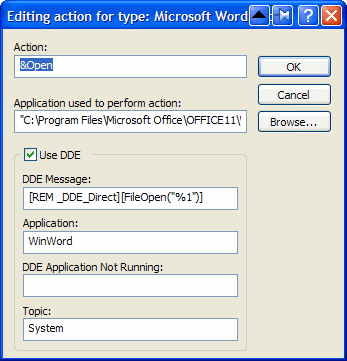

6. In the field Application used to perform action, you will see something similar to
"C:\Program Files\Microsoft Office\OFFICE11\WINWORD.EXE" /n /dde
Remove everything after the application (in this case /n /dde) and add "%1". (Ensure you put %1 between double quotes ("), otherwise this might not work if the folder and/or filename of the document contains spaces).
The field should now contain

"C:\Program Files\Microsoft Office\OFFICE11\WINWORD.EXE" "%1?

7. Click OK, OK, Close

That’s it. One final note: the DDE functionality gets restored when you re-install the application. But that will probably also fix the DDE issue itself, and if not, simply follow the instructions above again.

Unix Less Command: 10 Tips for Effective Navigation

1. Less Command – Search Navigation

Once you’ve opened a log file (or any file) using less file-name, use the following keys to search. Please note that the match will be highlighted automatically by default.
Forward Search

/ – search for a pattern which will take you to the next occurrence.
-i - ignore case in searches
n – for next match in forward
N – for previous match in backward

Backward Search

? – search for a pattern which will take you to the previous occurrence.
n – for next match in backward direction
N – for previous match in forward direction

Tip: If you dont bother about which direction the search is happening, and you want to search file path, or URL, such as “/home/ramesh/”, you can use backward search (?pattern) which will be handy as you don’t want to escape slashes each time.

Search Path
In forward: /\/home\/ramesh\/
In backward: ?/home/ramesh/

2. Less Command – Screen Navigation

Use the following screen navigation commands while viewing large log files.

CTRL+F – forward one window
CTRL+B – backward one window
CTRL+D – forward half window
CTRL+U – backward half window

3. Less Command – Line navigation

In a smaller chunk of data, where you want to locate particular error, you may want to navigate line by line using these keys:

j – navigate forward by one line
k – navigate backward by one line

4. Less Command – Other Navigations

The following are other navigation operations that you can use inside the less pager.

G – go to the end of file
g – go to the start of file
q or ZZ – exit the less pager

5. Simulate tail -f inside less pager – Press F

Once you’ve opened a file using less command, any content that is appended to the file after that will not be displayed automatically. However, you can press F less command will show the status ‘waiting for data‘. This is as similar to ‘tail -f’.

Also, refer to our earlier article about how to view multiple logs files using tail -f.
6. Less Command – Count magic

Similar to Vim editor navigation command, you can give 10j to scroll 10 lines down, or 10k to go up by 10 lines.

10j – 10 lines forward.
10k – 10 lines backward.
CTRL+G – show the current file name along with line, byte and percentage statistics.

7. Other useful Less Command Operations

v – using the configured editor edit the current file.
h – summary of less commands
&pattern – display only the matching lines, not all.

8. Open any types of files using less command

As we discussed in our earlier article, you can use less command to Open & view 10 different file types.
9. Less Command – Marked navigation

When you are viewing a large log file using less command, you can mark a particular position and return back to that place again by using that mark.

ma – mark the current position with the letter ‘a’,
‘a – go to the marked position ‘a’.

10. Less Command – Multiple file paging

Method 1: You can open multiple files by passing the file names as arguments.

$ less file1 file2

Method 2: While you are viewing file1, use :e to open the file2 as shown below.

$ less file1
:e file2

Navigation across files: When you opened more than two files ( for e.g – less * ), use the following keys to navigate between files.

:n – go to the next file.
:p – go to the previous file.

Remove Programs from the Open With Menu in Explorer

Would you like to clean up the Open with menu in Windows Explorer? Here’s how you can remove program entries you don’t want in this menu on any version of Windows.

Have you ever accidentally opened an mp3 with Notepad, or a zip file with Word? If so, you’re also likely irritated that these programs now show up in the Open with menu in Windows Explorer every time you select one of those files. Whenever you open a file type with a particular program, Windows will add an entry for it to the Open with menu. Usually this is helpful, but it can also clutter up the menu with wrong entries.

bloated openwith menu

On our computer, we have tried to open a PDF file with Word and Notepad, neither which can actually view the PDF itself. Let’s remove these entries. To do this, we need to remove the registry entries for these programs. Enter regedit in your Start menu search or in the Run command to open the Registry editor.

Backup your registry first just in case, so you can roll-back any changes you make if you accidently delete the wrong value.

Now, browse to the following key:

HKEY_CURRENT_USER \Software \Microsoft \Windows \CurrentVersion \ Explorer \FileExts\

Here you’ll see a list of all the file extensions that are registered on your computer.

Browse to the file extension you wish to edit, click the white triangle beside it to see the subfolders, and select OpenWithList. In our test, we want to change the programs associated with PDF files, so we select the OpenWithList folder under .pdf.

Notice the names of the programs under the Data column on the right. Right-click the value for the program you don’t want to see in the Open With menu and select Delete.

Click Yes at the prompt to confirm that you want to delete this value.

Repeat these steps with all the programs you want to remove from this file type’s Open with menu. You can go ahead and remove entries from other file types as well if you wish.

Once you’ve removed the entries you didn’t want to see, check out the Open with menu in Explorer again. Now it will be much more streamlined and will only show the programs you want to see.

Conclusion

This simple trick can help you keep your Open with menu tidy, and only show the programs you want in the list. It can be irritating to accidentally open files in programs that can’t even read them. This trick works in all versions of Windows, including 2000, XP, Vista, and Windows 7.

Cleanup "Open With" in Windows


Using PHP in WordPress Text Widgets

Have you ever wanted to use PHP in WordPress text widgets? All of us have. Here’s a neat little trick to allow you to insert PHP in WP text widgets. Sure, there are several plugins which allow you to do that. But isn’t it neat to use the default WordPress Text widget and give it the PHP dimension? Copy and paste this into your functions.php file and see the magic happen.

add_filter('widget_text', 'php_text', 99);
function php_text($text) {
 if (strpos($text, '<' . '?') !== false) {
 ob_start();
 eval('?' . '>' . $text);
 $text = ob_get_contents();
 ob_end_clean();
 }
 return $text;
}

Android Apps

Adobe Reader
Aldiko
AndFTP
AndFTP Pro
Angry Birds
Barcode OI Plugin
Barcode Scanner
ES File Explorer
ES Task Manager
Explorer (not used much)
Fandago
Flashlight
FlightVew Free
Go Launcher EX
Maps
Market
MoboPlayer
MoboPlayer Codec for ARM
Movies
Notepad
OI Shopping List
OneBusAway
Opera Mini
QuickPic
redbox
Slashdot Reader
SManga
SMS Backup & Restore
Speed Test
Starbucks
Voice Recorder
Winamp
World Clock
Yelp
YouTube

Stabilize Shaky Videos with Youtube Editor

Fixing/stabilize your cell phone/camera shaky videos using new feature of YouTube video editor.

Making videos while holding camera or cell phone in our hand always gives us some shaky results no matter how still our hands were. This is what we call shaky camera syndrome and this effect can easily be observed while watching that video.

In Plain English… You can make your shaky videos stable by using this feature with only a few clicks.

Here are the steps:

Go to YouTube video editor.

  • Drag your video to the bottom row where you can edit it later.
  • After dragging the video to bottom row, hover the mouse onto the video thumbnail and click on the “Effects” button of the three buttons shown on the thumbnail.
  • It will lead you to another window where you will see “Stabilize this video” option (View screenshot below)
  • Just tick on the option and let the YouTube do the stabilization for you.

How To Get Cursor/Arrow Keys On Swype

Today's tip is almost a necessity because I've seen so many of you looking and asking and complaining about having no cursor keys in Swype (us EVO 4G users absolutely need them - the phone has no trackball!).

So I am here to tell you that Swype actually does have cursor keys but they're hidden away in a secret menu behind a super-secret swipe. Well, not too secret but if you haven't looked through the manual, you are probably unaware of it.
How To Get Cursor/Arrow Keys On Swype

To get to the special menu, just swipe from the lower left button (the one with the letter 'i' and a squiggly) towards the button with 'SYM' on it.

Check it out - BAM, what's that? A hidden menu.

To go back to the regular mode, press the 'ABC' button.

How To Create a User-Defined Service

The following did not work with FullSync, it appear to start but not run properly

You will need to install the Window 2003 rktools.exe

The Windows NT Resource Kit provides two utilities that allow you to create a Windows NT user-defined service for Windows NT applications and some 16-bit applications (but not for batch files).

Instrsrv.exe installs and removes system services from Windows NT and Srvany.exe allows any Windows NT application to run as a service.

create a Windows NT user-defined service, perform the following steps:

  1. At a MS-DOS command prompt(running CMD.EXE), type the following command:path\INSTSRV.EXE My Service path\SRVANY.EXEwhere path is the drive and directory of the Windows NT Resource Kit (i.e., C:\RESKIT) and My Serviceis the name of the service you are creating.Example:
    C:\Program Files\Resource Kit\Instsrv.exe Notepad C:\Program Files\Resource Kit\Srvany.exe

    NOTE:To verify that the service was created correctly, check the registry to verify that the ImagePath value under

    HKEY_LOCAL_MACHINE\SYSTEM\CurrentControlSet\Services\service name

    is set to point to SRVANY.EXE. If this is not set correctly, the service will stop shortly after it starts and return an Event ID 7000 "The service name failed to start."

    WARNING: Using Registry Editor incorrectly can cause serious problems that may require you to reinstall your operating system. Microsoft cannot guarantee that problems resulting from the incorrect use of Registry Editor can be solved. Use Registry Editor at your own risk.

    For information about how to edit the registry, view the "Changing Keys And Values" online Help topic or the "Add and Delete Information in the Registry" and "Edit Registry Data" online Help topics in Registry Editor.

    NOTE: You should back up the registry before you edit it.

  2. Run Registry Editor (Regedt32.exe)and locate the following subkey:HKEY_LOCAL_MACHINE\SYSTEM\CurrentControlSet\Services\<My Service>
  3. From the Edit menu, click Add Key. Type the following and click OK:Key Name: Parameters
    Class : <leave blank>
  4. Select the Parameters key.
  5. From the Edit menu, click Add Value. Type the following and click OK:Value Name: Application
    Data Type : REG_SZ
    String : <path>\<application.ext>where <path>\<application.ext> is the drive and full path to the application executable including the extension (i.e., C:\WinNT\Notepad.exe)
  6. Close Registry Editor.

By default, a newly created service it configured to run Automatically when the system is restarted. To change this setting to Manual, run the Services applet from Control Panel and change the Startup value to Manual. A service set to Manual can be started in one of several ways:

- From the Services applet in Control Panel- From a MS-DOS command prompt, type the following:NET START <My Service>- Use the Sc.exe utility from the Resource Kit. Type the following from a MS-DOS command prompt:<path>\Sc.exe start <My Service>

where <path> is the drive and directory of the Windows NT Resource Kit (i.e., C:\Reskit).

How to remove a service:

Recently, I was trying to delete a windows service. Normally it should not be necessary to manually delete a service. Uninstalling an application should remove its associated service (if any).

However, I installed some beta products and a service created by one of the applications was not removed automatically. Its very easy to remove a service from registry if you know the right path. Here is how I did that:

1. Run Regedit or Regedt32

2. Find the registry entry "HKEY_LOCAL_MACHINE/SYSTEM/CurrentControlSet/Services"

3. Look for the service there and delete it. You can look at the keys to know what files the service was using and delete them as well (if necessary).

alternatively, you can also use command prompt and delete a service using following command:

sc delete < SERVICE name>

or to create, simply type
sc create <SERVICE name>

Update:
If you have space in the file path you need to use quotation marks ("). For example:
sc create "MySQL" binpath= "C:\Archivos de programa\MySQL\MySQL Server 5.1\bin\mysqld.exe"

Thanks to Maya.

NOTE: You may have to reboot the system to get the list updated in service manager.