Firefox Disabled Extensions – Enable Them Again

Notes on how to use debug mode:
Refer: www.reddit.com/r/firefox...

Use about:debug, and the load each plug-in to enable it again:
Refer: https://superuser.com/questions/379239/where-is-the-mozilla-firefox-plugins-folder-on-a-mac

  • about:debug
  • create an alias to see hidden folders
  • Navigate to /User/<user>/Library/Application Support/Firefox/Profiles/<profile>/extensions


Enable SSH on Target Host

Refer: https://gist.github.com/slowkow/8798394

The hostname of your remote server.

host=myserver.com

Create this folder if it does not exist: ~/.ssh

mkdir ~/.ssh

Set the correct permissions (required)

chmod 700 ~/.ssh

Generate an RSA key pair for identification with the remote server

ssh-keygen -t rsa

Copy your public key to the remote server

cat ~/.ssh/id_rsa.pub | ssh $host 'cat >> ~/.ssh/authorized_keys'

ssh is very strict about correct permissions, let's not change home folder persmissions

chmod 700 ~/.ssh
chmod 600 ~/.ssh/authorized_keys

At this point, you can connect to your server without typing a password:

ssh username@myserver.com

On Demand Data Pass – Prepaid

Refer: https://support.t-mobile.com/docs/DOC-7261#secondheading

How to add for a Pay As You Go (Prepaid) plan

To purchase a pass on your Pay As You Go plan, call T-Mobile customer service by dialing 611 from your T-Mobile phone, or call 1-877-746-0909. You can get a 1-day pass or a 1-week (7-day) pass. Automated account help and customer service representatives are available 24 hours a day, 7 days a week. For the hearing impaired, TTY service is available by calling 1-877-296-1018, 7 days a week, from 3 a.m.-10 p.m. PT.

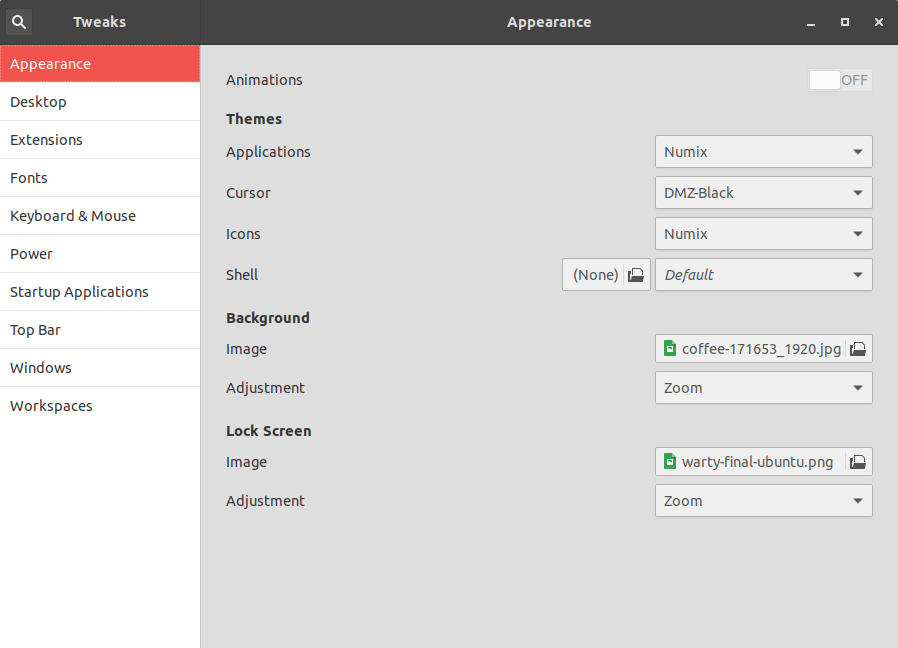
Install Numix Theme

Refer: https://itsfoss.com/install-numix-ubuntu/
Refer: https://www.gnome-look.org/p/1170667/

$ sudo add-apt-repository ppa:numix/ppa
$ sudo apt-get update
$ sudo apt-get install numix-gtk-theme numix-icon-theme-circle

The wallpapers no longer exist
$ sudo apt-get install numix-wallpaper-*

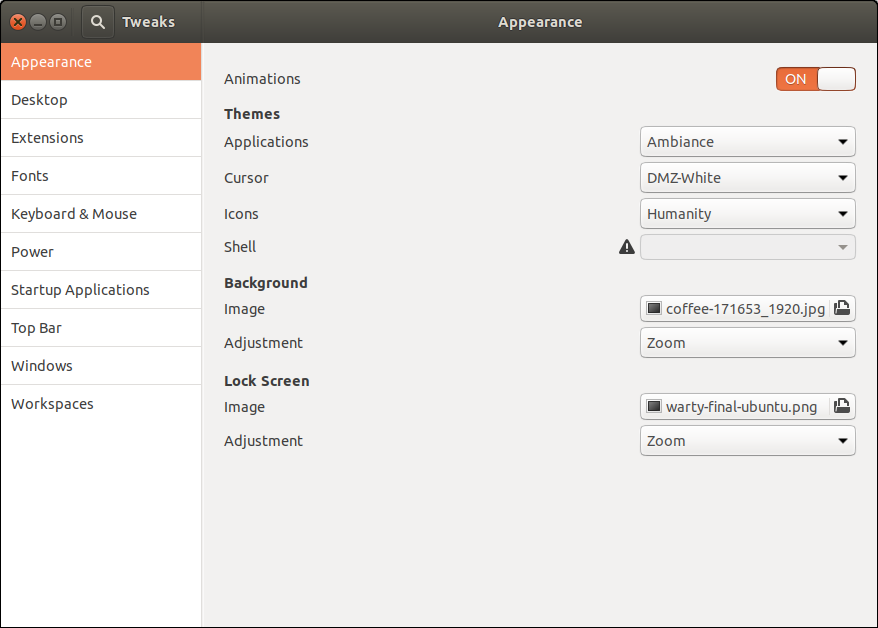
Original Defults

Make a Window Transparent in Ubuntu 18.04

Refer: http://tipsonubuntu.com/2018/11/12/make-app-window-transparent-ubuntu-18-04-18-10/

Open terminal either via Ctrl+Alt+T or from software launcher.

When terminal opens, paste following the command and hit enter:
sh -c 'xprop -f _NET_WM_WINDOW_OPACITY 32c -set _NET_WM_WINDOW_OPACITY $(printf 0x%x $((0xffffffff * 80 / 100)))'

Your mouse cursor will become cross-shaped, simply click on any window and it become 80% opacity.
In the command, you can change 80 to number range from 1 ~ 99 for other window opacity.

To reset the window opacity, run command:
sh -c 'xprop -f _NET_WM_WINDOW_OPACITY 32c -set _NET_WM_WINDOW_OPACITY $(printf 0x%x $((0xffffffff * 100 / 100)))'

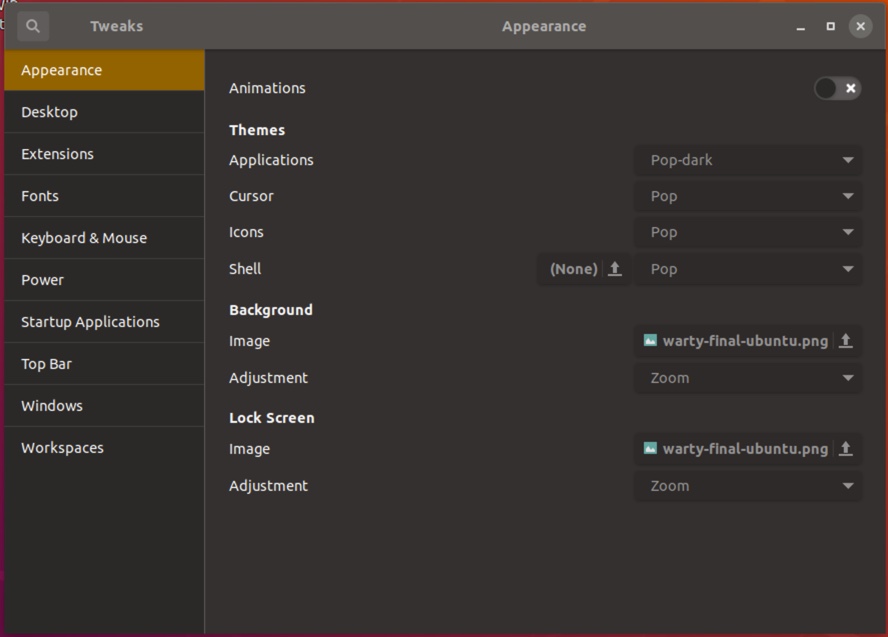
Installing Pop Theme

Refer: https://itsfoss.com/install-themes-ubuntu/

$ sudo add-apt-repository ppa:system76/pop
$ sudo apt-get update
$ sudo apt-get install pop-theme
$ sudo apt install gnome-shell-extensions


Install Wine on Ubuntu 18.04 with PlayOnLinux

Refer: http://tipsonubuntu.com/2019/02/01/install-wine-4-0-ubuntu-18-10-16-04-14-04/

The official wine repository offers Ubuntu packages for all current Ubuntu releases, so you can easily install it via following steps:

1. Open terminal from application menu, then run command to enable 32 bit architecture:

sudo dpkg --add-architecture i386

Type user password (no visual feedback) when it prompts and hit Enter.

2. Run command to download and add the repository key:

wget -nc https://dl.winehq.org/wine-builds/winehq.key

sudo apt-key add winehq.key

3. For Ubuntu 18.04, Linux Mint 19.x, run command to add the repository:

sudo apt-add-repository 'deb https://dl.winehq.org/wine-builds/ubuntu/ bionic main'

For other releases, replace bionic in the code with:

cosmic for Ubuntu 18.10.
xenial for Ubuntu 16.04, and Linux Mint 18.x.
trusty for Ubuntu 14.04.

4. Finally check system package cache and install Wine 4.0:

sudo apt-get update

sudo apt-get install --install-recommends winehq-stable

For Ubuntu 18.04 and higher, you can skip apt-get update as it’s done after adding PPA.

How to Use Wine in Ubuntu:

Once installed, you need to generate configuration file by running command:

winecfg

It prompts you to install some libraries and finally launches the configuration dialog.

To run a .exe file, right-click on file, select “Open with Other Application”, and choose “Wine Windows Program Loader”.

Uninstall:

To remove Wine repository, go to Software & Updates -> Other Software, highlight the repository line and remove it.

Now you can install PlayOnLinux with the software store...

AdBlock Links

Look for AdGuard Pro or AdBlock need 127.0.0.1 lb.usemaxserver.de

Refer: https://appleiphonemod.blogspot.com/2018/05/system-wide-blocking-in-adblock-for-ios.html?m=1

https://goo.gl/rs8xDQ
https://raw.githubusercontent.com/Twanthegreat/Adblockios/master/updatedAdBlockRulesv4.1.txt

Refer: https://www.reddit.com/r/ios/comments/7faeqz/dns_list_for_adblock_futuremind/
Refer: https://github.com/AdAway/AdAway/wiki/hostssources
https://adaway.org/hosts.txt

Refer: https://github.com/BlackJack8/iOSAdblockList
https://github.com/BlackJack8/iOSAdblockList/blob/master/iPv4Hosts.txt


24 Python Libraries

Refer: https://www.infoworld.com/article/3008915/24-python-libraries-for-every-python-developer.html

Another web browser like flask, called bottle
Refer: http://bottlepy.org/docs/dev/
$ sudo pip install bottle

Run Linux sh command inside python
# Refer: http://amoffat.github.io/sh/
$ sudo pip install sh

Abstracts Selenium and can run Chrome and headless Chrome
Refer: https://splinter.readthedocs.io/en/latest/drivers/chrome.html
$ sudo pip install splinter