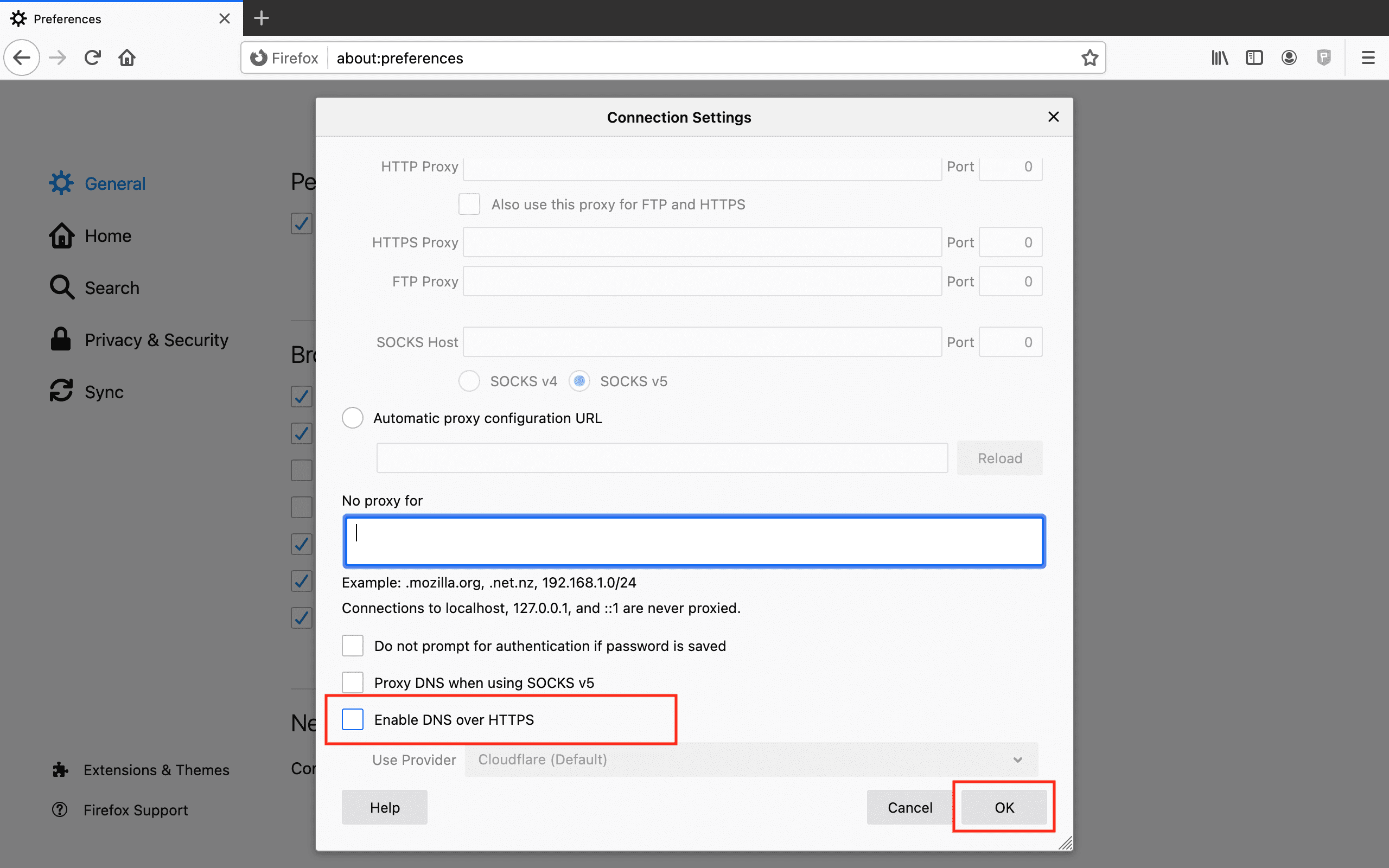
Refer: https://www.keepsolid.com/smartdns/manuals/how-to-disable-dns-over-https
Just go into settings and search for DNS

Technical notes, and other ideas.
Refer: https://www.keepsolid.com/smartdns/manuals/how-to-disable-dns-over-https
Just go into settings and search for DNS
Refer: https://www.techrepublic.com/article/prevent-firefox-consuming-resources/
about:configSearch for
layers.acceleration.force-enabledSet to true and restart Firefox
Refer: https://support.mozilla.org/en-US/kb/back-and-restore-information-firefox-profiles
Source Computer
In Firefox click the pancake setting and go to Help, "More troubleshooting information"
Look for path to your "Profile Directory", such as:
/home/mruckman/.mozilla/firefox/6kzldk99.default-release
Close Firefox
Zip/Tar the entire folder
Target Computer
Same procedure as above, locate the folder of your profile. Erase everything in the folder and replace it with the source folder information, the contents remain the same, the only change is the folder name.
Make sure to CLOSE Firefox before deleting and copying the files
Notes on how to use debug mode:
Refer: www.reddit.com/r/firefox...
Use about:debug, and the load each plug-in to enable it again:
Refer: https://superuser.com/questions/379239/where-is-the-mozilla-firefox-plugins-folder-on-a-mac
Refer: https://support.mozilla.org/en-US/questions/1222694
about:config?filter=autoplay
Helpful Reply
The pref that controls auto-play has been changed in the current Firefox release (63.0.1) to an Integer value.
media.autoplay.default = 0
When the first two prefs listed below (or at least user-gestures-needed) are true then there is also a setting available in "Options/Preferences -> Privacy & Security -> Permissions" and you can inspect and modify the exceptions.
media.autoplay.enabled.user-gestures-needed = true
media.autoplay.ask-permission = true
media.autoplay.default = 0 [0=Allowed, 1=Blocked, 2=Prompt]
You can open the about:config page via the location/address bar. You can accept the warning and click "I accept the risk!" to continue.
http://kb.mozillazine.org/about:config
See also:
https://support.mozilla.org/en-US/kb/block-autoplay
Refer: https://support.mozilla.org/en-US/questions/1126509
You can look at this extension:
You can copy files like these to the current Firefox profile folder to restore specific data.
You can use this button to go to the current Firefox profile folder:
See also:
Legacy upgrade has disabled many plug-ins, you can see what's been removed here:
about:config?filter=extensions.legacy.enabled
Open about:config
Search for media*play
Set media.block-autoplay-until-in-foreground;false
Set media.autoplay.enabled;false
Use the about:config and then white list all of the URL that should use it, such as:
network.automatic-ntlm-auth.allow-proxies;true
network.automatic-ntlm-auth.trusted-uris;http://halprdtlf01.flagship.hal.com,http://halit
Use following command to locate firefox installtion:
$locate firefox
To determine location of icon PNG file, just in case
It's currently located here:
/usr/share/icons/hicolor/48x48/apps/firefox.png
Right-click the browser icon in your VM choose properties, and then click the current icon, navigate to the following folder, and then click icon and choose the firefox.png icon.
/usr/share/icons/hicolor/48x48/apps/