
Compress Ubuntu Disk Space in Parallels or VirtualBox

If you have setup your parallels as an expanding disk, which might perform a little less but our solid state drives can handles this. You can delete your snapshot and fill all of your deleted space with zeros. This allows the reclaim disk feature of parallels to work. I was able to recover about 20GB of disk space. My 65GB hard drive was taking 75GB of space due to snapshot.

Windows Tool

SDelete (Local Copy) SDelete.zip
https://technet.microsoft.com/en-us/sysinternals/bb897443 (Original Location)

sdelete.exe c: -z

Linux Tool

Then go into sudo and run the sfill command, let it run and you will get a warning about being out of space, but it will be okay.

sudo apt-get install secure-delete
sudo su -
sfill -l -l -z -v /

VirtualBox Compression

VBoxManage list hdds

VBoxManage modifymedium disk "/home/mruckman/VirtualBox VMs/Windows10/Windows10 Clone.vdi" --compact

VBoxManage modifymedium disk "/home/mruckman/VirtualBox VMs/Ubuntu 22.04/Ubuntu 22.04.vdi" --compact

VBoxManage modifymedium disk "/home/mruckman/VirtualBox VMs/Ubuntu 22.04 Docker/Ubuntu 22.04 Docker Machine.vdi" --compact

Windows

You need to open a command prompt and NOT a PowerShell terminal

"C:\Program Files\Oracle\VirtualBox\VBoxManage.exe" modifyhd "C:\Users\mruckman\VirtualBox VMs\Ubuntu 22.04\Ubuntu 22.04.vdi" --compact
"C:\Program Files\Oracle\VirtualBox\VBoxManage.exe" modifyhd "C:\Users\mruckman\VirtualBox VMs\Ubuntu 22.04 Docker\Ubuntu 22-disk001.vdi" --compact

After you're done, take a new snapshot.

You can try this method instead, it does not require any additional installation:

Refer: https://forum.parallels.com/threads/tip-how-to-compact-your-virtual-disks-when-using-linux-guests.29829/

$ dd if=/dev/zero of=deleteme bs=1M

Virtual Box is a bit different OLDER Deprecated

Refer: http://splatoperator.com/2012/07/compacting-a-vmdk-virtual-machine-disk-format-image/

Zero out the free space
Clone the VMDK
Attach new drive

$ VBoxManage clonehd $disk_name.vmdk clone.vmdk

$ /usr/local/bin/vboxmanage clonehd "/Users/mauriceruckman/VirtualBox VMs/Ubuntu-14.04-HAL-UI-35GB/Ubuntu-14.04-HAL-UI-35GB-disk1.vmdk" "/Users/mauriceruckman/VirtualBox VMs/Ubuntu-14.04-HAL-UI-35GB/Ubuntu-14.04-HAL-UI-35GB-20160812-disk1.vmdk"
Parallels Resize Issue

Refer: https://askubuntu.com/questions/1073568/preventing-window-resizing-after-resume

There's an issue when resuming from suspend, the screen warps and it needs resized.  This fix does not work completely but it downsizes the window, so you just need to double-click to get it working again.  This is NOT a perfect solution for Parallels and it is wonky when suspending in full screen too.

If this returns a value of uint32 0, then it means you have automatic scaling turned on. I found that setting this to a specific value (in my case 1) fixed the issue, which you can do using the following:

gsettings get org.gnome.desktop.interface scaling-factor
gsettings set org.gnome.desktop.interface scaling-factor 1

Windows 10 Shutdown Restart Issue with Parallels

Symptoms
The virtual machine processor was reset by the operating system. error message is shown when working with a Windows virtual machine:

Resolution
While Parallels Engineering Team is working on the permanent fix for this issue by disabling hybrid hibernation it's possible to temporary resolve the issue:

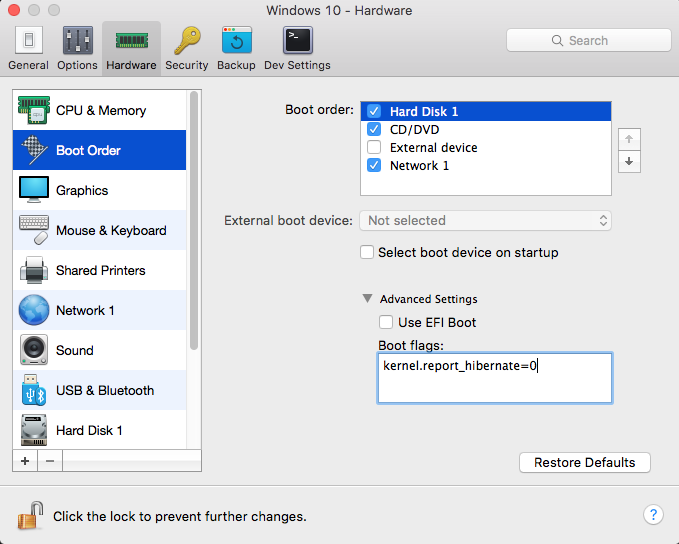
  • Shut down the Windows virtual machine and open its configuration.
  • Switch to the Hardware tab and choose Boot Order from the list.
  • Expand Advanced Settings dropdown menu and insert the following boot flag in the Boot flags section:
    kernel.report_hibernate=0

Refer: https://kb.parallels.com/en/123831

Other possible solutions, did not work but when using the above switch, the options completely disappeared as an option.  The trick was to delete the fast boot option.

Refer: https://winaero.com/blog/how-to-disable-or-enable-fast-startup-in-windows-10/

To disable Fast Startup in Windows 10, follow these simple instructions:

  • Right click the Start button or you can press Win + X shortcut keys together to open the Power Users menu / Win + X menu.
  • In the Win+X menu, click the Control Panel item. Windows 10 win+x menu control panel
  • Go to the following applet:
  • Control Panel\System and Security\Power Options
    Windows 10 Control panel Power options
  • Click the link "Change what the power button does" on the left.
  • The following window will appear on the screen: Windows 10 change what power button does
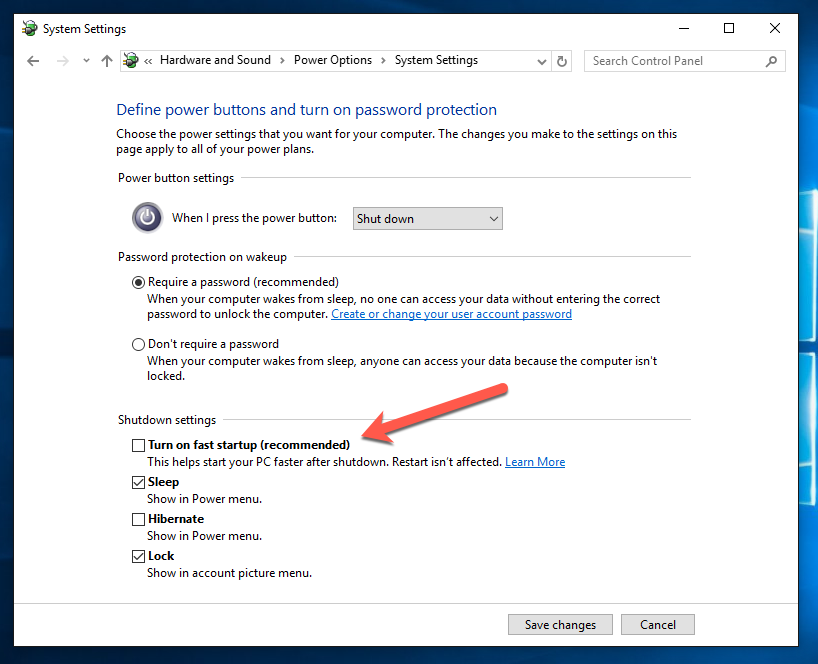
  • Click on the 'Change settings that are currently unavailable' link to make the Shutdown options available.
  • Untick the Turn on fast startup (recommended) option: Windows 10 disable fast startup

That's it. Now the Fast Startup feature is disabled.

Getting Ubuntu 18.04 to work with Parallels

This has not been tried yet, but it looks promising:

Refer: https://gist.github.com/rudolfratusinski/a4d9e3caff11a4d9d81d2e84abc9afbf

Getting Shares to Work
sudo chmod +x /usr/bin/prlfsmountd

Tar the files
tar --exclude prl_mod.tar.gz -zcvf prl_mod.tar.gz .

Fixing Video Display of Windows 10 in Parallels

Issue with remote desktop scaling too small, need to adjust Windows 10 to NOT use retina display.

Refer: http://blog.parallels.com/2015/08/18/how-to-configure-the-best-display-settings-for-parallels-desktop-on-a-retina-mac/

2016-05-18_10-31-44_1

2016-05-18_10-31-44_2

2016-05-18_10-31-44_3

Update Parallel Tools from Command Line

Found that Parallel Tools seems to keep hanging when it needs to do an update.  If you cancel the auto updater it works much better from the command line.

$ sudo /media/<username>/Parallels\ Tools/install
Refer: http://kb.parallels.com/en/117044