Refer: https://packagecontrol.io/packages/Repeat%20Macro
Sublime has a plug-in to repeat a macro a set number of times or to run it until the end of file.

Technical notes, and other ideas.
Refer: https://packagecontrol.io/packages/Repeat%20Macro
Sublime has a plug-in to repeat a macro a set number of times or to run it until the end of file.
Refer: https://realpython.com/setting-up-sublime-text-3-for-full-stack-python-development/
Still need to work through this...
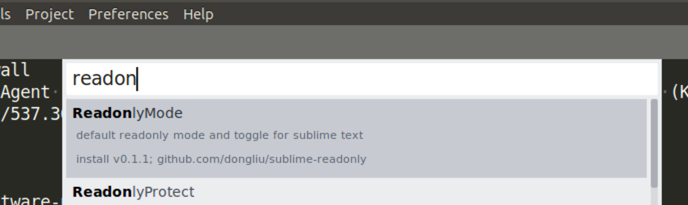
Refer: https://github.com/dongliu/sublime-readonly
Running Sublime from the command line with:
$ subl
In Ubuntu 18.10 out of the box, it was necessary to install the following package because sublime would NOT start.
Refer: https://forum.sublimetext.com/t/solved-ubuntu-18-10-failure-to-launch/39926/3
$ sudo apt-get install libgtk2.0-0
It was throwing the following errors when trying to run the program:
$ /opt/sublime_text/sublime_text
Unable to load libgdk-x11-2.0.so
Unable to load gdk_cairo_create from libgdk-x11-2.0.so
Older Notes of Installation
Sublime was updated via the repository and then downloaded from the site itself.
Just download the file, become root and delete the existing files and copy over them here:
/opt/sublime_text
Edit preferences and add
"update_check": false,
Install it via the Ubuntu Repositories
https://www.sublimetext.com/docs/3/linux_repositories.html#apt
Grab commands: install-sublime-ubuntu-repo.txt
$ wget -qO - https://download.sublimetext.com/sublimehq-pub.gpg | sudo apt-key add -
$ sudo apt-get install apt-transport-https
$ echo "deb https://download.sublimetext.com/ apt/stable/" | sudo tee /etc/apt/sources.list.d/sublime-text.list
$ sudo apt-get update
$ sudo apt-get install sublime-text
Sublime 3.0 Shortcut
$ sudo ln -s /opt/sublime_text/sublime_text /usr/bin/sublime
Sublime 2.0
$ sudo ln -s /home/mruckman/Downloads/Sublime\ Text\ 2/sublime_text /usr/bin/sublime
Refer: http://www.technoreply.com/how-to-install-sublime-text-2-on-ubuntu-12-04-unity/
When you launch the application from the /usr/bin/sublime entry, you can then right click and lock to the launcher in Ubuntu
Installing Plug-in
Open the editor and hit Ctrl+Shift+P to open Command Palette.
Type"Install Package" and hit Enter. Type Indent XML.
Select the highlighted plug-in and click Enter. You should see the message that saying the plug-in has been installed successfully.
Restart the editor. At least I had to.
Formatting XML
Copy the non formatted XML
Hit Ctrl + K + F.
You can also do it from the Menu option.
Formatting JSON
Hit Ctrl + K + F.
You can also do it from the Menu option.
That's it for today. Happy Formatting !
Update the configuration file
// Makes tabs with modified files more visible
"highlight_modified_tabs": true,
Select Preferences / Browse Packages…, and go to Theme - Default directory.
Open Default.sublime-theme with your editor and search for sidebar_label string. You should find something like:
{
"class": "sidebar_label",
"color": [0, 0, 0],
"font.bold": false
}
You can add here the font size you prefer:
{
"class": "sidebar_label",
"color": [0, 0, 0],
"font.bold": false,
"font.size": 14.0
}