
Canon MX920 Ubuntu Printer for Home

For Ubuntu 20.04, download the Ubuntu_20.04_Printer_Setup.zip file and follow the instructions.

For Ubuntu 18.04 18.04 setup it was necessary to go through the browser base setup instead of the GUI based setup:

Important - Security is messed up and a fix is required:
Refer: https://bugs.launchpad.net/ubuntu/+source/cups/+bug/1769893
$ sudo usermod -aG lpadmin YourUserName

http://localhost:631/admin

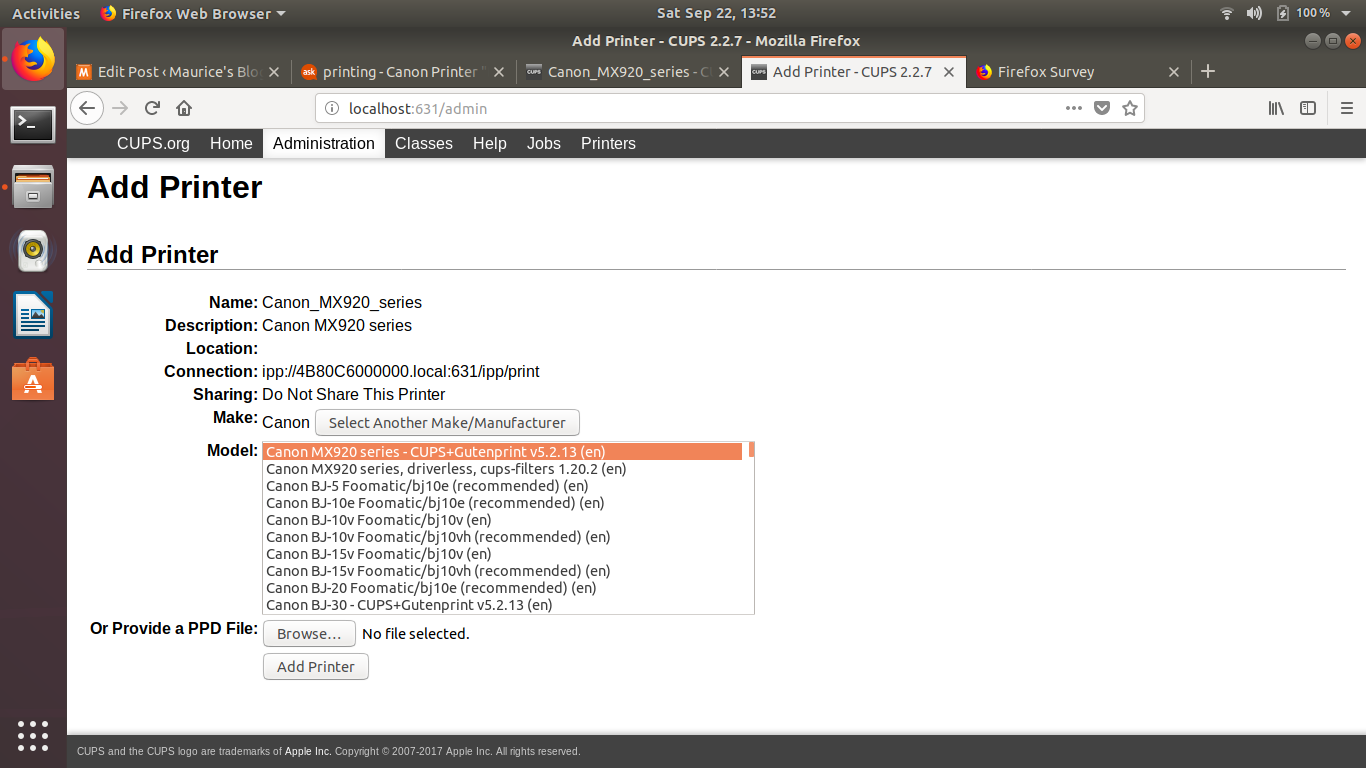
As you go through the settings choose the CUPS option for MX900 and NOT the driverless version.  It should look something like:

Canon MX920 series - CUPS+Gutenprint v5.2.13 (color, 2-sided printing)
Older Items from Research - DO NOT USE - Does NOT Work

Go here, to copy off the drivers, you will have to be sudo and copy them and change permissions
/etc/cups/ppd for files ending in ".ppd"

Trying to troubleshot MX922 Cannon printer, seemed to stop working after 18.04.1 upgrade.

Refer: https://askubuntu.com/questions/1052928/canon-printer-does-not-accept-jobs-on-ubuntu-18-04
Cook Pasta in Microwave

Refer: https://www.leaf.tv/articles/how-to-fix-kraft-mac-cheese-in-the-microwave/

Ingredient Ratios for Normal Box

  • 145g Pasta
  • 385g Water AKA 1 2/3 Cup (Weight of Pasta x 2.65 for Weight of Water)
  • 30g of Cheese Powder ~3.5 tbsp

Need to figure out a way to mix the butter, half-n-half and cheese packet better, maybe ahead of time?

Use a medium glass bowl with a little oil on top of the water

The pasta provided in Kraft Macaroni & Cheese packages cooks in about 12 minutes in the microwave on high, stirring every 5 minutes. Use a 2-quart bowl or casserole dish to hold the noodles and the water, and leave it uncovered while it cooks. To save the step of draining the noodles after they've cooked, the manufacturer suggests using 1 3/4 cups water for the standard-size package. If you're using family style or another larger Kraft Macaroni & Cheese product, check package instructions so that you add just enough water to be absorbed by the macaroni.

Improve Ubuntu 20.04 Battery by installing TLP for Linux

Laptop fan started running continuously, removed the application.

Refer: https://fossbytes.com/things-to-do-after-installing-ubuntu/

TLP is a great command-line tool for improving the battery performance for your laptop after installing Ubuntu 20.04 LTS. This advanced power management tool comes with automated background tasks that can help you get the most out of your battery.

To install TLP in Ubuntu 20.04 Focal Fossa,

sudo add-apt-repository ppa:linrunner/tlp
sudo apt-get update
sudo apt-get install tlp tlp-rdw
sudo tlp start

Install Docker on Ubuntu 20.04

Basic Installation

Refer: https://linuxconfig.org/how-to-install-docker-on-ubuntu-20-04-lts-focal-fossa

Use the apt command to install the docker.io package:

$ sudo apt install docker.io

Start docker and enable it to start after the system reboot:

$ sudo systemctl enable --now docker

Optionally give any user administrative privileges to docker:

$ sudo usermod -aG docker SOMEUSERNAME

Reboot Computer to Verify

$ reboot

Stop Docker from auto starting upon reboot

Refer: https://askubuntu.com/questions/766318/disable-docker-autostart-at-boot

sudo systemctl disable docker.service
sudo systemctl disable docker.socket

Then start and stop Docker as a service

sudo service docker start
sudo service docker stop

Check docker version:

$ docker --version

Verify Installation

$ docker run hello-world

Post Installation Items

Refer: https://docs.docker.com/engine/install/linux-postinstall/

Getting Teams to Work on Ubuntu

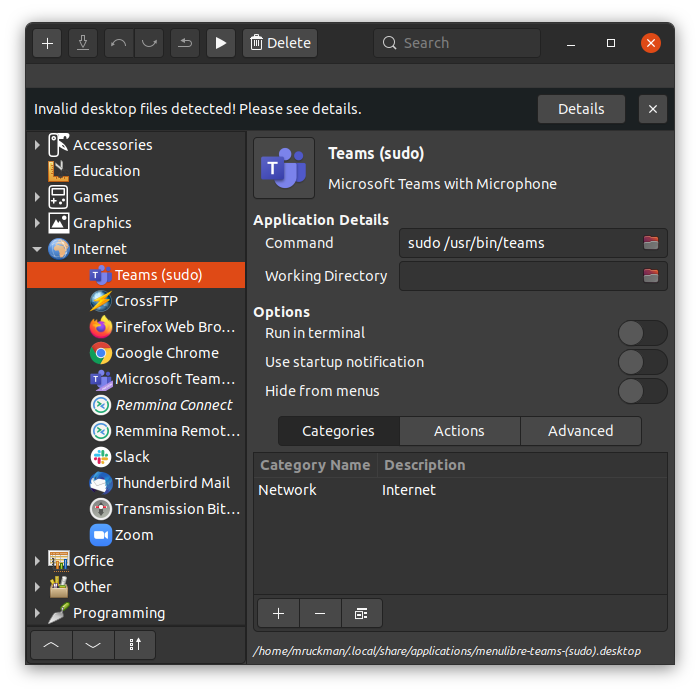
There's an issue getting the microphone to work out of the box on Ubuntu 20.04 and teams.  The microphone works but NOT the internal microphone.  It has to due with security and it seems like it's using the default browser's security settings.  The solution for now is to start Teams with sudo.

Create a Menu Entry for Teams as Sudo

Refer: https://www.tecmint.com/run-sudo-command-without-password-linux/

Allowing sudo for a program without a password

$ sudo visudo

At the end of the file, add the following, and save it:

mruckman ALL=(ALL) NOPASSWD: /usr/bin/teams

Copy Printer Setup HL2170W and Canon_MX920_Series

Refer: https://www.cyberciti.biz/tips/linux-migrate-printer-configuration.htm

Files for Setup:  home-printer-setup.zip

How to export Linux printer setup
$ sudo tar -cvzf /tmp/cups-$(hostname).tar.gz /etc/cups

Now login to new system and type the following commands:
$ cp original-filename.tar.gz /tmp/cups-$(hostname).tar.gz

$ sudo su
$ mv /etc/cups /etc/cups.backup
$ cd /
$ tar -zxvf /tmp/cups*

Finally, restart the cups service:
Refer: https://help.ubuntu.com/lts/serverguide/cups.html

$ /etc/init.d/cupsys restart

Refer: https://haydenjames.io/finding-linux-compatible-printers/

Convert XML or JSONto Java POJO Classes

Online Tool - http://pojo.sodhanalibrary.com/

Inside of IntelliJ Do the Following:

  • Open the XML File
  • Right-Click and choose "Generate XSD Schema from XML File..."
  • The Choose Tools, JAXB, Generate Java Code from Xml Schema using JAXB..."

IntelliJ Optimize Imports

Update: in IDEA 13 "Use single class import" does not prevent wildcard imports. The solution is to go to Preferences ( + , on macOS / Ctrl + Alt + S on Windows and Linux) > Editor > Code Style > Java > Imports tab set Class count to use import with '*' and Names count to use static import with '*' to a higher value. Any value over 99 seems to work fine.