
Refer: https://www.howtogeek.com/312883/how-to-shrink-a-virtualbox-virtual-machine-and-free-up-disk-space/
Ubuntu 22.04 Network Connection Has Question Mark Through it
This Question Mark means the internal connectivity test fails and instead of a network icon, there is a question mark. Apparently, there are no network issues, but that question mark is annoying.
How to turn it off:
Go to Settings > Privacy > Connectivity Checking
Set it OFF. (Then, restart your WiFi connection)

Install Ubuntu 22.04
Convert m4a to mp3 – Sound Converter
Simple converstion utility in Ubuntu Software repository.

RoboMongo AKA Robo3T on Ubuntu 22.04
Some of the SNAP installations of Robo3T throw errors:
This application failed to start because it could not find or load the Qt platform plugin "wayland-egl"
This version of the Snap worked as of August 4, 2022
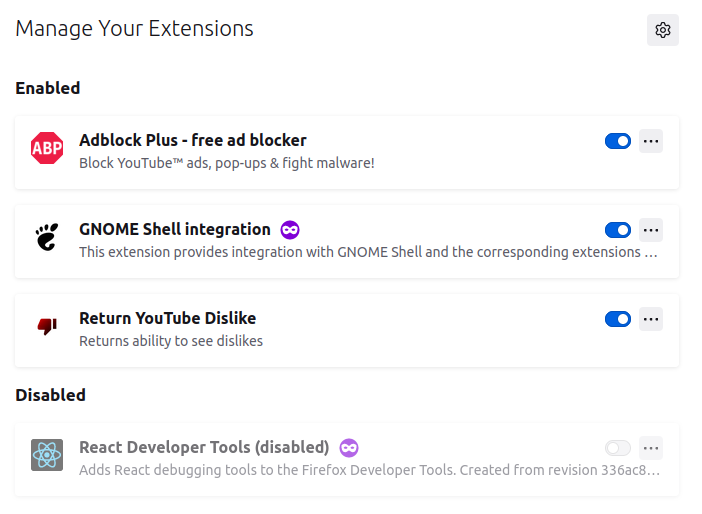
Firefox Extensions
After doing a Firefox refresh, re-install your useful extensions.
- Adblock Plus - free ad blocker
- GNOME Shell integration
- Return YouTube Dislike
Ubuntu Battery Saver TLP and Slimbook
Refer: https://ubuntuhandbook.org/index.php/2020/06/improve-battery-life-ubuntu-20-04-lts/
Refer: https://www.omgubuntu.co.uk/2021/10/slimbook-battery-4-released
How to Install TLP in Ubuntu 20.04
Simply open terminal either from application menu or by pressing Ctrl+Alt+T on keyboard. When terminal opens, run command:
sudo apt install tlpInstall Slimbook Battery from its official PPA
Run following commands in terminal one by one in terminal:
sudo add-apt-repository ppa:slimbook/slimbook
sudo apt update
sudo apt install slimbookbattery
Remove Slimbook and TLP
sudo add-apt-repository --remove ppa:slimbook/slimbook
sudo apt remove --autoremove slimbookbattery
sudo apt remove --autoremove tlpInstall VMWare Tools
From Ubuntu 20.04, need to reinstall from the terminal
sudo apt-get autoremove open-vm-tools
sudo apt-get autoremove open-vm-tools-desktop
sudo apet-get update
sudo apt-get install open-vm-tools
sudo apt-get install open-vm-tools-desktop
reboot
After the reboot copy/paste and drag/drop will work!
NOTE: If you are having troubles with the clipboard working between the host and guest, shut everything down, include the VMWare application and then restart everything.
Ubuntu 22.04
Note: You will need to be OFF the VPN
Refer: https://installati.one/ubuntu/22.04/open-vm-tools-dev/
Install open-vm-tools-dev Using apt-get
Update apt database with apt-get using the following command.
sudo apt-get updateAfter updating apt database, We can install open-vm-tools-dev using apt-get by running the following command:
sudo apt-get -y install open-vm-tools-devInstall open-vm-tools-dev Using apt
Update apt database with apt using the following command.
sudo apt update
After updating apt database, We can install open-vm-tools-dev using apt by running the following command:
sudo apt -y install open-vm-tools-devVirtualBox Build Essentials
When you insert the guest editions you get a warning about not being able to build the kernel
Run this first
sudo apt-get install build-essential gcc make perl dkmsProxmox Virtualization Platform
Refer: https://www.proxmox.com/en/