Refer: https://askubuntu.com/questions/450382/xubuntu-menulibre-application-menu-editor-not-launching
Fix as follows, because of corrupted menus
mv ~/.config/menus/ ~/.config/menus.bak
Technical notes, and other ideas.
Refer: https://askubuntu.com/questions/450382/xubuntu-menulibre-application-menu-editor-not-launching
Fix as follows, because of corrupted menus
mv ~/.config/menus/ ~/.config/menus.bakSymptom: Unable to launch software updapter because of unattended upgrade
Refer: https://unix.stackexchange.com/questions/470709/how-do-i-stop-disable-unattended-upgrades-from-being-launched-automatically
Launch the following, and then choose "No":
sudo dpkg-reconfigure -plow unattended-upgrades
Refer: https://askubuntu.com/questions/1150144/spell-checker-not-working-in-libre-office-6-0
File: dict-en-20200601.7z
This worked for me. Even hunspell or myspell, as suggested by resplin, didn't work.
However adding this extension to Libre Office worked like charm: https://extensions.libreoffice.org/extensions/english-dictionaries/
You'll need to go to Tools > Extension Manager > Add > {upload extension file}. Restart.
Refer: https://c-nergy.be/blog/?p=13655
Open you software center and enable source code, and third party Conocial Partners
# Step 1 - Install Some PreReqs
sudo apt-get install git libpulse-dev autoconf m4 intltool build-essential dpkg-dev -y
sudo apt build-dep pulseaudio -y
# Download pulseaudio source in /tmp directory - Do not forget to enable source repositories
cd /tmp
sudo apt source pulseaudio
# Compile
pulsever=$(pulseaudio --version | awk '{print $2}')
cd /tmp/pulseaudio-$pulsever
sudo ./configure
# Create xrdp sound modules
sudo git clone https://github.com/neutrinolabs/pulseaudio-module-xrdp.git
cd pulseaudio-module-xrdp
sudo ./bootstrap
sudo ./configure PULSE_DIR="/tmp/pulseaudio-$pulsever"
sudo make
# copy files to correct location (as defined in /etc/xrdp/pulse/default.pa)
cd /tmp/pulseaudio-$pulsever/pulseaudio-module-xrdp/src/.libs
sudo install -t "/var/lib/xrdp-pulseaudio-installer" -D -m 644 *.so
reboot
Refer: https://unix.stackexchange.com/questions/85663/poweroff-or-reboot-as-normal-user
$ sudo gedit /etc/sudoers
Add the following line:
mruckman ALL=NOPASSWD: /sbin/halt, /sbin/reboot, /sbin/poweroffFor Ubuntu 20.04, download the Ubuntu_20.04_Printer_Setup.zip file and follow the instructions.
For Ubuntu 18.04 18.04 setup it was necessary to go through the browser base setup instead of the GUI based setup:
Important - Security is messed up and a fix is required:
Refer: https://bugs.launchpad.net/ubuntu/+source/cups/+bug/1769893
$ sudo usermod -aG lpadmin YourUserName
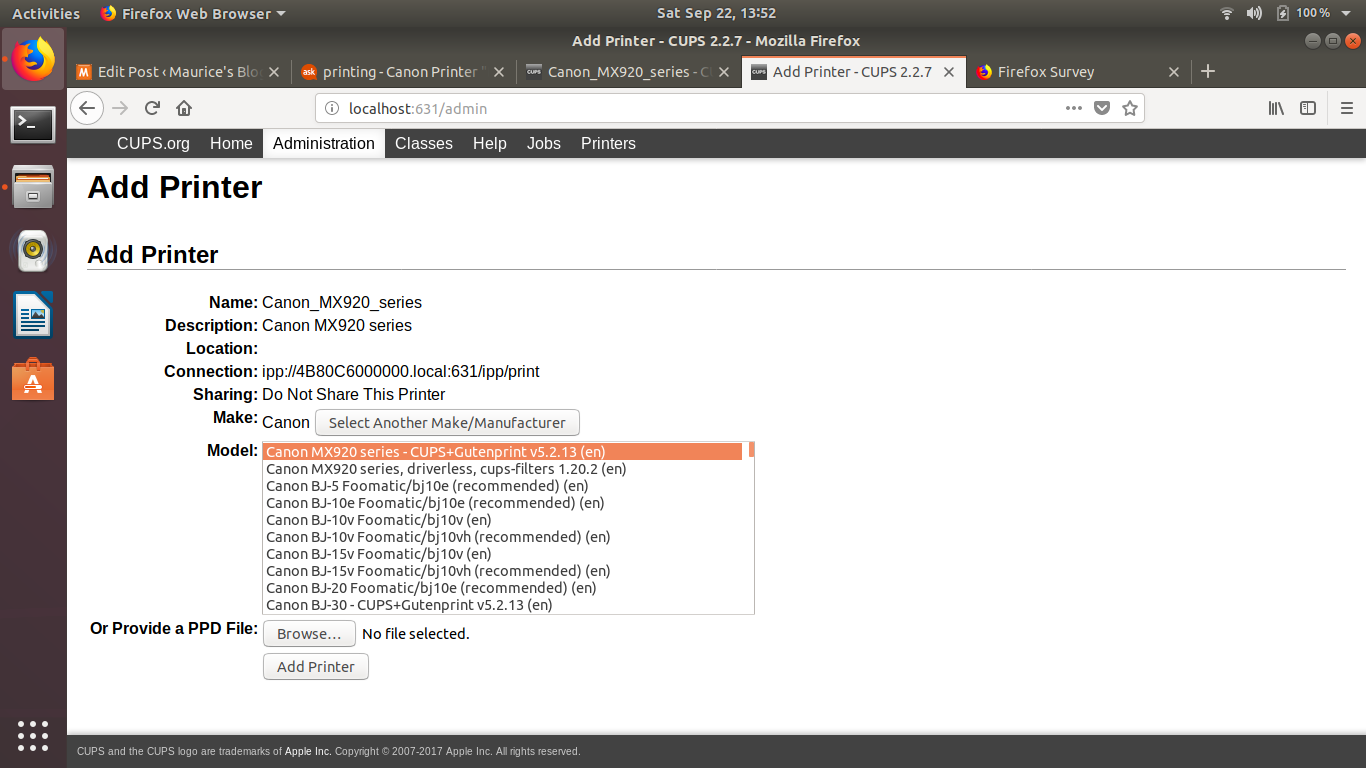
As you go through the settings choose the CUPS option for MX900 and NOT the driverless version. It should look something like:
Canon MX920 series - CUPS+Gutenprint v5.2.13 (color, 2-sided printing)
Older Items from Research - DO NOT USE - Does NOT Work
Go here, to copy off the drivers, you will have to be sudo and copy them and change permissions
/etc/cups/ppd for files ending in ".ppd"
Trying to troubleshot MX922 Cannon printer, seemed to stop working after 18.04.1 upgrade.
Refer: https://askubuntu.com/questions/1052928/canon-printer-does-not-accept-jobs-on-ubuntu-18-04
Laptop fan started running continuously, removed the application.
Refer: https://fossbytes.com/things-to-do-after-installing-ubuntu/
TLP is a great command-line tool for improving the battery performance for your laptop after installing Ubuntu 20.04 LTS. This advanced power management tool comes with automated background tasks that can help you get the most out of your battery.
To install TLP in Ubuntu 20.04 Focal Fossa,
sudo add-apt-repository ppa:linrunner/tlp
sudo apt-get update
sudo apt-get install tlp tlp-rdw
sudo tlp start
Refer: https://linuxconfig.org/how-to-install-docker-on-ubuntu-20-04-lts-focal-fossa
Use the apt command to install the docker.io package:
$ sudo apt install docker.io
Start docker and enable it to start after the system reboot:
$ sudo systemctl enable --now docker
Optionally give any user administrative privileges to docker:
$ sudo usermod -aG docker SOMEUSERNAME
Reboot Computer to Verify
$ reboot
Stop Docker from auto starting upon reboot
Refer: https://askubuntu.com/questions/766318/disable-docker-autostart-at-boot
sudo systemctl disable docker.service
sudo systemctl disable docker.socket
Then start and stop Docker as a service
sudo service docker start
sudo service docker stop
Check docker version:
$ docker --version
Verify Installation
$ docker run hello-world
Refer: https://docs.docker.com/engine/install/linux-postinstall/
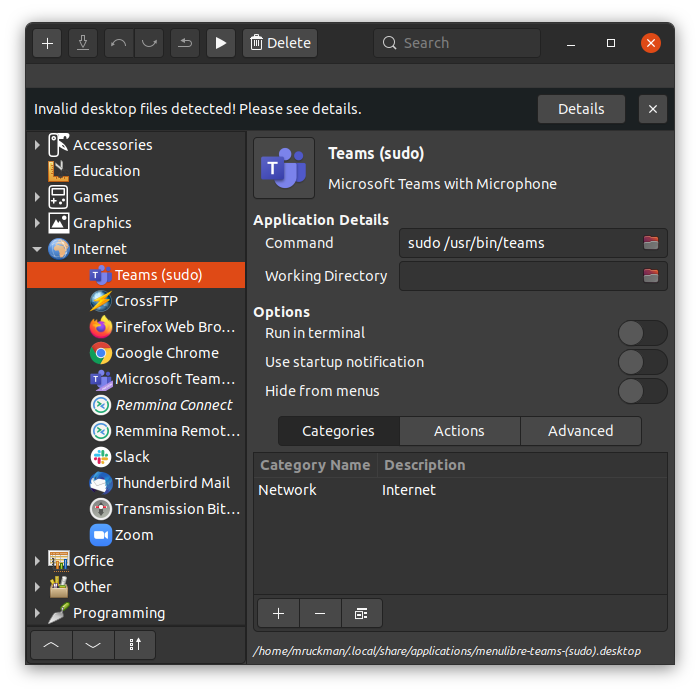
There's an issue getting the microphone to work out of the box on Ubuntu 20.04 and teams. The microphone works but NOT the internal microphone. It has to due with security and it seems like it's using the default browser's security settings. The solution for now is to start Teams with sudo.
Create a Menu Entry for Teams as Sudo
Refer: https://www.tecmint.com/run-sudo-command-without-password-linux/
Allowing sudo for a program without a password
$ sudo visudo
At the end of the file, add the following, and save it:
mruckman ALL=(ALL) NOPASSWD: /usr/bin/teams
Refer: https://www.cyberciti.biz/tips/linux-migrate-printer-configuration.htm
Files for Setup: home-printer-setup.zip
How to export Linux printer setup
$ sudo tar -cvzf /tmp/cups-$(hostname).tar.gz /etc/cups
Now login to new system and type the following commands:
$ cp original-filename.tar.gz /tmp/cups-$(hostname).tar.gz
$ sudo su
$ mv /etc/cups /etc/cups.backup
$ cd /
$ tar -zxvf /tmp/cups*
Finally, restart the cups service:
Refer: https://help.ubuntu.com/lts/serverguide/cups.html
$ /etc/init.d/cupsys restart
Refer: https://haydenjames.io/finding-linux-compatible-printers/