Install Docker on Ubuntu 20.04

Basic Installation

Refer: https://linuxconfig.org/how-to-install-docker-on-ubuntu-20-04-lts-focal-fossa

Use the apt command to install the docker.io package:

$ sudo apt install docker.io

Start docker and enable it to start after the system reboot:

$ sudo systemctl enable --now docker

Optionally give any user administrative privileges to docker:

$ sudo usermod -aG docker SOMEUSERNAME

Reboot Computer to Verify

$ reboot

Stop Docker from auto starting upon reboot

Refer: https://askubuntu.com/questions/766318/disable-docker-autostart-at-boot

sudo systemctl disable docker.service
sudo systemctl disable docker.socket

Then start and stop Docker as a service

sudo service docker start
sudo service docker stop

Check docker version:

$ docker --version

Verify Installation

$ docker run hello-world

Post Installation Items

Refer: https://docs.docker.com/engine/install/linux-postinstall/

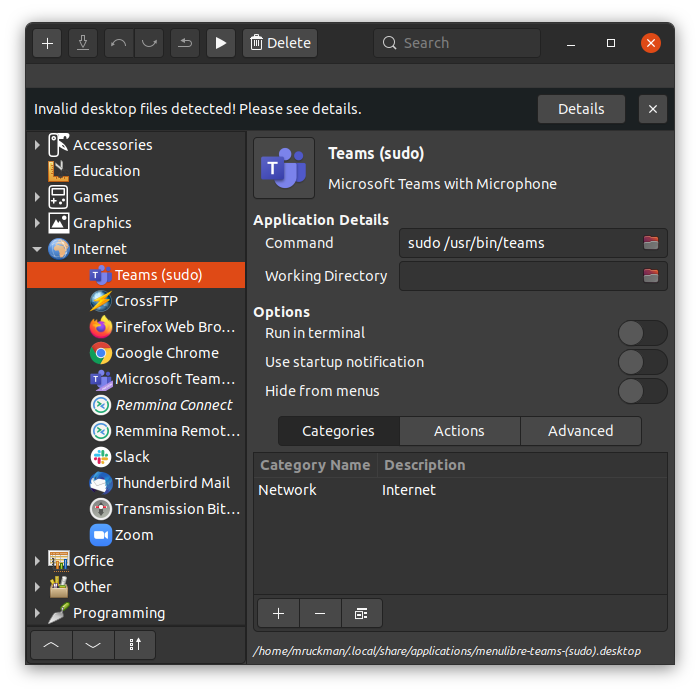
Getting Teams to Work on Ubuntu

There's an issue getting the microphone to work out of the box on Ubuntu 20.04 and teams.  The microphone works but NOT the internal microphone.  It has to due with security and it seems like it's using the default browser's security settings.  The solution for now is to start Teams with sudo.

Create a Menu Entry for Teams as Sudo

Refer: https://www.tecmint.com/run-sudo-command-without-password-linux/

Allowing sudo for a program without a password

$ sudo visudo

At the end of the file, add the following, and save it:

mruckman ALL=(ALL) NOPASSWD: /usr/bin/teams

Copy Printer Setup HL2170W and Canon_MX920_Series

Refer: https://www.cyberciti.biz/tips/linux-migrate-printer-configuration.htm

Files for Setup:  home-printer-setup.zip

How to export Linux printer setup
$ sudo tar -cvzf /tmp/cups-$(hostname).tar.gz /etc/cups

Now login to new system and type the following commands:
$ cp original-filename.tar.gz /tmp/cups-$(hostname).tar.gz

$ sudo su
$ mv /etc/cups /etc/cups.backup
$ cd /
$ tar -zxvf /tmp/cups*

Finally, restart the cups service:
Refer: https://help.ubuntu.com/lts/serverguide/cups.html

$ /etc/init.d/cupsys restart

Refer: https://haydenjames.io/finding-linux-compatible-printers/

Convert XML or JSONto Java POJO Classes

Online Tool - http://pojo.sodhanalibrary.com/

Inside of IntelliJ Do the Following:

  • Open the XML File
  • Right-Click and choose "Generate XSD Schema from XML File..."
  • The Choose Tools, JAXB, Generate Java Code from Xml Schema using JAXB..."

IntelliJ Optimize Imports

Update: in IDEA 13 "Use single class import" does not prevent wildcard imports. The solution is to go to Preferences ( + , on macOS / Ctrl + Alt + S on Windows and Linux) > Editor > Code Style > Java > Imports tab set Class count to use import with '*' and Names count to use static import with '*' to a higher value. Any value over 99 seems to work fine.

Import VirtualBox Image into Parallels

Guide: Converting Virtual Box virtual machine to Parallels Desktop.pdf

Solution

  • In the VirtualBox Manager, right-click on VM > Clone. ...
  • Launch the new clone of your VM,
  • Uninstall Guest Editions:
    $ sudo ./VBoxLinuxAdditions.run uninstall
  • Shut down the Guest OS properly. ( ..., Restart to make sure it's gone
  • Open Parallels Desktop (in the Applications folder) and choose File > Open.
  • Select  the *.vbox file from VirtualBox
  • Wait till conversion will be completed.

Refer: https://kb.parallels.com/122851

Pizza Dough / Pizza Bread

Pizza Dough

1 cup AP Flour 120 g
1 cup Bread Flour 120 g
1 tbls Softened Butter 14 g OR 2-1/4 tsp Olive Oil
1 tbls Sugar
1 tsp Yeast
1 tsp Salt

1/2 cup and 1 tbls Water 105-110F, Microwave water 25 secs microwave

Pizza Bread

Make the above recipe, but it in two containers and keep in the refrigerator for 2+ days.

Lightly dust parchment paper with flour, gently take out of container and set down, touch top with excess flour from board.

Preheat oven to 425, while it's heating cut slits on top of dough about 1" apart diagonally.

Bake for 20 minutes

Windows 10 God Mode

Refer: https://www.howtogeek.com/402458/enable-god-mode-in-windows-10/

Create a new folder in Windows 10 and name it to the following:

GodMode.{ED7BA470-8E54-465E-825C-99712043E01C}

Repair Corrupt VirtualBox .vbox File

Error in VirtualBox VBOX

These are the steps that VirtualBox takes when it writes a new Vbox file. Each step is contingent on the last one being completed without errors.

  • Write a temporary file with ".vbox-tmp" extension.
  • Delete any existing ".vbox-prev" file.
  • Rename existing ".vbox" file to ".vbox-prev".
  • Rename ".vbox-tmp" to ".vbox".

Have not tried these yet

The error that comes after the corruption of the vbox XML file is usually caused when the system locks up; thus preventing the virtualization software from finalizing the writing out to its file of configuration. The error probably implies that the <VirtualBox> opening tag on the line 2 of the file did not have any corresponding </VirtualBox> closing tag at the file’s end.

The fastest method of finding out if this is exactly what has caused the problem in your case; you can locate your vbox XML file for the Guest Operating System, whose home directory location is inside the folder of ‘VirtualBox’ in the ‘Machines’ folder in the ‘Name-of-Your-Guest-OS-Directory’ folder, saved as ‘Name-of-Your-Guest-OS.xml file’

The cause of the problem and the emergence of the error message could probably be simply that the XML file was badly corrupted whose repair process is easy and quick and might take only a minute to be repaired.

  • Open the .vbox XML file in a text editor
  • Then, go to that file’s last line
  • On not seeing any closing tag of </VirtualBox>, it is confirmed that your XML file is corrupt.
  • Now, initiate by adding this closing tag at the end of the file
  • And then, from there, try and work your way back.
  • Look through the file for the <Opening Tags> which do not have any needed </Closing Tag>
  • Another way is to use some XML validation service
  • Just after a few rounds of the three easy steps of Copying -> Pasting -> Validating, you can successfully repair corrupt vbox XML file.

Refer: https://www.bitrecover.com/blog/repair-corrupt-virtualbox-vbox-file/

Download Notes: [ repair-corrupt-virtualbox.pdf ]