Fixing VirtualBox Clipboard Issue

Finally I was able to solve my clipboard cut/copy problem in Ubuntu VM.

Here are the steps I followed to solve my clipboard issues.

// Find out the process id used by clipboard. You will two dependent ID created at the time of boot up.
#> ps -ef | grep -i clip

// Kill the process that is running the clipboard
#> kill –9 $ProcessId // Process ID from the process listed from above command

// Execute the clipboard manually.
#> /usr/bin/VBoxClient —clipboard

//Check the id using pstree

// Check the process id again to see if it is running properly.
#> ps -ef | grep -i clip

// Use pstree to check the linking of the processing.
#> pstree -sp $Provide your process id retrieved from above command.

Add existing user to a group

You can modify the group directly on our WINT servers by adding user to group:

$ vi /etc/group

You will need to logoff and logon again, here's an example adding user xxx to tomcat group

$ sudo usermod -a -G tomcat xxx
$ sudo usermod -a -G groupName userName

Reset / Re-order Folders on Macbook Email

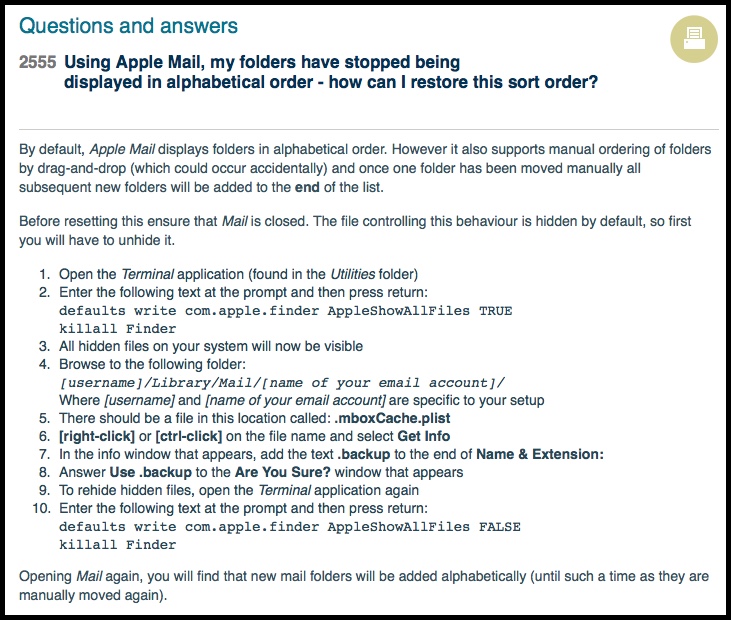
http://www.sussex.ac.uk/its/help/faq?faqid=2555

You can use the following steps to re-import your email on the Macbook

Open the Terminal application (found in the Utilities folder)

Enter the following text at the prompt and then press return:

defaults write com.apple.finder AppleShowAllFiles TRUE
killall Finder

All hidden files on your system will now be visible

Browse to the following folder in Finder:
[username]/Library/Mail/[name of your email account]/

Where [username] and [name of your email account] are specific to your setup

There should be a file in this location called: .mboxCache.plist

[right-click] or [ctrl-click] on the file name and select Get Info

In the info window that appears, add the text .backup to the end of Name & Extension:

Answer Use .backup to the Are You Sure? window that appears

To rehide hidden files, open the Terminal application again

Enter the following text at the prompt and then press return:
defaults write com.apple.finder AppleShowAllFiles FALSE
killall Finder

Email-Sort-2016-02-25_08-30-45

Getting Lync to Work on Mac

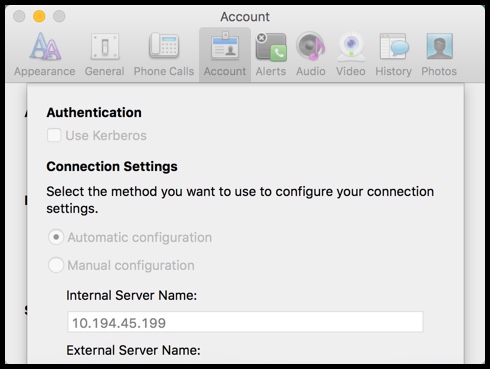
Click the "Advanced" button on the sign-in window

Select "Manual Configuration" radio button and paste "10.194.45.199" for the Internal Server Name

Select Ok

Then sign-in with your AD credentials

Reboot laptop and then change it to automatic

Lync-2016-02-22_12-52-31

Two finger trackpad control

Refer: http://askubuntu.com/questions/186895/how-to-enable-two-finger-scrolling-on-lenovo-thinkpad-t400-w540

It can be enabled also using commands, and they can go in your .bashrc after testing

xinput --set-prop --type=int --format=32 "SynPS/2 Synaptics TouchPad" "Synaptics Two-Finger Pressure" 4
xinput --set-prop --type=int --format=32 "SynPS/2 Synaptics TouchPad" "Synaptics Two-Finger Width" 8
xinput --set-prop --type=int --format=8  "SynPS/2 Synaptics TouchPad" "Synaptics Two-Finger Scrolling" 1 0

Create clickable icon in Ubuntu like SQL Developer – Desktop

Refer: http://askubuntu.com/questions/142159/desktop-shortcut-to-create-a-new-desktop-shortcut-doesnt-do-anything

Use the following to create an icon to launch program, put it with your progam and you can then drag it onto the taskbar, but remember it's a link to the launcher

To create Desktop shortcuts in Ubuntu,gnome-panel package is required first.

Open Terminal. To open terminal click the Dash home from Unity launcher. And type terminal in the search field. And click Terminal.

Type the below code in terminal and hit enter.

$ sudo apt-get install --no-install-recommends gnome-panel

Then type below code in terminal and hit enter, but put yourself in the the folder of the application, this allows the icon image to always appear properly

The magic is making sure your BASH script has proper permissions and is executable.

Make a Bash Script Executable, use chmod to do the trick as follows:
$ chmod u+x script-name.sh

Use this:
$ gnome-desktop-item-edit . --create-new

Instead of this
$ gnome-desktop-item-edit ~/Desktop/ --create-new

Updated: https://superuser.com/questions/552959/quickly-create-an-entry-in-the-side-bar-launcher
$ gnome-desktop-item-edit --create-new ~/.local/share/applications

Make sure you delete old items from here for cleanup:
/home/mruckman/.local/share/applications

The create launcher window will pop-up,Type application name in the name field and type application name or path or browse in the command field. And click OK button.

Now check your desktop for the shortcut.

desktop shortcut

If you want your shortcut to appear in the Unity launcher panel (the pop-out one on the left), you can drag it there from the desktop.

Oracle Query Using Like

Different databases have different ways of concatenating strings. In Oracle or Postgres, try this:

SELECT SUM(K.Score)
FROM Wreck_it_Ralph WIR, Keyword k
WHERE t_text LIKE '%' || k.word || '%'

Convert MP4 to MP3 on Ubuntu 14.04 Trusty and Tag Meta Data Software

There is a program available on Ubuntu youtube-dl, that can download videos from youtube.com or other video platforms. But it stores the file in mp4, since it contains video. But sometimes you do not want the video and only the audio. To extract only the audio part, you can use the pacpl comamnd line tool.

Use "Sound Converter" Application for simple conversion

Usage:

$ youtube-dl -f mp4 --output "yourfilename.%(ext)s" https://youtu.be/your-link-here
$ youtube-dl --extract-audio --audio-format mp3 --audio-quality 256 --output "yourfilename.%(ext)s" https://youtu.be/your-link-here

Older Method:

pacpl --to mp3 -v -r -bitrate 256 targetfile.mp4

Ubuntu Software: EasyTAG to modify MP3 MetaData

Update MP3 tags with the command line:

$ sudo apt-get install id3v2

Some useful commands

List all of the tags or specific for a particular file without wild card
$ id3v2 -l *.mp3

Example of how to update title, album, year
$ id3v2 -t "My Title" file-to-update.mp3
$ id3v2 -a "My Album"
$ id3v2 -y 2016