netstat -a |grep ESTABLIS | wc -l
Had an issue where MongoDB had its maximum connections exceeded which was 1019

Technical notes, and other ideas.
netstat -a |grep ESTABLIS | wc -l
Had an issue where MongoDB had its maximum connections exceeded which was 1019
Don Tripp mentioned we use the DNS appliance Infoblox.
Refer: https://www.infoblox.com/products
ORA-00904: "ORA_ROWSCN": invalid identifier
Refer: https://community.oracle.com/thread/1019844?tstart=0
Fix is to uncheck "Use ORA_ROWSCN for DataEditor insert and update statements"

Use Ctrl+[o] to toggle between terminal and mc program
Refer: http://gaming.stackexchange.com/questions/133658/how-do-you-make-a-local-lan-server-in-minecraft
Five steps for Direct Connect - No Server Needed
Running a Minecraft Server
Using Parallels with a Windows 7 appliance. It was necessary to download a minecraft_server.exe or the jar equivalent from the minecraft.net site. Once launched, you could connect to it via localhost on the appliance, since the game was running on the same place and then other machines could connect to it. It was also necessary to have the appliance bridge the network adapter too.
Refer: https://www.digitalocean.com/community/tutorials/how-to-install-java-on-ubuntu-with-apt-get
Installing default JRE/JDK
This is the recommended and easiest option. This will install OpenJDK 6 on Ubuntu 12.04 and earlier and on 12.10+ it will install OpenJDK 7.
Installing Java with apt-get is easy. First, update the package index:
sudo apt-get update
Then, check if Java is not already installed:
java -version
If it returns "The program java can be found in the following packages", Java hasn't been installed yet, so execute the following command, but you may want to move to Oracle 7 or 8 instead:
sudo apt-get install default-jre
Oracle JDK 7
This is the latest stable version.
sudo apt-get install oracle-java7-installer
Oracle JDK 8
Get repositories to install Java 8
$ sudo apt-get install python-software-properties(Deprecated in Ubuntu 18.04)
$ sudo apt-get install software-properties-common
$ sudo apt-get update
Now Install Java 8
$ sudo apt-get install oracle-java8-installer
Manage various Java 8 Versions
$ sudo update-alternatives --config java
Oracle JDK 12
$ sudo add-apt-repository ppa:linuxuprising/java
$ sudo apt update
$ sudo apt install oracle-java12-installer
Managing Java (optional)
When there are multiple Java installations on your Droplet, the Java version to use as default can be chosen. To do this, execute the following command:
sudo update-alternatives --config java
It will usually return something like this if you have 2 installations (if you have more, it will of course return more):
There are 2 choices for the alternative java (providing /usr/bin/java).
Selection Path Priority Status
------------------------------------------------------------
* 0 /usr/lib/jvm/java-7-oracle/jre/bin/java 1062 auto mode
1 /usr/lib/jvm/java-6-openjdk-amd64/jre/bin/java 1061 manual mode
2 /usr/lib/jvm/java-7-oracle/jre/bin/java 1062 manual mode
Press enter to keep the current choice[*], or type selection number:
Setting the "JAVA_HOME" environment variable
To set the JAVA_HOME environment variable, which is needed for some programs, first find out the path of your Java installation:
sudo update-alternatives --config java
It returns something like:
There are 2 choices for the alternative java (providing /usr/bin/java).
Selection Path Priority Status
------------------------------------------------------------
* 0 /usr/lib/jvm/java-7-oracle/jre/bin/java 1062 auto mode
1 /usr/lib/jvm/java-6-openjdk-amd64/jre/bin/java 1061 manual mode
2 /usr/lib/jvm/java-7-oracle/jre/bin/java 1062 manual mode
Press enter to keep the current choice[*], or type selection number:
The path of the installation is for each:
/usr/lib/jvm/java-7-oracle
/usr/lib/jvm/java-6-openjdk-amd64
/usr/lib/jvm/java-7-oracle
Copy the path from your preferred installation and then edit the file /etc/environment:
sudo nano /etc/environment
In this file, add the following line (replacing YOUR_PATH by the just copied path):
JAVA_HOME="YOUR_PATH"
That should be enough to set the environment variable. Now reload this file:
source /etc/environment
Test it by executing:
echo $JAVA_HOME
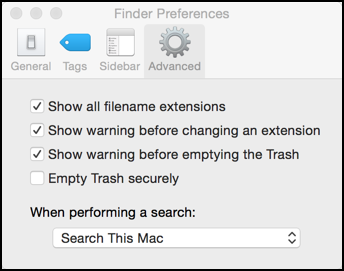
Go to Finder and open Preferences, Advance, "show all file extensions"
Instructions to disable SSL v3.0 in Oracle JDK and JRE
Applies to
Starting with the January 20, 2015 Critical Patch Update releases (JDK 8u31, JDK 7u75, JDK 6u91, Oracle JRockit 28.3.5, Oracle JRockit R27.8.5, and above) the Java Runtime Environment has SSLv3 disabled by default.
Oracle JRockit 28.3.5 and R27.8.5 users - please follow the instructions for Java 6 users.
Refer: http://www.oracle.com/technetwork/java/javase/documentation/cve-2014-3566-2342133.html
The blue tooth keyboard for the Mac does NOT have an escape key. So use the key combination of the fn + [home] to get the equivalent of the [Esc] key instead.
Seems like default settings stopped working and the default RDP needed to be set for Windows 7 to connect properly.
