
Toggle on/off Microphone Ubuntu

Refer: https://www.mankier.com/1/pactl#Commands-set-sink-input-mute

To Mute Microphone

pactl set-source-mute @DEFAULT_SOURCE@ true;alert "microphone muted"

To Unmute Microphone

pactl set-source-mute @DEFAULT_SOURCE@ false;alert "microphone live"

Refer: https://askubuntu.com/questions/26068/how-do-you-mute-from-the-command-line

To mute Speakers

pactl set-sink-mute @DEFAULT_SINK@ true

To unmute Speakers

pactl set-sink-mute @DEFAULT_SINK@ false

Refer: https://www.linuxquestions.org/questions/linux-desktop-74/how-do-i-toggle-the-microphone-with-a-command-or-with-autokey-4175654480/

To Toggle, you need to find the right value for N, just start at 1 and increment

pactl set-source-mute N toggle
pactl set-source-mute 2 toggle
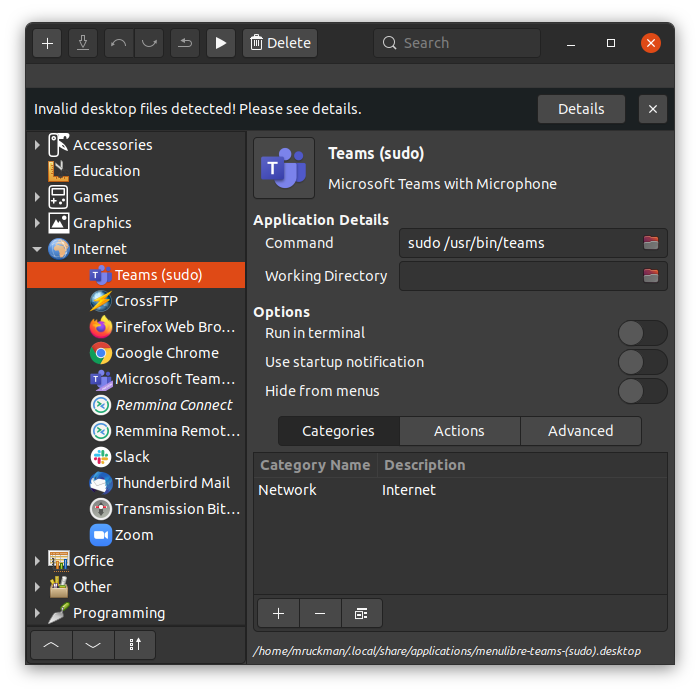
Getting Teams to Work on Ubuntu

There's an issue getting the microphone to work out of the box on Ubuntu 20.04 and teams.  The microphone works but NOT the internal microphone.  It has to due with security and it seems like it's using the default browser's security settings.  The solution for now is to start Teams with sudo.

Create a Menu Entry for Teams as Sudo

Refer: https://www.tecmint.com/run-sudo-command-without-password-linux/

Allowing sudo for a program without a password

$ sudo visudo

At the end of the file, add the following, and save it:

mruckman ALL=(ALL) NOPASSWD: /usr/bin/teams

Install Yeti Microphone on Ubuntu 18.04

Basically you just need to get into sound settings and use Yeti for input and speakers for output.   18.04 seems to recognize it right out of the box now.

Refer: https://www.omgubuntu.co.uk/2011/12/how-to-set-up-blue-yeti-mic-in-ubuntu